


 If you have not noticed, many Tech How-To's tell you that Windows low disk space warning pop-ups are annoying and the best solution is to disable the notification. For the most part I agree, it is annoying, but I don't agree with just disabling the notification warning.
Why? Because there is good reason to the low disk warnings triggering the notification that could potentialy lead to loss of data or cause Windows to shutdown an important component.
The obvious reason for the warning is becuase you are low on disk space. But the Windows monitoring component that's causing the notifications is the SRService, known as System Restore Service. Not just an annoying notification Microsoft want to irritate people with.
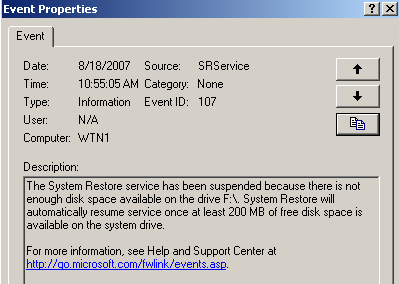
As sometimes controversial as System Restore service can be, it is a usefull tool that can be used to restore your computer to a previous state due to harmfull changes such as a virus, spyware, or if the installation of software causes more trouble than it's worth.
Additionally, the operation of Windows can be effected, such as expanding the page file if there is not enough space available.
From the above screen shot, no matter how many logical drives or partitions you have, when disk space dips below 200 MB of free space on the drive, Windows suspends System Restore not just on the drive that is low on disk space, but on all drives. Including the System drive.
If you do not free up disk space on the drive, the next set of warnings occur at 80 MB and 50 MB thresholds with frequency of notification messages increasing each time. In order to compensate, Windows now needs to free up disk space by deleting previous restore points based on a calculation.
If you continue to use up the remaing space, no current restore points are created. With out restore points available, you will not be able to restore back in time if needed.
Once free disk space reaches 200 MB, Windows enables System Restore service and stops sending the notifications (any previous restore points that Windows deleted are permanently lost).
With low disk warning notifications disabled, you will never see the balloon pop-ups, unless you check the System event log, which many home Window users don't do or know how to view the event log.
NOTE: To view Windows Event Logs, click on Start \ Run and in the run box type eventvrw and click OK.
An Alternative Method
If you insist on disabling the low disk warnings, you need to provide an allternative solution for having Windows alert you when disk drives are low on space. I have not found a decent freeware solution yet (if you know of one, let me know!)
There are many software products available for a price, two of which are pretty good.
Space Patrol (JD Designs - $14.24) runs on all versions of Windows (including Vista) and allows you to set low disk space thresholds to any value you want. Installation is simple and configuration is easy. During the trial period settings are lost once you loggoff or shutdown Windows and will need to be reset at each logon. Once you purchase a license, settings are retained.

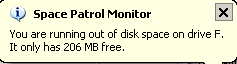
Notifications of low disk space appear as a balloon pop-up, alerting you of which drive and the amount of free space available. Space Patrol starts monitoring when you logon to Windows.
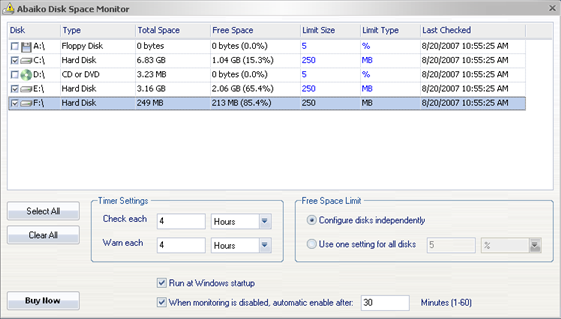
Abaiko Disk Space Monitor (Abaiko Software - 14.95 for Personal License) runs on Windows 2000, XP, 2003 or Vista. 30 day trial is available.
Installation and configuration is simple. Disk Space Monitor gives your more control with settings by allowing you to select low disk space thresholds in Bytes (KB, MB, GB) or as percent. Additionaly you can modify the frequency for checking disk space and warning notifications.
Notifications of low disk space appear as a balloon pop-up, alerting you of which drive and the amount of free space available. Disk Space Monitor starts monitoring when you logon to Windows.

Both Space Patrol and Disk Space monitor do a nice job of minitoring disk space and should be a nice alternative for disabliing Windows low disk space notifications. Each product provides support on their web sites.

Comments on Why Disabling Windows Low Disk Space Warning Notification Can Be A Mistake
I have to say that the low disk warning that comes with Vista shoul be able to have an option to disable to low disk warning for certain partitions. Furthermore it should also have support to configure when to alarm.
What's a real pain for me is that I use a seperate partition for my swap drive and allocate 20GB to it, then windows comes along and tells me it's low. This is rubbish, the swap is a fixed size and I will never put anything else on it. I've got two of these partitions on two seperate drives and windows bugs me about them all the time.
I also have two linux partititons mounted which are configured in a way that they use the optimum amount of space within the linux world, this means they have as littls as 40-50MB available. Windows still complains about this. What's worse is the disk cleanup tries to empty the Recicled Bin on them.
In short I think the low disk space thing is a stupid idea, as is having a single partition for everything on a 1TB drive.
What a waste of time.
I can't believed I wasted 10 minutes of my life reading this article and yet you never explained how to disable the darned popup.
@ME
Obviously you did not read the title of the article.
Although I agree with you, as previously stated their are reasons that a single drive or partition should be turned off. In my case, on an HP computer, the restore is on the "D" partition. The only way to turn off low warning is to hack the registry and turn it off for all drives, Hate to do this but it drives me nuts! Another halffast wonderful improvement by Microsoft. If any one finds a soultion that just turns off one drive or partition Please Post.
at this point I have removed as many programs as I possibly can and all the files that I can, but I still keep getting the message…is there a trick to freeing up space????
Hey!!! Today Abaiko Disk Space Monitor is free!! Here: http://www.giveawayoftheday.com/abaiko-disk-space-monitor/
Hurry up!!!
Actually, it is a headache when encounter "low disk space" warning. However, we can solve this problem with some partition utilities.
For example, Partition Magic which made by PQ is a computer program for partitioning hard disk for Windows 7/vista/xp.As a Partition Magic alternative, Partition Assistant is also good choice. It is available for both Home and Server users.You can free download via http://www.extend-partition.com/download.html and check how it works!
@James Miller: Partitioning won't stop the warning, in fact I've found it exaggerates the problem as stated above. I found that going to Windows 7 brought too many more frustrations like this that I've stopped using windows altogether. I wish Microsoft would think about their solutions in a broader scope instead of very narrow minded implementations.