


 For many Windows users who made the jump to Ubuntu, using Nautilus file manager to manage documents, files and directories (folders) will probably be one of the primary application most used.
And just like using Windows Explorer, you'll want to know all the shortcuts available when using Nautilus, One of them being 'Open as administrator'.
By default this feature is not installed during installation, but you can quickly add it to Nautilus right click menu in no time.
As always, there are two ways to install packages when using Ubuntu. For Windows users, who prefer to use GUI applications, we'll use Synaptic Package Manager.
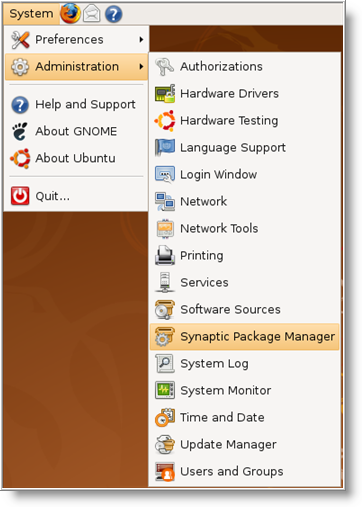
- Click on System \ Administration \ Synaptic Package Manager from the top panel menu (when prompted, enter your password and click OK ).
- Now click on the Search icon on the toolbar and in the Search field enter nautilus-gksu and click on the Search button.

- When the package has been found, click on the check box and select Mark for installation .
- Then click on Apply (green check icon) on the toolbar, and in the pop up window click the Apply button to confirm the changes.

- When the installation has completed, close Synaptic Package Manager.
Now, open Nautilus by clicking on Places \ Home Folder from the top panel menu and right click on any directory (folder).
You should now see Open as administrator .

Be careful, you'll now have root access (similar to the Administrator account in Windows).
NOTE: If you do not see Open as administrator , restart GNOME by pressing CTRL+ALT+BACKSPACE on the keyboard.
Installing Using Terminal Window
For those of you who rather use the command line to install packages, just open up Terminal Window by clicking on Applications \ Accessories \ Terminal .
Once the window opens, copy the following command to the prompt and press Enter (you will be asked to enter your password when prompted):
sudo apt-get install nautilus-gksu
Once the installation has completed, enter the following command at the prompt to restart Nautilus process:
killall nautilus
After running the above command, Nautilus will open automatically. Just right click on any directory and you should now see Open as administrator .
Want more Ubuntu Tips? Check our Ubuntu Guide For Windows Users series.

Comments on Ubuntu Tips For Windows Users: Add Open As Administrator To Nautilus Right Click Menu
Hello!!!
I'm a 53 year old male who first got interested in the computer world three years ago. I started learning bit by bit and it has been quite time consuming… first because there is such abundance of sites, all sites were not suitable, secondly: this system of referring to links that refer to links that refer to links drives me really crazy, thirdly i tend to forget very easily whatever I have studied and that means I have to read and study the same things all over again multiple times. I discovered your site last year and I think you are just fabulous!!! you know what we newbies require and your tutorials are absolutely spot on. I have learned so much and continue to do so. Your site is also used as a perfect reference treasure cove! Thank you so very very much for your wonderful efforts. Please keep up your excellent work and keep teachimg me and my likes.
Have a fantastic day!!!
…anwar…
@ANWAR KEMA
Thanks Anwar, I appreciate the comment.
Thanks for the nice post dude. It helped me a lot!!
this does not seem to work on Ubuntu 11.10
Apparently I am the only person in the world who can't get this to work.
I never hear of anyone else having problems with this.
I installed gksu already, no 'open as administrator' option is showing for me! :/