


 Ever have the need to change the program or application that a file type is associated to in GNOME? If so, you can easily make the modifications in Ubuntu (or any Linux distribution).
To do so, open up Nautilis (click on Places in the top panel menu then open your home directory) and find the file type that you want to change the association.
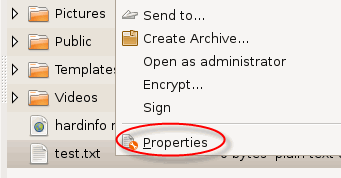
In the example below, say you wanted to change the default association for .txt files, which is GEDIT to another program. To change it, just right click on the file and select Properties.
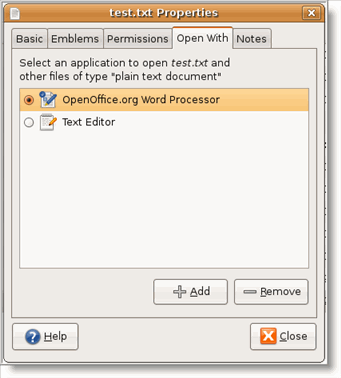
Next, select the Open With tab, then select the program from the list by clicking on the radio button next to the program. Click on the Close button to save the setting.
If the program you want to use was not in the list, click on the Add button at the bottom, then in the Add Application dialog window, select the program you want to use from the list.
Notice that you can also click on the arrow icon next to Use a custom command (circled in above screen shot) and browse anywhere on your computer to select a program. You can also add custom command parameters to the program executable when launching the program.
That's it. The next time I double click on a file with a txt extension, Open Office Word Processor will open. Later if I wnat, I can go back and change it to the default aplication which was GEDIT using the above steps.

Comments on Ubuntu Guide For Windows Users: How To Change File Type Associations
great! thanks for the info.
Ubuntu isn't Microsoft, so we should expect things to be different. Guides like this really help in making the transition. Thank you.
this was good information and I did get this to work on most of my FileAssos
but… I could not seem to get this too work with my Blender programs…
I origonaly installed blender 4.49b through UbuntuSoftwareCenter… the Orginal FileAsso was made there… but now I'm using Blender 2.54beta… an can't get Ununtu to make the proper FileAsso… I was not able to use the Software Center to install Blender 2.54 I'm simply running it out of a folder in Home/Apps(I made this folder myself)/Blender-2.54-beta-linux-glibc27-i686(which is the downloaded folder I got from the blender website)
Understand… I can Run Blender 2.54 buy running the blender executable file in that folder were it is at… So what I'm not understanding is why unbuntu is not make that same connection…
Thanks for any info on this you can give
The system-wide file associations are stored in /usr/share/applications/defaults.list
The file associations created by each user are stored in ~/.local/share/applications/mimeapps.list
Each association is stored in a .desktop file. For instance, if I create an association for .info files, mimeapps.list will add a line like:
application/x-extension-info=userapp-gnome-terminal-DR3APV.desktop;
(It reads "userapp-gnome-terminal…" because I used a command line that begins with "gnome-terminal"; see below)
The "Custom command" you enter during association creation has an " %f" argument added automatically to it, representing the file being opened. Things get tricky if you want the "%f" elsewhere than at the end. For instance, if I enter the following custom command for .info files:
gnome-terminal -command="info %f"
The .desktop will store this line:
Exec=gnome-terminal -command="info %f" %f
The additional %f is ignored by gnome-terminal, but this may not be the case for other applications you may use in the custom command line. Your best bet may very well be to edit the .desktop Exec line after creating the association.
You can use the occasion to change the name that appears in the contextual menu. In our example, the menu will read "Open with gnome-terminal". To change this, edit the Name line in the .desktop file. Thus:
Name=info
Will make the menu read "Open with info". This Name is also the one used in the list of applications shown by the "Open with…" dialog.
Beelissa @ 7:46 pm
Wow, thanks, this is exactly what I wanted to know. Great screen shots!
Daniel U. Thibault @ Thanks for the helpful info…..
I'm having some trouble find this file…
~/.local/share/applications/mimeapps.list
what I did find was ~/usr/share/applications/mimeinfo.cache
is that the same file?
(I"m using Ubuntu10.4) Which by the way does not display a "Custom" window to enter any kind of a special terminal commands…
What it does do is give a list of all applications… however just as I described… I did not 'install' Blender 2.56… I merely downloaded it, unpacked it into a folder and made a link to it's executable file…
Also I kind of have an inkling that what is needed is some Blender associative files in these locations you've named however how to create those and were all to put them… being new to Using Linux full time (almost a year now of usage) I simply have not had time to get failure with it all… (it does remind me a lot of old AmigaDos however.
The tilde (~) means the /home/username folder, so you should look for ~/.local by going to your home folder (if your user name is "Steve", then that folder will be "/home/Steve"), turning on the display of hidden files, and looking for ".local" (the leading period makes it hidden). I very much doubt you have a "usr" folder in your home folder.
For those reasons I do not think you found the same file at all. 🙂
aaaah… okay… I see…
Okay so I open the mimapps.list file and I edit that?
that is to say I add a line that says something to the effect of …
(I'm not sure what it should say…)
I'm still a little lost here…
let me add some information…
when I double click on a .blend file (which is the type of file that blender creates)
I get the following message…
***Could not display"/home/norvman/111_BlenderWork…oket/ArrayedSproket_017.blend.
There is no application installed for Blender scene files***
if I then click on the "select Application" button
it gives me long list of all the Apps on my Ubuntu install but Blender 2.56 is not on this list…
So perhaps the more proper question to ask then is Why is Blender 2.56 not on that list and how to get it on that list?
again… I did not "install" Blender 2.56 thru Ubuntu Software Center nor did I use Synaptic Package Manager… I merely downloaded the Blender 2.56 files, unpacked them into a folder and made a link to the main executable file to a desktop icon…
but that has obviously left the file associations disconnected…
perhaps this is an off topic problem now… ?
Any suggestions are appreciated.
First step is to find the Blender app. If it is named "blender", then asking "whereis blender" will return its location *if* it lies on the PATH. As long as it is in the path, you need only invoke "blender" (no need to give a full path). If it is not on the path, add its path to the path environment variable. To find blender, use "sudo find / -name blender".
As https://help.ubuntu.com/community/EnvironmentVariables shows, you then add the path you found to /etc/environment through "sudo gedit /etc/environment" by adding (at its end) something like "PATH=$PATH:/blender/path".
Another way, perhaps more elegant, to get blender "on the path" is to add a link to the blender app somewhere in the pre-existing path —typically in /usr/bin or /usr/local/bin.
(Use gksudo instead of sudo if it is installed; it is more GUI-friendly)
I think that once blender is on the path it'll show up in the list of possible applications to associate .blender with.
Okay … even though I'm very very lost on the whys and whyfores…
typing in whereis blender returned this…
blender:
so I assumed that was all the file path I needed….
so I then typed in PATH=$PATH:/blender/path just as in structed… in the terminal window…
I then went over and tried opening a .blender file… and I got the error message just as before except this time I typed in PATH=$PATH:/blender/path into the "custom" entry field and tried opening a file and sure enough Blender did suddenly start opening it's own files…
Thanks for the Great Information!!!
I am steadily falling in love with Linux!
If whereis returned a blank line, it's because it did not find blender on the path. For instance, on one of my systems if I ask for eclipse's path, I get
eclipse: /etc/eclipse.ini /usr/lib/eclipse /usr/lib64/eclipse
Note how the non-executable file "eclipse.ini" was also found and returned. If eclipse had not been found, maybe because it had been installed as, for instance, /home/daniel/test/eclipse, I would then add /home/daniel/test to the path. My example of "/blender/path" was meant to be replaced by the actual path to the blender executable.