


 For Windows users trying out Ubuntu, one of the first things you will notice with the GNOME desktop is how icon-less it is. Most Windows users are familiar with many icons on their desktop, including the default icons - My Computer, Network and The Recycle bin.
Even though those icons have different names in Ubuntu such as Computer (My Computer), and the Trash Can (Recycle bin), you may still like to have them on the desktop for the added functionality of drag and drop and the ability to easily access network and mounted drives.
Adding these icons is simple. Here's how to do it.
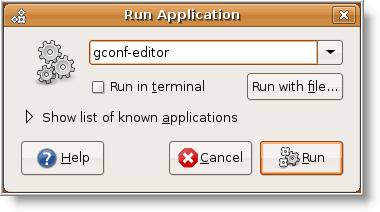
Open up the Run dialog box by pressing ALT and F2 keys, then type gconf-editor and click on the Run button.
(If prompted, enter your password to proceed).
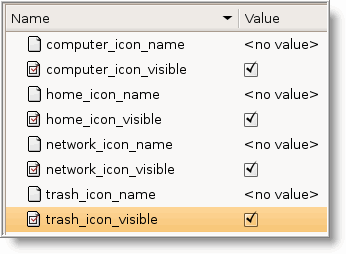
Once the GNOME Configuration Editor opens, navigate to the apps / nautilus / desktop from left menu. Then on the right hand side, you can enable the icons you want visible on the desktop by checking the box next to the item.
For example, I have check:
- trash_icon_visible
- computer_icon_visible
- home_icon_visible
- network_icon_visible
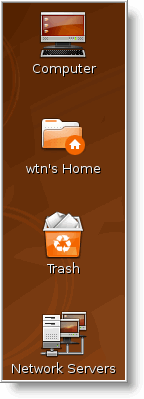
After making your selections, close GNOME Configuration Editor. Now take a look at your desktop and you should see the icons that were selected.
That's it. Now you'll have the same familarality with Ubuntu as you have with Windows.

Comments on Ubuntu Guide For Windows Users: Add Computer Network And Trash Icons To Desktop
Thanks for that but this is a prime example of why Windoze users like me find it hard to stay with ubunutu/linux alternatives.
It's just not gui enough for the people who don't have a solid upbringing in linux. Since M$ moved away from the command line they've reaped the rewards - this is something that linux is VERY slowly doing. Desktop modifications need to be graphical from the outset - no ALT-F2'ing or SUDO'ing etc. That GCONF Editor looks like a Windoze REGEDIT window (somewhere normal users dont go)
But thanks for the explanation anyway 🙂 - always nice to see someone helping.
Another great pointer to better use.
Error stating file '/home/avinashasharmap/gconfi-editor': No such file or directory:(:(:(
Am a new user and I can't able to set up my desktop
@Avinasha Sharma: U are mistaken. linux needs to be absolute atleast in commands and params. Its not gconfi-editor as u typed. Its gconf-editor.