


 One of Linux strong points over Windows is the capability to switch desktops. Several exist, but the two most popular are Gnome and KDE. For Windows users, KDE will have a familar Windows XP feel, while Gnome may seem dull.
If you have been using Ubuntu, which uses Gnome as the default desktop, or Kubuntu which uses KDE as the desktop, and have been wondering what the other desktop looks like, you can easily install KDE or Gnome and switch back and forth before logging on to Ubuntu.
If you are running Ubuntu, you can install KDE by opening a terminal window and type:
sudo apt-get install kubuntu-desktop
When prompted, enter your password, and then answer yes (Y) when asked if you want to install. The install may take some time to complete, so be patient.
To install Gnome in Kubuntu, open a Terminal window and type:
sudo apt-get install ubuntu-desktop
When prompted, enter your password and continue with the install until it has been completed.
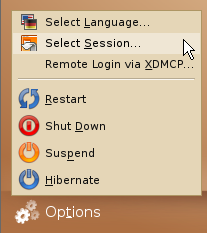
Now reboot either Ubuntu or Kubuntu. Then at the logon screen you can either press F10 or click on the Options logo at the bottom (left side) of the login screen. Then click on Select Session…
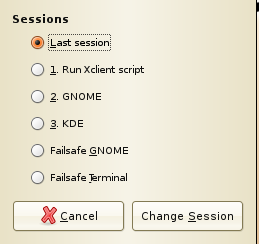
Here you can select Gnome (2) or KDE (3) by selecting the radio button.
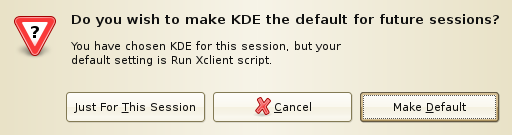
During the next logon, you will see a prompt asking if you want to use the same desktop manager Just For This Session or Make Default (so you don't have to be bother with the prompt again).
To change back to either KDE or Gnome, press F10 and select the desktop manager of your choice.
If you changed from the previous desktop manager, you can make it the default at the next logon.

Comments on Switch Between Gnome And KDE Desktops In Ubuntu Or Kubuntu
Perfect information. Very well explained. Exactly what I was looking for quite some time. Thx a lot and thumbs up for BlogRush. 🙂
Thanks, now that I've determined that Gnome sucks, how do I get it off my system?
h"Now reboot either Ubuntu or Kubuntu."
I really don't understand what you mean, Why should you reboot? That's not nesessary, just logout and login again using different desktop. Actually it's not even nesessary to logout, you can start a new X-session, which can be full screen or nested in window. You can also run Gnome apps from KDE-desktop and KDE apps from Gnome-desktop. All you need to do is install both gnome and kde. Nothing of what I said is ubuntu related. This is how X works no matter which Linux-distro you use.
I really don't understand why there must be Ubuntu (Gnome), Kubuntu (KDE) and Xubuntu (XFCE). In Debian and in most of the other distros too you just install desktop you want and then you use it.
And by the way. Those screenshots are from GDM (gnome display manager). There is similar for KDE (kdm). Usually you don't need to worry about that but if you use mostly KDE you might want to replace gdm with kdm. Again this is how it works no matter what distro you use. So if you someday try another distro this tutorial mostly applies for it too. Only the command/package name which installs kde/gnome will be different.
@miksuh
You just described Linux. A bunch of ways to do the same task. There is no wrong way to do it!
When I did this, FYI, from Kubuntu, the installer actually asked me which manager I wanted to use by default during the install of the package.
This is helpful IF you have to login. I set up my system some time ago such that it doesn't require me to login since I am the only user. Now, I cannot figure out/remember how to force a login, thus I cannot change between desktops. Please help 😉
@Jim
This should help you remember 😉
http://www.watchingthenet.com/how-to-enable-automati-logon-in-ubuntu-or-kubuntu.html
hey, thanks heaps, i just started using ubuntu. one thing though, when you do it and enter that code (for newbies here) just go Applications, Accessories, Terminal. and also when it asks you to enter your password it's exactly the same except you cant see what your writing. just punch it in and press enter
Me also not understand why we have Ubuntu (Gnome), Kubuntu (KDE) and Xubuntu (XFCE) ? I know only one fit in one CD. Why just make cd ubuntu-kde, ubuntu-gnome, ubuntu-xfce ?
Great!!! It helped me a lot. Thanx!
If, like me, you can't even get Gnome working (fresh Wubi install and I've spent the last 4 hours slaving over a hot command line 😉 you might need to do an apt-get update before you can even FIND the kubuntu-desktop package.
I can confirmed that there were too many unresolved dependencies, at least under Ubuntu 6.06 . This was a nightmare and even trying to satisfy the dependencies hammered the system. I am now preparing a reformat, after attempting this, BE WARNED!
@Mark - Try updating your outdated Ubuntu OS, of course it caused problems! We're all mostly on 8.04 or 8.10 and you tried with 6.06?
KDE and Gnome are only window interfaces to Linux a sort of 'front end' display - in Ubuntu, gnome is most like Microsoft XP, KDE is more like unix. Both have their good and bad points, so for new users of Linux, it may be a good idea to try both. First, you have to load both (there are lots of posts about how to do this)Thereafter KDE will run Gnome applications, and Gnome will run KDE applications (both sorts appear in the 'applications launcher of either) or either sort of application can be run from the dreaded 'command line' The easiest way to swap between the blue KDE desktop and the usual orange Gnome display is via the login window go to in the bottom left.
Some tasks require a bit more skill, and require 'old fashioned' command line entry (usuakkl Alt-F2, or an application such as Terminal or my favourite, Konsole). Here Ubuntu offers both super-user access and sudo (super user - DO), which allows users to perform some super-user tasks. For this, I find that KDE is best, because Konsole allows 'clipboard cut and paste' (e.g. from internet posts like this), but only using the right mouse button (this is a bit awkward at first, as you can not paste anywhere but at the end - it is not possible to paste in the middle of a part-entered command).
Finally, Linux environments may be cash light, but they can be labor intensive and challenging to master. So back-up your work regularly, and do not be afraid to play. Remember though that super-user is scary, and try not to use it unless you HAVE recently backed up somewhere safe - like a memory stick or USB disk that you can unplug!
I've determined that I don't like one of the Managers, How do I remove it?
Great post bro..
Really nice and interesting.
Thanks
Removal of Gnome (example):
sudo aptitude remove ubuntu-desktop
you know what all these tutorials need? how to UNDO everything you just did.
i installed gnome in kubuntu 9.10, and immediately it took out wicd and removed my audio driver. i reinstalled wicd, but now my connection is SLOW. i uninstalled gnome, but my audio driver is still not working - instead i'm stuck with pulse, and now every time i click a button in browser there's a stupid sound that i can't get rid of.
thanks a million for your HELPFUL tutorial.
@james:
Perhaps the theory of backing up your data before fiddling with your system is unknown to you?
Your attitude stinks. Don't blame the tutorial for your own short-sightedness. ALWAYS backup before making huge system changes. And you can't say installing an entire desktop enviroment doesn't count as a huge change.
There are several options and warnings, dialogs and logfiles availble on your system that will highlight the preposed changes before the package installs, and list the changes made afterwards. Using thse, you may be able to correct your system. Of course, a backup beforehand would be easier to restore, but well done for your forward thinking, hm?
I would give more details to you about how to diagnose/correct your problems, but I'm sure you would appreciate my HELPFUL advice anyway.
To other users, be warned. Backing up is not as time consuming as one may think. Most people can have backed up in the time it has took to search for, and read these guides. Researching beforehand is good, and backing up in the meantime is better.
i'm new to ubuntu but what he explained all made sense to me
thank u
What is the name of the file that you can create to set either the GNOME or KDE at the default when you login? And do you know the line that you would enter into the file to set as KDE as default?
@ME: I'm a Linux noob, but I believe the file you're looking for is /home/[user]/.xinitrc
hey , i just switched from kubuntu kde to gnome , i like gnome better, and it was the only cd i had laying around , but now it wont take my root password , kicks it back in gnome every time… wtf ?
@miksuh:
When you don't log-out & you only switch to another user(s) The user will have error when trying to open and run commands via.Terminal as so:
Access denied ( IT'S 'being used by another ). So yes the user does have to 'sign-out'.
Beautiful step by step tutorial. Thank you for your help.
Thank you this tutorial was helpful for me in switching over to gnome desktop since I had installed the kubuntu setup.