


 If you have not noticed, after creating Virtual Machines (VM) in VMware Server, the new VM is added to the end of the inventory list when viewed in the Console. VMWare does not sort the list at any time and you are stuck with a list that may not be to your preference.
Fortunately there is an easy way to re-sort the list that will allow you to group, list Virtual Machines in alphabetical order or display them in any order.
In the screen shot below, I recently created two Virtual Machines named WTN2_Ubuntu and WTN5_W2K which appear at the end of the inventory list.
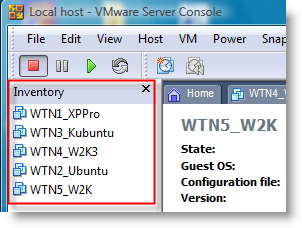
To re-order the list, the file vm-list file needs to be edited.
1 - Close the VMWare Server Console
2 - In Windows open a command prompt (Start \ Run…) and enter the following command:
NOTE: (virtual machines do not need to be stopped)
net stop "VMware Registration Service"
Linux systems do not need to stop any deamons.
3 - Make a backup copy of the vm-list file, before editing (Windows users can use Notepad and Linux users can use VI or any editor of your choice).
In Windows Vista the file can be found in the following folder location:
C:\Users\All Users\VMware\VMware Server
In all other versions of Windows (XP/2000/2003):
C:\Documents and Settings\All Users\VMware\VMware Server
In Linux:
etc/vmware/vm-list
NOTE: if you can not find the file, search for vm-list to locate it.
When editing the file, order the VM's to your preference and make sure there is a carriage return after each VM entry (otherwise the VM will not appear in the inventory list).
4 - In Windows restart the VMware Registration Service:
net start "VMware Registration Service"
Now when you open VMWare Server Console…
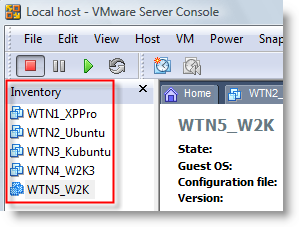
…your VM's will be in the order that you chose, instead of VMWare preference.

Comments on Change The Inventory List Order In VMWare Server Console
Ram Sambamurthy @ 12:02 pm
Thanks a lot. Like the typical idiot, I've been doing it the hard way of removing items in the inventory and adding them back by opening VMs in the order I want.
Next, how do we switch between virtual machines using the keyboard?
The method of switching to full screen as given in the Help file is lousy since I don't want to work in full screen mode.
@Ram
Try using:
Ctrl-Alt-Tab - Switch between active virtual machines while the mouse and keyboard input are grabbed
Ctrl-Tab - Switch between active virtual machines while the mouse and keyboard input are not grabbed
kenial @ 11:32 pm
Thanks it did simply!
Luke @ 9:33 am
Is there any way of splitting the guests in the inventory into groups?
Clyde Crashcup @ 4:49 pm
The reordering of the Inventory list works nicely, but I really want to reorder the tabs - any suggestions for how to do that?
rrutia @ 6:45 pm
it worked. But please note it was in a different folder "Application Data"
C:\Documents and Settings\All Users\Application Data\VMware\VMware Server
Costin @ 10:19 am
Step 4 for linux: run "pkill -HUP vmware-serverd"