


 With Microsoft Outlook 2007, a previous feature in earlier versions of Outlook known as Auto Text has been re-named to Quick Parts. This feature is a favorite to many Office users and can save time when composing messages which allow you to reuse pieces of content including fields, document properties, or snippets that you have created.
To use Quick Parts in Outlook 2007, Open Outlook and click on New \ Compose message from the toolbar or use the keyboard shortcut Ctrl+N.
Type any text or phrase that you use frequently and want to reuse, and highlight it.
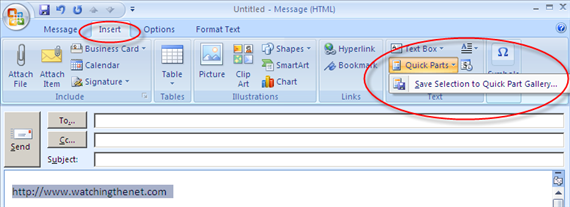
From the menu, click on Insert then select Quick Parts \ Save Selection to Quick Part Gallery in the Ribbon.
In the Create New Building Block pop up, enter a name and description (do not modify the Gallery field) and click OK to save.

Now when you want to reuse text that you saved to Quick Parts, just place the cursor at the location in the message you want to add text, click on Quick Parts in the Ribbon to open your saved selections, and click an item to be added.
If you need to edit or delete a saved selection to Quick Parts, you must use Word 2007. Make sure you close Outlook before proceeding.
Start by opening Word and open the NormalEmail.dotm file found in %appdata%\Microsoft\Templates folder.
From the menu, click on Insert then select Quick Parts \ Building Blocks Organizer from the Ribbon.

In the Building Blocks Organizer window, click on the Gallery column circle in screen shot below) to sort alphabetically and scrolled down to you find Quick Parts.

At this point locate the text you saved in Outlook, highlight it and you can either edit by clicking on the Edit Properties button (at bottom) or delete it by clicking on the Delete button.
When finished, click on the Close button, then save the NormalEmail.dotm file before exiting Word.

Comments on Save And Reuse Frequently Typed Text in Outlook 2007 With Quick Parts
You are also able to assign keyboard shortcuts to quick parts http://blog.pnbconsulting.com.au/?p=66
lomaxx - Awesome tip with the keyboard shortcuts for Quick Parts!
Auto-text was better because you could just give the autotext a nickname and save it. When you wanted to use it you could start typing that nickname and Outlook would recognize it was an autotext with a little box above and you would hit enter if you wanted to insert it.
Okay, but what if your whole office is on the same Exchange Server, and multiple people try to use Quick Parts or other things that will alter the NormalEmail.dotm? We all keep getting error messages and the Quick Parts I have entered are all lost the next time I open Outlook.
Hi there
I have just started using Outlook 2007 and am having the problem of losing Quick Parts when I open Outlook. Were you able to get an answer to fix this.
Kind regards
Kerri-Anne
I agree with Katy — it's a pain to have to find the Insert tab, click it, then find the Quick Parts icon and click that, then select the Quick Parts text I want. It was much easier just to start typing it. And why is all the text so tiny? Does Microsoft hate users over 40?
keyboard shortcut for Quick Auto Text key is: ALT-F3
then just click F3 to insert the quick text that you saved
You can start typing the name of the quick part, and press F3, and it will autofill the quickpart.
@Katy: Just start typing the quick part name and hit F3 button