



Sure, you can add a new panel and rebuild it by adding the items back on the panel.
Instead of going through the trouble, there is an easy fix that will restore your panels back to their default settings quickly.
Open up a Terminal window, by clicking on Applications \ Accessories \ Terminal.
Or, if you deleted the top panel and cannot access the menus, just press ALT+F2 and in the run dialog box, type gnome-terminal then click on Run.
You can also browse for applications, such as Terminal from the Run window, by clicking on the arrow icon next to 'Show list of known applications" and browse for Terminal.
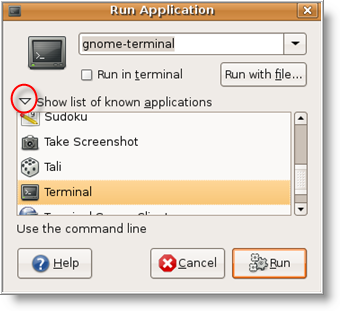
Once the Terminal window opens, enter the following command at the prompt:
gconftool-2 - -shutdown
Note: There should be no spaces between the two dashes before shutdown.
EDIT - Reader nickrud has suggested a better method instead of shutting down gconfd. Instead use the following command (thanks nickrud!)
gconftool - -recursive-unset /apps/panel
**Remember**: There should be no spaces between the two dashes before shutdown.
Then enter the next command:
rm -rf ~/.gconf/apps/panel
And enter one more command:
pkill gnome-panel
That's it!
Both top and bottom panels will appear (if missing) with their default settings. Now you can customize them to your preference and get on with using Ubuntu.
This method will work in Gutsy Gibbon (7.10) and Hardy Heron (8.04) version of Ubuntu.
Source: ethernal.org

Comments on Restore Panels In Ubuntu Back To Their Default Settings
I did what you said when i accidentally deleted my bottom panel.
The top panel resets and appears. but the bottom one does not appear.
and one more thing,
the command
gconftool-2 –shutdown
does not work it gives an error message
Run 'gconftool-2 -help' to see a full list of available command line options.
when used as gconftool-2 shutdown
does not give any error message
I use Ubuntu 8.04
@sankar
OOPS! There was an syntax error in the first command. Here is the command to use:
gconftool-2 - -shutdown
There should be no spaces between the two dashes before shutdown (Firefox has trouble displaying them without a space).
I have edited the article. Also this tip was tested on version 8.04 (Hardy Heron).
This worked fantastically. A million thanks!
thanx! this article saved me a lot of time for my friend,why not to write first command like it should be ?
gconftool-2 -shutdown
oops , i understood<sorry 🙂
Thanks alot!! I was puzzled for a couple of days with that one.
thank you so much!! Didn't work the first time, but after several tries, it worked out perfectly.
Thank you so much for this.
@Quyen
Glad to help out!
Wow, thanks a lot
It works~!
There's no reason to shutdown gconfd with gconftool -shutdown. gconftool is quite capable of pruning the tree while gconfd is running, use
gconftool -recursive-unset /apps/panel
Killing gconfd is not a very good idea. Most (if not all) gnome apps keep their settings there, and one of them may very well restart gconfd before you get a chance to run your rm command.
hm, I don't care much for the formatting of messages here 😉
it's
gconftool gconftool - -recursive-unset /apps/panel
( dash - no space - dash no space recursive-unset )
@nickrud
Firefox + site does not like dashes… ; -)
Thanks for the great tip. I have edited the article with credit for your suggestion.
Thanks. This helped me a lot.
This command doesn't work for me, I am using Ubuntu 7.10.
What's wrong with my Ubuntu 7.10
FMZ, try this:
In a terminal, run ps -A | grep gnome-panel , if you see it (meaning it's running), run:
alt-f2 gconftool -recursive-unset /apps/panel && killall gnome-panel
if you don't, run:
alt-f2 gconftool -recursive-unset /apps/panel && gnome-panel
nick's last post worked wonders… nothing else worked for me.. thanks nick.
it didnt work. no errors, just nothing appeared.
you guys were AH!, but genius AH, but if you want to help, pls dont make some confusions, well anyway thanks a lot guys, ive discarded windows in favor of ubuntu.
Thanks !!! I was so depressed before I found this article.
This method also works under 8.10. Thanks for this as it was much needed here.
Thanks for this tip.
One thing I wish to suggest is you make it clear that this will also reset both the top and bottom panels even if they have no been lost etc. Without explicitly stating this, the following statement, "Both top and bottom panels will appear (if missing) with their default settings" gave me the impression that if a panel is not missing it will not be reset to the default settings. I only wanted to restore my bottom panel (which I deleted some time ago). I did not want to reset my top panel, which I have greatly customised to the way I like it.
Again, thanks for the tip. I am happy I at least go the bottom panel back, and I'll now set about redoing my top panel.
Jonathan
thanks…worked like a gem for my 8.10….
thanks a lot for the tips, saved me from having to do a fresh install of e.p. on my eee (easy peasy is based on 8.10 [intrepid] iirc), the only problem i had is i had to put a space before /apps/panel e.g. gconftool -recursive-unset /apps/panel and it took me a sec to figure that out.
thanks so much! somehow I deleted my one and only panel and panicked for few minutes.
I thought we *can't* delete it to prevent this accident happened to me !?!
Anyway thanks a bunch.
sweet! thanks for helping out us noobs 😛
YESSSS THANK YOU SO MUCH!.
Thank you so much for this article. I messed up my panels majorly and wanted the default settings back, but didn't know what exactly they were.
Worked for me, thanks.
Thankyou good sir. You saved me a lot of worry and confusion.
Thanks a lot I spent an entire weekend trying to figure this out! Very well written article easy to follow.
tnx
for me it worked with just these 2 lines of code
gconftool - -recursive-unset /apps/panel
pkill gnome-panel
I am using Ubuntu Hardy 8.04.2, I press ALT+F2 but nothing happens…….I have read elsewhere on other sites to press ALT+F12 / CRTL+2 / CRTL+12 but none of these will open terminal or "run application".
I am truly stuck here….I can see my icons but have no panels. I can right click my desktop, open my home folder using ATL+home, open my "open directory" using CRTL+L.
Please help me….aaaaahhhhh I love Ubuntu but this is killing me.
@Craig Jacobs
Right Click The Desktop Click Create Launcher
in the command textbox type gnome-terminal
Give it the name Treminal Or Anything You Wish
click ok
Thats it you have a terminal shortcut on your desktop 🙂
Worked like wonders
Thanks for this..
I have confirmed this also works under Ubuntu 9.04 (Ibex)
I'm using an install of ubuntu which came with my dell mini 9. the system comes with 2 different ways of viewing the desktop, the classical version, and dells weird simple one. for some reason when doing this it reset the panels to the way they looked in the dell version and I'm not sure how to get it back to my normal settings 🙁
I had trouble with ubuntu because I was using my PC with a normal 19´´ screen and then I used my PC in a plasma TV, I changed the screen settings in order to see better resolution (I changed to 1200 x 900, then to 900 x 750 more or less). Then I changed again to the normal 19´´ screen but now I cannot see anything except the initial process when I turn on the PC (it apperas the "Press F12 to boot"…etc), then the screen comes totally invisible so I cannot use the PC anymore.
Can I restore the screen settings with the CD without losing my data?
Thanks!
Paco
Thanks a lot it worked!!!!
Is there something similar to reset the default movie player? I tried going in to system, preferences, preferred applications and clicking the multimedia tab and making sure totem was chosen. But whenever i play something it wont play in totem but in a new tab in my browser. I'm not sure what the heck I did.
Users of these steps will notice a disappearance of both top and bottom panels in Ubuntu while initiating the second step in terminal. Also if they minimize the browser window and terminal, these will seem to disappear. To bring back the browser and terminal, press the escape key while holding the alt key.
Thanks, I had deleted my custom panel on my second desktop while trying to customize it (because there actually was none originally) and couldn't even switch back to the main desktop anymore (I guess there is a shortcut, but I don't know it yet). Now I got both panels back on both desktops, which is actually an improvement from how it originally was ^^'
Right-click your media file, choose "Properties" and there should be an "Open with" tab (or something similar, I'm using the French interface). I would suppose that selecting the desired application there would do the trick (the modification is applied to all files of the same extension, like in Windows if you're familiar with that).
I started using Ubuntu two days ago, so it's the best advice I can offer; good luck ^^
This also works in 9.04 Jaunty.
Wow… thank you! I deleted this while a noob and have been unable to get it back to original! Thanks for the simple tip… I had no problems getting it to work!
bless you. saved my ass
I have 9.04 installed.
I uninstalled Evolution and after the reboot I dont have a taskbar with anything on the desktop - just the icons on the desktop?
I reinstalled evolution but taskbar did not return.
I have tried everything on here but to no avail…
please help
BB
Hi,
I went through this too today.
However . . . .
All those grateful thanks, but I can't see anyone asking how to prevent accidental deletion of panels. Is it possible?
Peter
Thanks… I used it and it worked perfectly…
You should write out a list of helpful terminal commands for download…
I'd download them all…
REallly thank you very much
thank you very much, thank you very much, thank you very much, thank you very much, thank you very much, thank you very much, thank you very much, thank you very much, thank you very much, thank you very much, thank you very much,
:*
This was a tricky one! After 2 years with Ubuntu, I finally managed to zap the bottom panel. I could recreate it, but not knowing the NAMES of what was originally there I was not a happy camper. Funny, when I 1st used gnome, I didn't like having top & bottom panels…now I wouldn't have it any other way! Thanks so much for posting this tip!
thanks… but it did not work until I changed the
rm -rf ~/.gconf/apps/panel
to
rm -rf ~ /.gconf/apps/panel
(I added a space after the tilde and it worked like a charm)
thanks, RJ
dud you are my hero thank you so much
I have the same trouble, it seems that steps above doesn't work on my Jaunty…what's wrong? I've already uninstalled compiz and set Desktop effects to none. And also, I'm getting frustated cuz Alt+F2 and Create Launcher by right click on the desktop couldn't work. Somebody, please help me!
It really helped. Very good and quick solution. Worked for me with Ubuntu 9.10
Thank you.
Working for Ubuntu NR 9.10, thanks
Thanks a million , you're awesome, saved me a reinstall!
Works with Karmic Koala too.
@cworkman: This worked perfect in ubuntu 9.10. Thanks a lot!
tnx. Saved me some work to restore.
Worked like a charm in ubuntu 9.10 although i only had to use 2 commands 🙂
thanks for this time-saving post.
Worked in 9.10 Netbook Remix as well, but
gconftool -recursive-unset /apps/panel
was enough. Thanks a lot, I already fell back to generate xml diffs for the different users to find out what to change.
Works perfect on Ubuntu 9.10 Remix indeed.
Only had to use: gconftool –recursive-unset /apps/panel
worked first time on Ubuntu 8.10… many thanks for the info
YAY! it works in 9.10 though I did have to figure out the correct order of spaces and dashes..
Thanks a bunch!!
Thank you VERY much. Ubuntu 9.04 (holding out until the bugs are worked out of 9.10). Deleted top panel, was surprised how much returned after doing this.
Thanks! I had added four or five instances of the weather applet, just for fun. The only problem was that half the time I booted up the panel was just blank. Resetting worked.
HOORAY! Worked like a charm, I killed my panel trying to help someone get theirs back (good thing I know some hot keys… and now I will create a few desktop launchers). We're both reset and ready to go back to tinkering!
Ubuntu 9.10 & 9.10 remix here.
Cheers!
@nickrud: hi. im new to this whole ubuntu/linux thingy. and i accidentally deleted my top panel. i tried what you guys said. it didn't work. im wondering if i put it in incorrectly. this is what i put. >>
owner@owner-desktop:~$ gconftool-2 -shutdown
owner@owner-desktop:~$ rm -rf ~/.gconf/apps/panel
owner@owner-desktop:~$ pkill gnome-panel
<<<
is that correct?
nevermind i tried it over and over and finally got it right! thnx
Works perfectly, Thanks a ton dude 🙂
THX dude!!!!!!!!!!!!!!!!!!!!!!!!!
you've solved my problem!!!! THX a lot my man! I really REALLY apreciate it!!!
Worked great! Thanks!
Legend! Worked a treat.
Thank you.
It works for me with 9.10 Kermic Koala. Thanks a lot, I was getting mad.
Thanks for this post… By accident, I deleted the top bar and I was going crazy wondering how to restore…
I searched Google and found this post and it worked like a charm… I am using 9.10…
Thank you…
I made the same mistake - on CentOS, 5.4
These instructions work a treat
(allowing for obvious or explicitly stated caveats)
thanks a lot. It worked. 🙂
thanks buddy
Thank you *so* much.
hi everybody
thanks…it worked perfect for me
thanks a lot …..it works fine ….
Running Ubuntu 9.10. I discovered all the problems where due to not typing it correctly on the terminal. Where you see the asterisk symbol * replace it with a space, and it should work. It did for me! Thanks a lot!
gconftool*-recursive-unset*/apps/panel
rm*-rf*~/.gconf/apps/panel
pkill*gnome-panel
Oops. I pasted the version that did not work for me, here is the correct sequence. replace * with a space. two dashes in front of the word recursive.
gconftool*-recursive-unset*/apps/panel
rm*-rf*~/.gconf/apps/panel
pkill*gnome-panel
Don't know why the two dashes are replaced by one dash when I post this. So I did not goof. I pasted directly from the Terminal the second time, but It still only shows as one minus sign, when there should be two! Weird??
thanks a lot. this works for karmic as well. 🙂
hmm…, one more question. for new user who's new and not familiar to Ubuntu and command line, is there any convenient way to do this in GUI? thank you.
Please correct the topic (two dashes):
gconftool -recursive-unset /apps/panel
Thanks!
#Hope the two dashes don't disappear as Merlin2007 mentioned above.
Ok, seems something wrong with webpage coding 🙁
i have ubuntu 9.10 i did everything here was written but the panel still doesn't apear…what should i do?
I made my panel disappear (auto-hide) behind my other one and now I can't make it re-appear. Any suggestions?
Works. Thanks Ubuntu 9.10 64 bit
It doesn't work for me nothing happens at all when i enter these commands:
gconftool-2 – -shutdown
gconftool – -recursive-unset /apps/panel
rm -rf ~/.gconf/apps/panel
pkill gnome-panel
I have ubuntu 9.10 or kubuntu 9.10
Someone has created a script
Here is the link…
http://www.starryhope.com/linux/ubuntu/2010/restore-the-default-panels-in-ubuntu/
It works! And when you run it, it looks and works like a desktop application.
There is another program that you can install in the Application, Ubuntu Software Center, called Lockdown Editor to prevent your panels from being accidentally changed.
it works!! tnks a lot!
instructor showed me how.
step 1: open up your home.
step 2: in your home click on view, then scroll down and put a check on hidden files.
step 3: find ".kde" folder and delete it.
step 4: log out, then log back in.
step 5: your desktop is set to default again.
Thanx for the help however did not work for me when tried to copy paste and run in a terminal. But the following 3 lines did the job:
gconftool-2 -shutdown
rm -rf ~/.gconf/apps/panel
pkill gnome-panel
Cheerz~
Omg thank you so much !!! haha! every day someone is saved by this thread!! 😀
It worked in 10.04.
I love you.
Thanks !!!!!!!!
i love u so much !!!!!
thank you very much for the help…
Thanks a lot for the post.
@Ahsanul: that worked for me!! thank you so much!
Thanks you, it saved me.
thanks, accidentally deleted both panels and couldn't figure out how to get it back, even after rebooting.
Worked for ubuntu 10.04 as well
i am not so sure if i made a huge mistake but.. my whole stuff in my laptop are gone as i used this process…. did i something wrong?
Thank you it works.
This avoids me to become a gnome expert
for this you have my eternal gratitude 🙂
Perfect! I love easy fixes!
It still works on Lucid Lynx, 😀
thanx a ton dude
Hi
I tried using:
owner@owner-desktop:~$ gconftool-2 –shutdown
owner@owner-desktop:~$ rm -rf ~/.gconf/apps/panel
owner@owner-desktop:~$ pkill gnome-panel
to restore my panel, it worked. BUT.
All my files have gone missing on my desktop, only by looking at my harddrive it seems like all my data is lost.
Is there any way to fix it?
Thank you for this helpful tip.
I've just carelessly delete my only panel in linuxmint isadora and this tip works flawlessly to get my panel back.
Thanks alot!
Thanks man, it fixed one thing but when I select 'Places' from the panel menu, I get an option to copy a CD/DVD, a panel with Select disc to copy (no disc available) then Select a disc to write to (image file) and the cancel option ? any help for a know nowt and thanks again, lost with out it !
I can still get to all my folders only not via Places drop down menu 🙁
Also your tip was applied to Ubuntu 10 Lucid Lynx 🙂
I just wanted to say it works and thank you very much.
10.04 x64 ubuntu.
You saved my day
When I click online the google screen covers the top and bottom panels so I can't see them. To go off I have to go into file and click quit.
This happened when I tried to make my google screen bigger by going to view and clicking on full screen.
From there I ended up deleting both panels trying to fix that. Thanks to this link I restored both panels but still can't get my internet screen to show both panels while surfing the net. Please help me this is very frustrating.
I found another site that said to go back to view and click on full screen and then hit F11. I tried that prior many times but I figured I would try it again. When I clicked on full screen it brought it down little again. I didn't even get to the F 11 part. Well it worked. The only problem is when I stretch it to make it fit the full screen it comes just a little short on the right side.
I then hit the up arrow at the left upper corner of the screen and then stretch it to fit but when I click off and come back it is back to being short on the right side. Well better that nothing.
Thank you, bro! It's really helpful.
Thank you very much. you saved my day ! 🙂
Thanks! worked perfectly!
Haha somehow I managed to delete every panel and reset the gui to default with nothing on so I would have been screwed, but I had a firefox window left open so I managed to do a google search to get this. Ty.
it is not working on my computer. it happend to me one time then i did this and some other things and it came back then now 3 days later it came off again. it was there wen i turned the computer off when i turn it back on its gone. i tried doing this so many times and nothing happens. when i try putting a space between ~ and / it says
rm: cannot remove directory `/home/r*****o': Permission denied
r*****o@R*****os:~/Desktop$
and its just waiting 4 me to put a command
HELP
please
ILHN try this link http://www.starryhope.com/linux/ubuntu/2010/restore-the-default-panels-in-ubuntu/
WOW! Works great, thanks!
thanks Huge help, I'm new to linux and this was a huge help
thanks a lot. worked on 10.04 as well. used nickrud's method.
Thanks guys and especially to Merlin2007 for the exact way to type in the commands.thanks a ton!!so glad to see the default panel back.keep up the good work…
you can (highly recommended) put those three commands in a file (ie: vi restoreDesktop) and then run the file with the line below:
. restoreDesktop
Simply futile to try it differently.
BTW, Thanks a lot! It worked for me!
user@portal:~$ cat restorePanel
gconftool –-recursive-unset /apps/panel
rm -rf ~/.gconf/apps/panel
pkill gnome-panel
user@portal:~$
hold on. There is a fundamental error from the latest (in my case 10.04 LTS) version of Ubuntu.
Everytime that I shutdown and power up the PC, the desktop disapears….
That is quite weird!
A temporary solution is to change the file permissions (she my previous post) so that it can be run from the desktop as an application. To do this:
ALT+F2 to run gnome-terminal
chmod 774 restorePanel
Now you can close the terminal and create a launcher on your desktop to point to this file (the actual launcher)
Alternatively, you can embed your "restorePanel" in the script that runs under your user home (short of the equivalent to the old DOS Batch file)
but that is an advanced option.
Try the one above first and if this works, you can rest assure it would work always.
In the mean time, someone would have to go to Ubuntu creators an let them know about this flaw in the latest release of their otherwise wonderful Linux distro.
Good luck!
Thanks a lot…it worked for Ubuntu 10.04 too
amazing… definitely a time saver
I'm using 10.04 and it worked like a charm. Many thanks!
amazing! it work like a charm on 10.04.
Thank you for instruction. Linux newbie
Thanks for the tips guys - but can anyone explain why it is even possible to do something like delete ALL your panels and thus have no way of accessing your programs, files etc? For a lot of people this would be highly confusing I think, since the only way to get the panels appears to be to run terminal commands.
If the UI has an easy way to delete panels, should it not also have an easier way to restore them?
Wonderful~! Thanks a lot for your advice, solved my problem in a very simple way!
It's great ..
Thanks a lot
Thanks a lot… It saved me from one of the crash….
Thanks, worked great on 10.04
Thanks a lot!! this trick works on Ubuntu Lucid Lynx (10.04) as well.
@dwayne: Thank you, thank you. it works!!
I am somehow just an idiot….I deleted just my bottom panel, when trying this I was able to also delete my top panel….while staring at the blank desktop I remembered someone had posted alt F2 to get terminal to open. I did that and was now staring at my blank desktop with a terminal window….clueless I figured what the heck, let me try some more alt combinations. Maybe I was just lucky but I hit alt F1 and viola I got back top and bottom panels.
Thought I would mention just in case it works for someone else.
worked on ubuntu lucid lynx 10.04, thanks!
thanx to help me
@FCerezo:
I had the same problem after installing the updates for 10.04 LTS.
Once I restart the system all taskbars disappear.
Like you suggested I added theses 2 lines at the bottom of the .bashrc file and it works fine!
rm -rf ~/.gconf/apps/panel
pkill gnome-panel
You can open up .bashrc (or .tcshrc etc) in your home directory with an editor and add the above 2 commands in the end of the file.
ALT-F2 and run xterm
vi ~/.bashrc
Also an easier way to do it is to open xterm with ALT-F2 (type xterm in the Run Application window)
and then type the folowing commands:
echo "rm -rf ~/.gconf/apps/panel" >> ~/.bashrc
echo "pkill gnome-panel" >> ~/.bashrc
and then restart the system.
It seems like a temporary solution that it works till the new updates fix the bug.
thanks
thanks a lot! worked a like a charm in 10.04
hey thanks it worked fine…and i am is using 10.4. thanks for this help…
thanks
Thanks for this tutorial on restoring the default panels. I was screwing around with the panels and accidentally deleted the entire top panel and was having a hard time trying to get it back. Your instructions worked great. It only took about a minute to restore the panels using your method.
I'm using Ubuntu 10.04 with all the latest updates and your method still works very nicely! Thanks again!
Two years after you posted this advice, it's still helping us. Thanks a million!!!!!
Thank you very much. You guys are really genius. You solved my problem in the simplest way possible.
wow g8 ……….. thx for the information ..
@nickrud: Nickrud's tips worked like a charm on Ubuntu 9.10 for some reason the other commands didn't do it.
Thanks a lot for the suggestion.
thanks.. it's working!
God Bless you all.
Worked like a charm!
Alt F2 (brings up the Run command window)
Type "gnome-terminal" and hit the "Run" button to open the terminal.
$ gconftool-2 -shutdown
$ rm -rf ~/.gconf/apps/panel
$ pkill gnome-panel
ever so grateful, was pulling my hair out.
thanks again
JackM
Thanks ever so much for your fix… newbies such as I stand in awe of your kindness and sharing of knowledge, no doubt hard learned.
Thank you kindly,
Skip
What Skip said! Thanks a bunch!
thanks so much. this did it perfectly. I'm a noob and this was a piece of cake. I'm running lucid and it worked great. fantastic commands
Worked! What a relief. Thank you.
scenario: opened applications not showing in the task bar but doing alt-tab will show you the current running applications
solution: right click the taskbar, select "add to panel", then "windows selector"
UBUNTU 10.04
AMAZING!!! That worked perfectly.. Thank you so much
I tried nickrud's suggestion a few times, but it hasn't worked. I'm using 9.04, so has anyone any suggestions?
@Phil: Also, I can't type in "~" because my computer has an Italian keyboard. Is it necessary?
Beauty ! Thanks from the unix noob !
Actually, I found a workaround. Just click on the taskbar at the bottom of the screen and select "New Panel".
thanks . thanks . thanks. its beauty full. it helps me lots.
Thanks its worked.
It worked! 🙂 Thanks!
Thanks! Worked great in 10.10…
the -recursive-unset option does NOT work in 10.10 but gconftool2 -shutdown does. thanks a bunch! C: it's pretty sad how often I have to use this… so I finally thought to boomark it. (ain't I smart?)
I had this problem of the disappearing toolbar, but the fix didn't work for me. Then I noticed the post from Bertie-boy, who got the problem after uninstalling Evolution.
Bizarrely, removing evolution also uninstalls gnome-panel.
In this instance, the fix is simply Ctrl-Alt-F2 to a terminal, login as a user with admin privileges then
sudo apt-get install gnome-panel
Problem solved!
Thank you very much… =D, you save me lots of time on restoring the panels… =D
Phew! Thanks dude - Ive done loads of complicated stuff with ubuntu but the minute i started playing with panels i got myself in trouble and deleted it (clearly Ubuntu needs a rethink… if so many of us are confused)
THANKS
it worked on 10.04 tnks so mutch!
@Watching The Net: Firefox doesn't have any problem at all. The problem is with your ineptitude and lack of understanding. Your mark-up has one hyphen rendered by a long slash character code and the other is just a plain ASCII hyphen.
Perhaps you should correct your piss poor mark-up before blaming peoples' browsers. What are you editing your pages in, Microsoft Word?
It works with 10.10 maverick as well
My panels disappeared during a typical package upgrade. I only figured out that the problem was related to "panels" as that application was always hung during shutdown.
Thanks to google finding this site, all is well. I'm running 10.04 LTS Lucid Lynx.
Thanks first set of commands that work well.
Only if someone could figure out why the panel screws up to fix that problem rather than reset the panel every so often
Cheers mate
YAY!!!!!
I've been messing for days with missing icons and menus! Worked like a charm!
Thanks a bunch!
Thanks dude ill search for this because i have make mistake remove something on my panel
Thanks! I somehow managed to remove the system indicators from the top bar and couldn't figure out to restore them, so this was the second best thing! About 5 seconds later, I had everything reconfigured so no harm done.
Thanks again!
Thanks a lot
@cworkman: this one worked for me. The "rm " command gave an error.
Thanks
It worked on Ubuntu 10.04 as well. Thanks a lot!
thank you thank you thank you. This problem is so annoying.
Thank u guys…..U people solved my problem…
Thank you from Norway! And thank you again 🙂
@Merlin2007:
Running 10.10 and Merlin's steps worked perfectly:
Here is the correct sequence. replace * with a space. two dashes in front of the word recursive.
gconftool*–recursive-unset*/apps/panel
rm*-rf*~/.gconf/apps/panel
pkill*gnome-panel
wow yeah it works on mythbuntu installed over the top of ubi 9.10
thanks a lot buddy
Yeah!! rock n' roll
THANKS to all who invent dis….
@sankar:
heyyyyy
u can do like dat……
gconftool-2 -shutdown
gconftool -recursive-unset /apps/panel
rm -rf ~/.gconf/apps/panel
pkill gnome-panel
Many many thanks!
Worked like a charm!
Thanks!
This method also work well in Ubuntu Maverick Meerkat. Thanks!
Works! Thanks man
Thanks
THANKS ALOT! It also works with Ubuntu 10.10 !
Cheers!
They've changed this since I last used Ubuntu.
Thanks…this worked great.
Worked like a charm!
I am using Ubuntu 10.04, but it was not necessary to perform the remove command… apparently " gconftool -recursive-unset /apps/panel " deletes the folder.
Thanks a lot!
it dosent work at all after i run pkill it just returns to the settings before do you know what im doing wrong? i dont get an error mesage or anything
dear sir
i am used to ubuntu9.0.not opened the panel(task bar)this prtoblem to my system.white blank of this place.so releave the problem qucickly sir
yours
manisundar
Thanks A lot…very useful this help.
Thanks! This fixed whatever was causing some of my program windows e.g. Matlab not to appear in the panel.
@sankar:
Hey it worked for me. Thanks.
My problem was : There are two panels. One which showed the tasks running and the other the one with application/places/system. I had kept both in bottom screen and make one of them auto hide. Then I was not able to do anything with both the panels. After reboot also nothing happened. It didnt respond at all.
Thanks a lot!
Worked fine for me.
Ubuntu 10.10 user.
Thanks! it is also work on RHEL 5 Gnome
Thanks mate, It worked 🙂
Im using ubuntu 10.10. my bottom panle is missing and if i run this command from terminal,panel will comeback:
gconftool –recursive-unset /apps/panel && gnome-panel
BUT when i close the terminal the panel will also disappear!!!!!! .how to fix this……………..??????????????
Thanks! Running 10.10 and it works.
Worked great for me thanks for putting this up I never thought I would get my 'taskbar' back. You have rescued my machine from a reinstall.
I kiss you.
Thanks, it worked great !!!!!
Why you didnt tell me that this was posible before I reinstalled my ubuntu? 🙁
Works in Ubuntu 10.10!
Just Restart the System, and it works perfectly, thanks!
Thanks a lot for this! I'm using Jolicloud and during an update it lost all the panels. I thought I would need to reinstall the OS, but this worked perfectly.
Thanks!
Thanks a lot! Worked on Ubuntu 10.04! I love Ubuntu 🙂
Thanks worked perfectly for me on my lucid lynx.
gconftool -recursive-unset /apps/panel
rm -rf ~/.gconf/apps/panel
pkill gnome-panel
And the panels are restored.
Worked great.. !!
thanks a lot..!!
very nice. worked like a charm … needed to restore evolution mail center and chat features. thumbs up.
ok ya it worked in 10.4 but i'm still missing evolution icon, and volume
how do i get those back?
Brilliant!!! this is just what I needed…
thanks for the post.
hey it works on all versions of ubuntu means from 7.10 to Ubuntu Maverick Meerkat(10.10). Thanks!!!!!!! I m really very impressed.
whooo… an hour of troubleshooting…newbies always has this problem…thanks a lot..im using ylmf os derived from ubuntu 10.04
I followed this exactly and it has deleted every single document, image, music, desktop item, everything apart from my programs but it has deleted all my program settings. how can i fix this? Thanks
thank you thank you thank you.. u r the best… it worked without a trouble for me… I really appreciate mate…
It worked perfectly in resetting my Gnome taskbar.
I perceive that this is a Gnome issue and not an Ubuntu issue. It would be great to publish this fix in a less distro specific forum. For example, I am using another distribution and was about to give up my search of almost two weeks when I stumbled upon this very useful tip.
Thank you very much.
cool!
I wish I could thank you, but this only shifted the icons on my desktop, freeing room for the bars to reappear… which they didn't.
Thanks for the tutorial … It worked and solved my problem in Ubuntu 10.10
Yay thanks! Had accidentally removed it; I'm surprised there isn't a "restore default" panel option… There seems to be one for most other features.
hi,
its very nice tip… really save my time…
Hi,
Thanks a lotttttt..its so good tip..was able to get back my gnome desktop….:-)
thanks for the great tutorial! saved my life 🙂
confirmed working in 10.10 maverick
Great fix, I removed the top right icon (shutdown restart etc) by mistake and started to reposition and add icons to the panel then the clock being in the top right was a little off the screen and I didn't know how to reset it.
Thanks for the fix…, its very nice tutorial……
@RJ: this is will try to delete your entire home directory and a directory under root. This is a dangerous suggestion, and incorrect
Thank's that worked well in ubuntu 10.04 Lucid
Thanks a ton.
/* try to clearly represent the stuff (small hyphen and big hyphen and space are getting mixed up)*/
Thank you very very much …
Its 2 in the morning and I can finally go to bed ..
Tilak
Just right click on the panel, -> "add to panel" , and add "indicator applet session"
all the default applets except the network manager applet are present in that list. this works in 10.10
Wow! Thanks. This helped me lots. Infact, I've written another tutorial describing how to put this into a command that you can run right from your terminal. Here is is: http://riskycheesegrater.wordpress.com/?p=30
terminal commands from above also worked perfectly for Mint Debian64 and I have my missing taskbar back. Thank you!
//quote//
gconftool-2 – -shutdown
(Note: There should be no spaces between the two dashes before shutdown.)
EDIT – Reader nickrud has suggested a better method instead of shutting down gconfd. Instead use the following command (thanks nickrud!)
gconftool – -recursive-unset /apps/panel
(Remember: There should be no spaces between the two dashes before shutdown.)
Then enter the next command:
rm -rf ~/.gconf/apps/panel
And enter one more command:
pkill gnome-panel
That's it!
Any ideas what caused the drop-out in the first place and how to prevent it from happening again?
@RJ: WARNING: Do NOT add a space after the tilde! Doing so will cause the "rm" command to DELETE YOUR ENTIRE HOME DIRECTORY! The tilde by itself refers to your home directory.
The instructions above did NOT work for me — the pkill command failed — but here is a script that worked perfectly for me on Ubuntu 10.04:
http://helpdeskgeek.com/linux-tips/easily-restore-the-default-gnome-panels-in-ubuntu/
yeah it works in my case 10.04 lucid….. BUT!!!
when i reboot the machine the panels are gone again.. so i have to enter the command again and again "pkill gnome-panel" EVERYTIME i REBOOT the machine.. any ideas?
thanks in advance..
It worked like a charm.. Thanks you very much..
Worked perfectly for me too. I'm using Ubuntu 10.10 Maverick Meercat. Thanks!
saved my ubuntu - "Delete Panel"
Thanks! Buddy.
It worked and it saved a lot of my time.
thanks for sharing valuable information
Works like a charm on Fedora 13
Thank You! Worked the first time on Ubuntu 10.10 - the Maverick Meerkat.
Had intended to delete a shortcut on the desktop but the panel window was in the way and got removed. Created a script with the commands you provided, just in case……
it's magic!
Thanks a lot, it worked! I was going crazy trying to figure out how to get the sound indicator icon back (Ubuntu 10.04).
this works for me in Ubuntu Lucid Lynx 10.04 64 bit
thanks.
Thank you so much!
Works fine 10.04 64bit.
another happy customer. FC14 x64.
Cool! I wish I knew the details behind each of these commands. Finally someone provides the information I need in a straight forward article. I don't even consider myself a beginner but find certain things in ubuntu/linux to be hysterically quirky. Like when you delete the shutdown menu from the gnome panel in ubuntu 10.10, you cant get it back through the GUI. You can add a different looking shutdown menu, but not the original. What kind of f'd up bs is that? Word up to the devs: do more testing…
THANK YOU SO MUCH!
Works on Ubuntu 10.10 Maverik Meerkat
Hi, I accidentally deleted my bottom panel about a week ago, and immediately after that I googled how to reset it. I found this page, and I entered all the commands into a terminal as directed (I hope). Then, the panel didn't restore, so I restarted my computer. I logged in again, and everything on my account was restored back to it's default settings. Even my e-mail and files were gone. I looked in my trash bin, but it's empty. Does anyone know what happened to all my files and if I can get them back?
Thanks,
Allie
thanks thanks
Thanks, it worked fantastically 🙂
it's 2011 and it's still works…
thanks… love linux more….. it's so easy…
thanks a lot !! works perfectly even in 10.10
thnx man, it helped.
Thnks!!!
Thanks.
Thanks a lot!!!! It works in 10.04 too…
this is great. thanks!
This is great ! Thanks a lot !
it works great without any problem….. just those spaces should be adjusted…….. other thn tat its works great.. i got my panel back……. thanks alot… 🙂 🙂 🙂 🙂 am using 10.10 version 🙂 🙂
Great 🙂 worked perfectly. Thanks!
thanks a lot…….
mannnnn………. i was about to reinstall my ubuntu………
😀
Works with 11.04 Ubuntu!
Many Thanks!!! It worked for me on Ubuntu 10.10
Worked like a charm! I am running Ubuntu 11.04.
Thanks a lot, It worked for me also (Ubuntu 10.10)
Thanks - works on 11.04
@DBooth: You saved my ass!!!
This piece of code worked in ubuntu 11 also.. thanks a lot for the discover..! 🙂
@sankar: Thanks man..! it worked perfectly on ubuntu 11.04 .!
Thanks man it worked perfectly on unbuntu 11.04.! (Sorry sankar i comented on wrong field)
That's! Great.. Thanks a Lot using this tips I restored my Lost Panels in one attempt.
Works in 11.04 Natty
Cheers
It did not work unfortunately….
Great tip, works on 10.04. My a$$ is saved for another day. Thanx.
thanks works in mint isadora
Awesome!!
Why can we delete those panels anyway?
Worked like a charm on Ubuntu Studio 11.04 (Natty Narwhal). Ta.
/sy
Many thanks! I googled "restore panels in ubuntu" and this was the first link I clicked. I've never solved a problem so fast 😀
T.
u saved me bro fanx a lot btw can u plz tell us what exactly these commands did one after another?
A Billion Thanks …
Saved my Day 😛 …. coz I did this genuis delete in the morning….
Workd great on Natty! (11.04) Thank you!
A FIX :
NONE of these things worked for me .. so I did the Following :
1) Right Click on the Desktop
2)Choose 'Create Launcher'
3)there are four rows, first row being 'Name:' give some name ex: PANEL
second row is 'Comment:", third row is "Command:", fourth row is "ICON:" 5th row is 'Options:"
4)in third row there will be a 'Command:' option , right to this there will be a browse option.CLICK on it
5)A window called 'Select an Application' opens
6)scroll down until you find 'genome-panel' .. as all the names are arrange in alphabetical order it not difficult to find this quickly
7)select 'genome-panel' and click on 'Open' button
8)then on the 4th row there will "ICON:" click on the button and choose some icon ex: 'genome-panel' anc click OK button
9) finally CLICK on 'Create' Button.
10)then an icon will appear on your Desktop. Double Click on it . The two panels TOP and Bottom will appear from nowhere !!
Enjoy !!
thank you so much,it works 🙂
Great, accidentally swifly deleted my main panel at the top, and proceeded to panic. Perfect solution, am calm now. Really think there should be a prompt before deleting? Ah well. Fixed now, and bookmarked in case I do it again!
Thank you so very much. I am saved!
I LOVE you!
Lots of THANKS!!!!!
thanks lots
thanxxxxxxxxxxx a tonnnnnnnn it worked lyk a miracle…luv u 4 dis…
You legend! Thanks so much!
Still works, thanks.
It still works in Ubuntu 11.04 Natty Narwhal! Thanks for posting! Now I can have an indicator applet along with the Unity panel!
it worked for me. I'm using Ubuntu 11.04 - the Natty Narwhal
When following these instructions, it is *very* important to enter this particular command correctly, as some typos can result in catastrophic data loss:
rm -rf ~/.gconf/apps/panel
With a spurious space between ~ and / (resulting in ~ being passed as an argument), or between / and . (resulting in the equivalent ~/ being passed as an argument), this command will attempt to delete all the files in the user's home directory, and will usually almost completely succeed, deleting all of the user's documents in the process. Of course, everyone should keep current backups all the time…but unfortunately, a significant percentage of users don't, or don't always, which means that the results of mistyping that command are sometimes very bad indeed.
The possibility of this mistake being made is not merely theoretical. Here are two real-world instances where users lost all their documents:
https://answers.launchpad.net/ubuntu/+source/unity/+question/157389
https://answers.launchpad.net/ubuntu/+source/nautilus/+question/164125
I recommend that the author of this article add a parenthetical note after the "rm -rf" line to warn about this.
sudo debconf gnome-panel
Man, you are simply genius. This is the second time i was able to restore my panel.
awesome! worked like a charm in 11.04. I strongly dislike Unity, so I'm glad to have the classic gnome working again 🙂
Hello there, I am not a computer person, and so I do not quite understand what is going on, or even what you are saying, but I'll be truly grateful if you can help me please, I was rearranging picture of my wife unto my desktop so it appears as I wanted them best, also because there was little space no the desktop so things were hiding behind other things, and I could not see them well, as I was dragging a picture to the only space available which was at the bottom, I think it fell on the pannel, then suddenly the panel changed color to brown and white, so I tried to see if I could drag it out but it didn't work, I then right clicked the panel, and it said remove from panel, so I clicked that, suddenly all the windows I had open was gone, as well as the letter I was typing, I then went to google and typed "how to restore panel on linux" which brought me here, please I beg you to please help me, I already tried your instructions and it said "no such file or directory" I just don't know what to do, I've tried it several times and it still did not work, now I'm frightened I may have lost every thing for good, please help, please I beg you, please respond quickly, thanks.
@tr
Is it the windows themselves that have disappeared, or their entries in the window list in the bottom panel?
If the windows themselves have disappeared, then that suggests you may have simply switched to a different workspace. The workspace switcher shows four (or two) workspaces ("desktops") in a row, and is typically situated immediately to the left of the trash on the right side of the bottom panel. See http://en.wikipedia.org/wiki/File:UbuntuMaverickDesktop.png. You can click on each workspace to see if that's the one that contains your windows. Perhaps you dragged the window to a different workspace, which can be accomplished by dragging it off the edge of the screen, and maybe (I don't remember) also by dragging it into the icon representing a particular workspace in the workspace switcher.
If you don't have a workspace switcher, then perhaps that was the panel applet that you removed. You can re-add it by right-clicking on the panel where you want it to go and clicking "Add to Panel…", find Workspace Switcher, select it, and click Add. (Then click Close.)
On the other hand, if the problem is that you no longer see entries for your windows in the bottom panel, that probably means you removed the Window List applet. You can re-add that the same way: right-click on the panel where you want it to be (click at the very left edge of where you want it to appear, not in the center of where you want it to appear), click "Add to Panel", find Window List, select it, and click Add. (Then click Close.)
Please note that it's possible that both these things (something with the Workspace Switcher and something with the Window List) have occurred. There are other possibilities, too, but those two seem by far the most likely.
Yes, I did it every one:
Hello there, thank you for this site, I'm sorry to say that I was unable to use any of your instruction, so I went back to google and typed again "restore panel on ubuntu" and I scroll down to the fifth page or line, to the one that said "Restore the Default Gnome Panels in Ubuntu [Ubuntu Beginners …" and for a complete dinosaur like myself, it worked like a charm, it gave a restore program on my desktop, which I didn't have before, and I didn't have to do much other than follow the instructions, and it only takes a few seconds, and now, I have all my files back, and both the top and bottom panel are working perfectly, plus the bottom pannel has regain it's normal color, I seriously recommend it to all to use, in case we foolishly make the same mistakes again, one think more I would add, it stated that you should save it onto the desktop, but it would not allow me to do it, and all it wanted to do is open other files, so I saved it on my archive manager, then went to add it from the main menu in the preferences, which is inside/under the system tab, then from there, I dragged it unto the desktop, and follow the instruction from there, and all is perfect now, so there you have it, I hope it helped, good luck, thank once again, and good buy.
Thank you Eliah Kagan, I'm sorry I did not reply to you immediately, and personally, when I first posted my question for help, to be honest I was rather distraught at the time, as I wasn't sure what I had done and if it was possible to retrieve it all back, so I was looking through some of the comments of others if they might have the answer, but they were just too complicated and I was panicking, so I went back to google and found the other page and follow their instructions, which has saved me now, I even got my letters back isn't that grate, but unfortunately, I didn't realise you had responded to my plea for help, which I am ever so grateful to you for, not until I sent my second letter just to inform people of what I had do if it may help them also, so I am sorry to you and thank you for your response just the same, but with regards to switching screens, I did try that before coming on to this site, I think, but it was the same, sorry I can't quite remember now, and with the other things you suggested, I'm ever so sorry to say that I don't think I quite understand them, but anyway it's sorted now, and I wanted to thank you for all your help and assistant, it's rather kind of you and indeed sincere too, I think you are brilliant, thank you once more.
Thank you !!!!!!
Thank you so much!!
Thanks you very much yepiiiiiiiiiiiiiiiiiii
I did all of that, and it did work - I got both panels back on the screen. However, the moment I closed the site, the panels disappeared and I was back where I started. Is there some closing code that has to be added to the terminal, or is there something else I should have done but did not do? Thankful for any suggestions.
thanks a lot……………………………….
Hello, thanks for the help. this worked on Ubuntu 10.4.
This also works in ubuntu 11.04 because i had the same problem and i run the commands you gave in the tutorial and all the panels works fine now 😀
Thanks for the info, it helps me 🙂
gconftool-2 -shutdown && gconftool -recursive-unset /apps/panel && rm -rf ~/.gconf/apps/panel && pkill gnome-panel
Thanks a lot…!
Worked for me..!
Woo hoo! As a noob, I was totally perplexed by this problem. This solution worked instantly! Thanks.
Perhaps my problem was different. As I noted, the code did not help me, but then someone suggested pressing F11, which I did and, suddenly, everything was back to normal.
Thank you! Thank you! Thank you! I had first lost the upper panels and by following your commands i actually lost both, plus firefox. I had to get to your page via my phone. Thank you. god bless you.
Thanks, this saved my butt!
Thx a lot!:)
Hi,
thank you. Perfect it worked for me.
man ur genius …. its too simple and is very helpful ..
TTTTTTHHHHHHHAAAAAANNNNNXXXXXXX
this worked… nice!
Also works on Centos 5.5
MANY thanks. This was killin' me.
Sean
Thanks!.
Worked for me at Unbuntu 11.04
i upgraded ubantu 11.04 today from 10.10 version
but there was no panel in it .. no work space .. i want to say just a wall paper
i created launcher but when ever i write
gconftool-2-shutdown
it is displaying command not found
im not a computer person please help me
Thanks!
Thank you very much! It worked just fine!
Thank you so much…this is why I love Ubuntu/Linux much more than I do Windows…a very helpful community, and broad experience and knowledge available…thanks again…
worked a treat with ubuntu 11.04 server edition !
thanks my bars are restored ?
I am on 10.04
I set one of the panels (the one that bu default at the bottom) not to expand.
I want to change it back, but there is no "empty space" on the panel now, so I cant right click to properties.
tried both the kill commands suggested on top but panel is still short.
anybody has an idea how to enter properties from somewhere else?
Hi, thank u. it worked fine.
using Ubuntu 11.04……. alt+f2 is not working….only create launcher is working …….please help me……whenever i enable Ubuntu unity plug-in there is conflict between desktop wall and desktop panel goes away…….
Hi!
Thanx, this worked in Nutty (11.4) too 🙂
Also works for 10.04 (x64)
thanks, your solution to restore the panel to its default settings was the only cure for my Ubuntu machine. All the other networking icon missing from system tray did not work in my case. Keep up with your solutions to many problems.
Thanks a lot, it worked with,
gconftool-2 -shutdown 🙂
dear sir,
i am using ubuntu11.4 my desktop screen full blank. how to restore dash bar and lancher bar,not work in alt-f2 key not working.
thank u