


 One of the more difficult troubleshooting tasks on Windows XP computers is fixing Network related problems. More often, resolving the problem means re-installing Windows XP. While no method exist to uninstall a damaged or corrupt TCP Network stack on XP, a free utility does offer a last resort to cure and repair Network connection related problems
WinSock XP Fix is a utility, with a good track record of fixing and repairing the following problems:
- Corrupted Networking or Winsock (Windows Socket Interface) problems on Windows XP caused by missing registry entries.
- Lost or slow connection issues due to Spyware and Adware removal tools during clean up.
- Installation of programs or tools that modify Network and Winsock configurations.
- Wireless related connection problems,
- Issues caused by Microsoft updates and patches.
- PC not obtaining DHCP address.
- No connection or low signal when connecting to Internet Cable/DSL modems.
- Network driver problems or Winsox errors
WinSock XP Fix is free, requires no installation and involves two steps that will backup the registry (if selected), then attempt to fix Network problems and display status results during the repair step.
As always, before running any tool or utility as a last resort, backup any data you do not want to lose.
Run WinSock XP Fix following these steps:
1. Download WinSox XP Fix to your Desktop, then click on WinsockxpFix.exe to start program (no installation is required).
2. After the utility opens, you will have two options available, Fix or ReG-Backup (registry backup). Since you are running the tool as a last resort, decide if you want to backup the registry or go ahead and Fix.
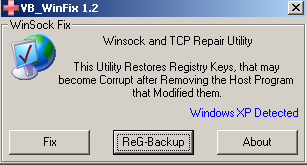
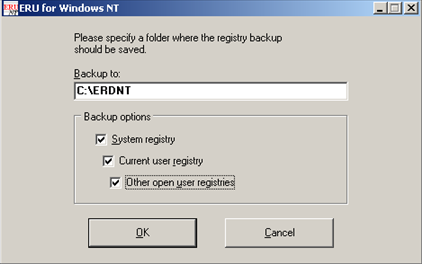
If you choose to backup the registry, click on ReG-Backup and in the next window, select a location to Backup to: (or accept default location) and select all Backup options (System registry, Current user registry, Other open user registries) and click OK.
3. Click Fix and click Yes to Apply the VB_Winsock fix?
4. The amount of time needed to repair will depend on the number of Network connections and Protocols installed on your system (be patient). After repair has completed, click Ok to reboot
With any luck, your Network connections will be repaired. As a final checklist, verify your Anti Virus and Spyware programs are working correctly. If you have a VPN connection make sure all settings are configured properly. Re-install any component or program that do not appear to be working.
WinSock XP Fix may not be a perfect utility, and there is no risk involved as a last ditch effort to repair TCP network connection issues if you are considering re-installing Windows XP.
NOTE: If you did choose to backup the registry before running the Fix, I do not recommend restoring from the registry backup you created if the WinSox Xp Fix was successful in repairing your Network settings. If the problem was registry related, restoring will just put the problem back in the registry.
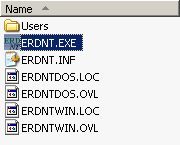
If neccessary and you do need to restore the registry backup, go to the folder where the backup was saved (default is C:\ERDNT), and run ERDNT.EXE.

Comments on Repair Windows XP TCP Network Settings With WinSock XP Fix Utility
This is an awesome fix tool, had problems with my windows XP PC for quite some time, but this tool fixed all those issues
I had a customers computer come in today with a corrupt stack, and was considering re-installing windows, did a google search for a tool to fix the TCP stack and was brought to this tools page, i figured what the hell, and downloaded it….. and i\'ll be damned, it worked…GREAT tool and a time saver. THANX
WOw…. it's true, it 100% work, Exellent work for internet and networks connections repairs…..
Thanks a lot for the creator….. My network and internet connections didn't work, but when I search this WinSox XP Fix to and trying to fix it, The network of my Computer work 100% again….. ^_^. Nice
@Darwin
I agree, this is one of the best "last resort" tools around. Saved me from needing to rebuild a lot of customers PC's.
Got the system back on the internal network, backed up and running fanatastic! THANKS for the save!!!
@Stan
Cool! Glad it worked out for you.
downloaded winsock xp fix, rightafter lost internet connection alltogether, untill i uninstalled it
So i used this product and i see that it really does notwork maybe i am using it wrong please get back to me and give me some pointers that reguard this program!
@starr
There's really not much to running the utility (as described in the article). I use it when nothing else works and if this utility does not fix the problem, then I usually end up reinstalling Windows.
This is the best utility ever. i have not been able to get the internet working on my computer due to past school settings this program cleared it all and it all works now… so happy.
Awesome tool.. Due to a virus outbreak (Sasser, backdoor.rbt, spyware, etc..) my local network access would not function, even after removing the offending software. I would always receive a network error immediately when trying to access any other machine. This tool repaired the damage done to the network configuration perfectly! Wonderful tool!
I use this tool to a client pc and works grate! is the second time that tool work for me
Thanks a lot !
GREAT! it fix my problem with winsock in a flash. i thought im gonna re-format my PC but i tried WinSox XP Fix and it fixed my problem.
Unfortunately this tool did not fix my connection issue. Any other ideas? I know (I think, lol) the problem is with winsock…I have the dreaded 169.254.25.246 IP address……..help?
@Michelle
Try this command to rebuild the TCP/IP stack in Win XP:
Open up the command prompt (Start \ Run… and type cmd) then copy/paste the following command and press enter.
netsh int ip reset c:resetlog.txt
If this command along with Winsox XP Fix does not resolve your problem, it may be time to start over and re-install XP.
I need that installer please send it to me thanks!
Great software!
I heard the WINSOCK Fix worked good on Windows XP SP1, but not so good for SP2. Do you have any other solutions? The fix did not work on my PC which is running SP2. I get the 169.254.235.203 ip address,
THANK GOD FOR THIS TOOL. This will probably fix your problems if you can only connect to networks under "safe mode with networking".
Here's the story. All of a sudden, without warning, one day my computer would not connect to any type of network. At first I thought it was a wireless problem, then I found it was not recognizing even a wired network. I found out I could connect to a network but only in safe mode with networking. After tons of time spent searching google, I found this utility on a few pages marked, "Network adapters work only in Safe Mode - HELP!"
I loaded this tool and my system was magically fixed. !!!!! I love this file.
Brilliant application, I been banging my head against a brick wall with a customers PC.
Problems included:
Stuck on preparing network connections on boot up
lsass.exe errors causing reboot on bootup
network connection broken
All fixed, thank you
will this tool work for:
1. XP Pro xp3?
2. Vista x64?
Tks
@Steve
The tool is only for XP (re-read the title again). I don't know if works on XP SP3, but if you need to run it on an XP SP3 machine, make sure you run a back and create a restore point first.
My wife's computer developed a problem recently where her browser would not resolve anything. Performing a network repair solves the problem; but after a while the problem re-asserts itself. I created a scheduled task to run a repair every 15 minutes - and that works, for now… But, why did this happen in the first place? When I look at the output of the 'netsh ip reset' there are three entries indicating a "bad entry" for the "Linkage\UpperBind" key entries for the NIC, the NDISWAN, and a GUID value where the "bad value" was REG_MULTI_SZ = SymIM . My wife's machine has Norton's Internet Security on it, so I'm assuming the SymIM is a Symantec generated entry. Any ideas or suggestions what to do to resolve this rather than perpetually running 'schtasks /Create /TN RepairIP /SC MINUTE /MO 15 /TR "netsh int ip reset c:\temp\logs\network-connection.log"'
thank u very much for this tool!i just downloaded the tool yesterday and until now it seems that my nw connection is still ok.it worked for windows xp pro sp3.
yes tool works great onm XP Pro with service pack 3 and allupdates up to 7-2-2009
Thanks very much for this software. It works wonderfully and solved a tricky connectivity problem.
hello evry one!
i'm managing a program wich have database in server,but the program is installed in 6 difrent client computers,one day the program in the client computer couldn't conect to the server,and it gives me the follwing message : Acofile is unable to conect to the adress : 192.168.100.103(acofile is the program name and the adress ip is a server adress).but when i ping the server,it does work,and when i do : run->\\192.168.100.103 i can get in the server,but the aplication can not get to the server,and after trying 4 or 5 time to run the program,it work,but when i try to re-run it,it gives me the same problem again.
could WinSock XP Fix Utility solve this problem?
any one have an idee what ist exactly my problem?
please help
@redondo
WinSock XP will not fix your problem because you do have network connectivity.
Your problem sounds more like an application problem, not a network problem, and is something that you are going to have figure out what is causing the problem.
but after i re-insall windows xp it does work perfectly,only with time i got this problem,i always need to format and re-install xp to make the software work again.this aplication cominicate with the server through port 4900.
if this is an aplication problem,why it does work whene i re-install xp??
think you for answering my quastions
@redondo
You already proved it's not a network problem on the desktop by saying:
"Acofile is unable to conect to the adress : 192.168.100.103(acofile is the program name and the adress ip is a server adress).but when i ping the server,it does work,and when i do : run–>\\192.168.100.103 i can get in the server"
Therefore you need to troubleshoot the application and find out why it's not making the connection.
You also mentioned that the program is installed on other computers. Do those computers also lose connectivity at the same time the problem occurs. If they do, then it may be a problem on the server, not on the desktops.
I found this software very useful to resolve network TCP issue…Below link also suggesting same review
http://techchand.org/559/repair-windows-xp-network-errors-with-winsock-tcp-repair-utility
no,not all computers lose the conectivity only one or two in a month.
so my qustion is : the acofile aplication in the clients computers comunicate with the server via port 4900.is it possibal that this port cause of viruses or something like that could be shuted down or closed?? i ask this quastion cause after re-install xp,evrythings goes normal!!
is there a solution to re-open this port??
to be more clear!
in the server we have an hyper file control center aplication managing our database.and windev aplication,and this aplication as i said comunication with the comuters clients via port 4900 wich i think its damage…could that happen??
wow. this program fix my step dad laptop that i screwed up. tnx
all is well but I cannot browse internet.
1. pinging is doing well by ip address
2. cant ping using names such as http://www.yahoo.com
have used winsock utility, still cannot browse net.
helpppppp.
@seredi
Try accessing this from your browser:
http://72.14.204.99/
If Google does not appear, then it's a DNS problem. Check your TCP/IP settings of your network card for DNS server addresses or contact your ISP provider.
Read the info to understand what it does. Nice util.
However, it did not fix my particular DNS problem. Been scouring the web, tried half a dozen fixes (WinsockXP fix, loaded registry entries, XP network repair, etc) to no avail. Here's the deal:
The router (which multiple machines use, including this one) gets it's info via the ISP DHCP. Machine #1 gets all the appropriate IP info,
can ping IP addresses inside and outside the firewall, but it cannot ping domain names or load pingable IP addresses as websites.
I don't run a local DNS service or HOSTS, so fixes that target them are null. It's not a router problem, nor a DNS problem (again, works fine on machine #2 through the same router), so it has to be a Windows network config problem. I suspect the woes started after I told Glary Utilities to remove broken registry links and optimize the registry, but cause and effect are foggy as I was sleep deprived when the problem occurred. Any ideas, other than not driving a computer while sleepy?
Hi. I don't know if this program will solve my problem, so I'm giving you the scenario. I have a peer-to-peer network with 5 wired pc's and2 wireless connections. I also have wired ethernet connections to a printer, security dvr system with 4 cameras and.
I"m using a 4 port D-Link Gigabit router and an 8 port D-Link gigabit switch.
When the problem started, all 5 pc's were running XP-SP3. When I start all 5 pc's I get an intermittent connection, both LAN and WAN. It is not a regular length nore a regular cycle. It may be seconds and last for seconds, or it may work for minutes before going down.
Since I had the problem, I have had to replace 2 pc's with new Win7 Pro machines. I have tried replacing all hardware in the network as well as my ISP. The problem remains.
Just before Thanksgiving, I tried networking both Win7 machines only, through the router/switch and both seemed to work without a dropout.
What do you think?
Thanks
If i want to Repair network automatically with any application in every 10 seconds. Can you help me with that?
I found difficulty in network connection in WIN-XP it looses connection & i want to connect with internet by clicking repair option every now & then.
Please give some solution for such problem!!
Im in deep need…… ANY HELP WILL BE VERY MUCH APPRECIATED.
I cant format the computer im having issues on. Its XP SP3 that had some viruses attack, it's supposed to be already clean, i have update BIOS, reinstalled chipset and NIC drivers, and did the tcpip stack thing, and this sofware, also tried "repairing" the OS (without format), ive tried installing drivers from a working computer (same make/model of course), used a different NIC, and many things… nothing works…. i cant format. the connection gets established but then it gets lost, sometimes at the first ping sometimes it takes longer sometimes until i try to do some network activity (such as http), clicking "Repair" on the taskbar icon -on the LAN icon- does the trick, but then again, for a split seconds… ANY ADVISE WOULD BE TRUELY APPRECIATED.
Thanks!!!!!!!
Amazingly effective app!!!!
Fighting during one week against non-resolved DNS and dreadul 169.254.x.y IPs.
Apparently everything started with a broken link registry repair sweep. netsh reset commands alone didn't work but winsockxpfix worked without flare at the first try.
Running in windows XP SP3 updated up to March 2011.
Thanks!!!!!
hi….
this program fix my step dad PC that i screwed up. thank
DDDDDDDDAMN IT…!!!!….MY DOWNLOAD SPEED HAS BEEN REDUCED USING THIS SOFTWARE…N DIDn't BACKUP…..READIND THE DESCRIPTION…..HUHHHHHHH!!!!!
unable to repair using the software.it displays error saving file ……….. Please tell me what to do
it doesnt work at all!!!!
tyrrutrurt
its working for sometime, i need to re-install again and again.
nice one its works for me,wht to say its good yar,thx
Amazing tool, almost i have decided to break my head with a hammer until i found this excellent tool. TCP/IP networking control in Win XP is almost impossible that everybody knows, there is no substitute (except this tool) & format is the only option. My wireless connection showing it is connected, but i can't access web through any browser (with so many re-installations & checked my laptop outside with cable also). In addition probably some one hijacked my network (as it is observable max data is transferring in wireless monitor window). My os windows xp pro sp3, dell inspiron 1520 laptop.
http://www.snapfiles.com/get/winsockxpfix.html
Thanks man for this, may be Lord Jesus sent you to the earth.
umm…I'm guessing this must be 32 bit only…just tried on 64 bit machine and it keeps crashing it!
No comments… Crashes every knowledge page !!! Respect.!!!
After Virus and spy cleanning with malwarebyte and MS.SE can't see on domain network the share folders and map drives… but everything else run perfect normaly and the internet browsing…..!!!!
Trying find something wrong on AD but nothing. Trying DNS reinitialize, DHCP pool reconstruct, cant rejoin onto Domain, repair windows xp, install sp3, any update, net commands ,start/stop services —- B U T N O T H I N G A T A L L ———
Now i can see back my file server - network storage drive and networks map drives. Evrything is Special Fine…!!!
More Thanks for Thanks!!!!
wooohoooo this solved my networking problem Thank you so much!!!!
Ok, this is dumb… I downloaded the file, saved it to flash drive and went to my 32bit XP machine to see if it would fix it. The program asks me if I want to install some tookbar first, and then tries to connect to the internet. Um, DUH, if I could I would not have this problem.
Fail. Next program please.
same problem with me. Im also using SP2.
Problem started with Kaspersky Anti Virus. No help from them. Finally fixed with the Windows fix but now have to reboot PC every day. Start up usually fixes any issues
my pc windows xp proffesinal have to damege file how to repair it
can't fix my problem, thanks for this info
I get this message:
winsockxpfix
"registry input info not found"
And, the program did nothing
Awesome tool it always saves me, Thanks a lot.