


 Normally, when working with Windows command prompt, output (or returned results) from commands that are executed can be viewed in the command prompt window. For some commands, the output can be several rows long, in which you can use your mouse to scroll up and down to view all the rows.
But say you want to save a copy of the output from the command that was executed. For example when using ipconfig to view the TCP configuration of your computer network card (NIC) or executing the dir command to view a list of directories.
One way is to copy from the command prompt window and paste it in a text file. Unfortunately, this can be cumbersome at times.
Instead, there is a better way to easily capture the output directly from the command prompt window to a file by using the redirection command.
To use the redirect command, just use the symbol > (press Shift + greater than arrow) and the file name at the end of the command you want to execute.
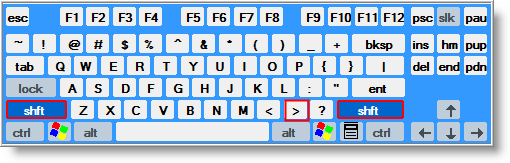
For example to redirect output of the ipconfig command to the file tcpinfo.txt, enter the following command at the prompt:
ipconfig /all > tcpinfo.txt
This will create the file called tcpinfo.txt in the current directory you are at (shown in below screen shot), with the output results of ipconfig command.
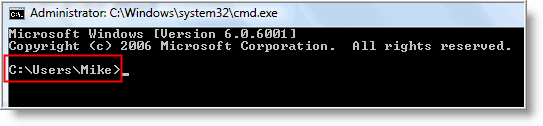
If you want the file created at another location on your hard drive, enter the full path to that location:
ipconfig /all >c:\mystuff\tcpinfo.txt
When using a single redirect command, it will always over-write (delete) the contents of the file (unless you specify a different file name) before writing any new data.
If you want to append (concatenate) data to an existing file, use two redirection symbols as shown in the following example:
dir c:\mymusic >> c:\tcpinfo.txt
This example adds the output of the dir (directory) command to the end of the file - tcpinfo.txt.
Now, you are not limited to redirecting output to a file. You can also redirect to devices such as a printer.
Say you have a printer connected to LPT1. You would use the following command:
dir c:\mymusic >LPT1
You can also use PRN or CON to output data results. Just make sure the device is working correctly.

Comments on How To Redirect Output from Windows Command Prompt To A Text File
Gaurav Bedi @ 3:17 pm
Hi All,
I am working on CA UNICENTER.
There is one command "pingagt " I am not able to get its output in text file.
PLEASE HELP ME IN THIS.
Regards
Gaurav Bedi
john @ 1:50 am
Use:
C:\> pingagt 2> C:\your_folder\your_text_file.txt
Good times
buluq @ 10:36 am
f:\movies>dir /s > c:\movies.txt
voila! that's i'm talking about.
thanks dude!
Dinesh Talla @ 7:20 am
Hello,
One of my command is opening another cmd prompt and it is writing output to their and not giving time to copy the output.. Is there a work around in this case..
Dinesh
Mohammed El-Said @ 6:47 am
Thanks very much,
I searched a lot for this.
Ben @ 1:20 pm
I tried the redirect, and it happens on the screen very quickly, but does not write to a file.
What am I doing wrong?
Ben
@Ben
Show us the command you used so we can see what is wrong.
Ben @ 6:09 pm
Hi,
This is the command I used. After it ran I seached the c: drive and could not find the file
ipconfig /all > tcpinfo.txt
Ben
@Ben
Make sure you are running the command at the command prompt and not from the run box. When running the command from a command prompt, the file is created in the current directory you are at.
suda @ 4:52 am
Wow,..Thanks a lot..!! It really helped me! 🙂
Kulbhushan Mayer @ 4:31 am
Hi,
I want to redirect the output of one of my command in .bat file to some other file but I am not able to do this.
command I am using is
im copyissue -copyfields -nolink -type="Load Request - PreProduction" -field="Requested Load Date=%PreprodPlannedStart%" -field="Planned End=%PreprodPlannedEnd%" -field="Comments=IM ticket created by script" -field="Checkpoint Label=%CheckpointName%" -field="State=QA Load Approval" -field="Requestor Name=%RequestorName%" -field="Requestor Phone=%RequestorPhone%" -field="File Replacement(s)=%FilesChangedList%" %PPESPCmd1% %PPESPCmd2% %PreprodIMTemplate% > Preprodim.txt
I am using this as:
call xyz.bat >> test.txt (Above mentioned command is the part of xyx.bat)
Regards,
KMayer
Devon @ 4:23 pm
Searched about 10-20 websites for this. Finally found out getting my text from command prompt dumped into notepad is as easy as adding a greater-than symbol and destination text file.
In the dos box at c:\ I typed :
tree C:\users\mmd
which gave me the tree OK,displayed on the screen.
BUT when I added te command to redirect output to a file :
tree C:\users\mmd >tree.txt
I got "Access is denied"
can anyone help me ?
Veblen
Niru @ 7:34 pm
@Devon:
Thanks a lot
Nico @ 7:26 am
@veblen:
Try this: tree C:\users\mmd >%userprofile%\Documents\tree.txt
jmb49 @ 7:18 pm
@veblen :
> BUT when I added te command to redirect output to a file :
> tree C:\users\mmd >tree.txt
Try tree C:\users\mmd > c:\tree.txt instead. I think it creats tree.txt in mmd. But it also locks mmd to tree inside. Well, this may be a locking issue. Tel us please !
Unfortunately above suggestions do not work for meThanks for suggestions.
Awesome, Thanks Man !!
Shubham @ 4:47 am
i wants to compile the java code from cmd and wants to store the error message in the txt file…
LarryD @ 3:24 pm
hey,
This command sends a list of the directories from a dvd-drive (e) to a text file (DVD-info.txt ) , — dir e:\ >> c:\users\larryd\DVD-info.txt
I hope someone can use it.
Gaurav Tiwari @ 1:57 am
hey all
i would like to see my redirect of command with current date.txt file..is it ??
like
C:\ping 8.8.8.8 -t >e:\currentdate.txt
it will save like that e: folder 1.1.1919.txt
please share comments.
Thanks
jmb49 @ 5:00 am
@veblen : try running cmd.exe window with Administrator rights. I think writing to root of your hard-drive (C:\) is not allowed to everyone on a Windows computer.
@Gaurav : need a batch file to benefit DOS values. Like this :
Ping 192.168.1.1 > "C:\Your\Path\%date:~-4,4% %date:~-7,2% %date:~0,2% - Your FileName.txt"
Place it in a batch (YouBatch.bat) and launch it when you need to generate your file.
Remember that one ">" create a new file ; two ">>" add to the existing file.
You could also take the time as a stamp :
set TimeStamp = %date% %time%
set Now = %time:~0,2%%time:~3,2%%time:~6,2%
Be also aware that this is the French date & time local format. French format is JJ/MM/AAAA HH:MM:SS,XX, you will have to adapt to your local settings :
- date : -4,4 -7,2 and 0,2
- time : 0,2 3,2 and 6,2
Is it OK for you like that ?
Gaurav Tiwari @ 11:30 pm
Thanks for rule:
.@jmb49:it not like that what i see, i would like to see my text file name will be save with Current date,& echo reply of ping is in text file and that file save with current date.txt file
jmb49 @ 4:40 pm
I don't unduerstand you, sorry 🙂 If I put this :
Ping 192.168.1.1 > "C:\Your\Path\%date:~-4,4% %date:~-7,2% %date:~0,2% – Your FileName.txt"
into MyBatch.bat and then I launch this batch, I get a file here (C:\Your\Path must exist before) :
C:\Your\Path\2013 12 20 - Your FileName.txt
containg :
Envoi d'une requête 'Ping' 192.168.1.1 avec 32 octets de données :
Réponse de 192.168.1.1 : octets=32 temps<1ms TTL=64
Réponse de 192.168.1.1 : octets=32 temps<1ms TTL=64
Réponse de 192.168.1.1 : octets=32 temps<1ms TTL=64
Réponse de 192.168.1.1 : octets=32 temps<1ms TTL=64
Statistiques Ping pour 192.168.1.1:
Paquets : envoyés = 4, reçus = 4, perdus = 0 (perte 0%),
Durée approximative des boucles en millisecondes :
Minimum = 0ms, Maximum = 0ms, Moyenne = 0ms
So, my text file name is saved with current date and echo reply of ping is in this text file.
I don't understand the end : "that file save with current date.txt file". What is "date.txt" file and what should it contain ? Could you explain me a bit more how you would like it ?