


 Every now and then, you may have notice the network connection for a Virtual Machine guest running on VMWare Server has stopped working. The guest VM could be running any version of Windows or Linux distribution and restarting the Virtual Machine does not fix the problem. If this happens to you, a possible work around to get the Network re-connected can be fixed by restarting the VMWare Server NAT service.
Several ways exist to restart the NAT service when running VMWare Server either on a Windows or Linus host. The easiest way is from the VmWare Server Console.
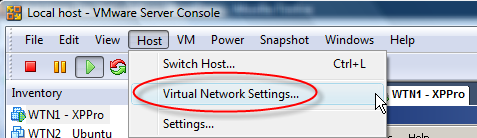
To re-start the NAT service, connect to the Console and select Host \ Virtual Network Settings… from the menu.
Select the NAT tab, and at the bottom click on the Restart button.

Then click on the Apply button, to restart VNWare Server NAT service. After the service has restarted, the Service request field will be blank and the Service status field will display Started.
Another method to restart the service, is from the command prompt on Windows by running the following command (NOTE: must include quotes):
net stop "VMware NAT Service"
then to restart the service:
net start "VMware NAT Service"
On Linux, open a Terminal window or session, and run the following command (depending on the distribution, this command may not work):
/etc/init.d/vmware restart

Comments on Quick Fix For Broken VM Guest Network Connection Running In VMWare Server
Thankyou!!!
Works perfectly for resuming the connection in vmware!!!
i assume this only applies for VMs bound to vmnet8,i.e. Nat network.
is this correct ?
or does this also fix networking issues with bridged and host-only networking ?
@roland
Yes this is only for NAT. To restart other VMnet hosts (VMnet0 to 9) Just use the pull down to select.
Yep, that sorted me out… Been wrestling with this for about a day, and had trouble even figuring out the right query to throw at Google to find something helpful.
Thanks for posting this. Now my only concern is, the VM I'm building will be used in demos by other people. I hope they don't also have an issue with this service needing a quick restart.
Then again… maybe not.
This step fixed the problem yesterday but today it's broken again, and this fix doesn't seem to work this time. 🙁 Maybe I will have to reboot everything (host and guest) and see where I wind up.
Any other thoughts/tips?
Been tearing my hair out with the exact same problem for over a week now, but the problem has been with a guest using a bridged NIC.
setup as follows: -
Hardware: Dell PowerEdge R200 with 2 Broadcom NetExtreme G/Bit NIC's
Host: Windows 2003 R2 SP2 running VMWare Server 1.0.5 (was running 1.0.6)
Role: 2 x NIC RRAS server
Guest: Windows 2003 R2 SP2
Role: 1 x NIC intranet web server
The guest VM would have full network connectivity 1 day, then randomly loose connectivity with all other nodes on the LAN, restarting the guest didn't sort the problem, resarched the issue on VMWare communities and came up with a problem with the NIC's installed on the server in that the Broadcom NetExtreme NIC's must have the following options disabled in the driver advanced properties tab: -
CheckSum Offload,
Large Send Offload
This appeared to initially corrected the problem, for a couple of days atleast, VMWare Server 1.0.6 update released upgraded fine, all still working, then random lost of guest network connectivity again, downgraded back to VMWare Server v1.0.5 everything worked again, went away happy, attempted to access the server and it's lost connectivity again. came accross this post thankfully even though it was relating to NAT on the VMNet8 interface, it got me thinking… so disabled the option "Automatically choose an available physicall network adapter to bridge to VMNet0" from the Host - Virtual Network Settings - Automatic Bridging tab, and suddenly everything starts working again… Jobs-a-good-n!!!
Hope that this helps someone else out.
Pieman
@pieman
Great tip, this should help other readers with the same problem.
Solved my problem, Thanks!
Thanks for the article, I'm glad to finally have a working connection in my Windows VM.
I've been wrestling with this problem for weeks with VMWARE Server 2 RC1. I'm using VMNET0 (Bridged) and I'm trying to get a Vista VM to map a network printer. I reboot the VMWARE Server and start the session after reboot. I can access the Internet and ping hosts, then I try to map a printer and loose connection immediately, then I can't access the network from any VM, Vista or otherwise. I have already done the step suggested above:
"disabled the option "Automatically choose an available physicall network adapter to bridge to VMNet0" from the Host - Virtual Network Settings - Automatic Bridging tab"
Will do the other suggested step today:
Disabled in the driver advanced properties tab: -
CheckSum Offload,
Large Send Offload
This is starting to drive me crazy. If anyone has some other suggestions, I would like to hear them.
OK, still having problems with loosing network connectivity on VMNET0 for all VMs as soon as I try to add a printer in Vista Business Edition. I already set the:
CheckSum Offload - None
Large Send Offload - Disabled
And have already disabled the option in manage virtual networks to Automatically choose an available physical network adapter. I also explicitly assigned the physical adapter to the Host Virtual Network Adapter Tab for VMNet0.
My NIC is HP NC105i PCIe Gigabit Server Adapter
Anybody got any ideas for me to try?
Thanks so much for this post. My network connection to the outside world kept dying and I couldn't figure out why for the life of me. I followed these steps and Voila!
Thank you Thank you Thank you … though my VMWARE didn't have the same menu as described but i guess its the same problem with restarting the connection. My connection is back now … thank you thank you thank you
Many thanks brother. This worked for me, but why cant VMware fix this already?
Hi ,
Nice !!
But can anyone tell me , how to achieve the same when i am running vmware on Ubuntu host (linux)
thanks
@pieman:
Your post help me very much, many thanks, hope my comment spread and revamp this post
Got the same problem while using NAT, didnt solve if I have restarted VM. But solved when I have restarted NAT service. Thank you so much.
I've been having the same problem for months now. All I could do to restore the network connection was to shut down all my VM's and reboot the entire system. (2-3 times a day, took me 10 minutes every time). This fix works like a charm, I no longer need to close my VM's, takes only 10 seconds!
Thanks a lot!
I m using Vmware server console in windows XP and the error which I m getting ""The network bridge on device VMNet0 is temporarily down because the bridge ethernet interface interface""
I want to connect vmware with my system via bridging….please resolve my problem.
Finally! A great solution. It's been a big hassle for me, I've got this one buggy app that is continuously killing the internet connection on the VM. I've tried rebooting with no effect — other than wasting a lot of time. Thanks so much for the tip, I'll try it straight away. Cheers!
This helped me in VM workstation as well! Slightly different menu to get to the Virtual Network Editor. Thanks for the tip.
my sun virtual box virtual host adapter has dissappeared after an update from windows. i tried to restore my system but it didn't work. please help, its exam time. i'm running windows 7 pro
I spent lots of time with a very similar problem. I ended up having to remove the network adapter in the settings of the VM then add the adapter again.