


 When it comes to Linux, there is no shortage of ways to execute commands. You can use the run command, open multiple console sessions, remote SSH connections, run programs in the background or use multiple desktops. While this flexibility is great in many ways, it can get out of control and become confusing if you become involved in your work and have to think where you ran the first command.
Instead of spreading things out, you can open multiple shell sessions in one Terminal window by using tabs to help keep your Linux work environment under control.
To use tabs in a Terminal Window is pretty simple. In Ubuntu, to open a Terminal Window in Kubuntu, click on K Menu \ Utilities \ Terminal
Or, in Gnome, click on Application \ Accessories \ Terminal from the panel.
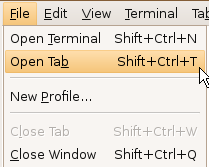
To open a tab, you can use the shortcut key Shift+Ctrl+T or click on File \ Open Tab from the menu:
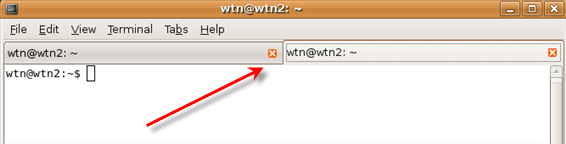
Once you have opened a Shell in a second tab, the tab bar will appear:
As you continue to add more tabs to the Terminal session, you can managed tabs by using the Tabs
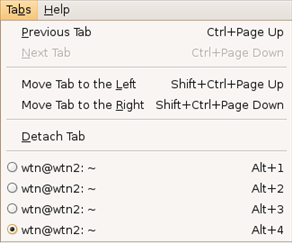
or with the following shortcuts:
- Open New Tab - Shift+Ctrl t
- Close Tab - Shift+Ctrl+w
- Switch To Previous Tab - Ctrl+Page Up
- Switch To Next Tab - Ctrl+Page Down
- Move Tab To Left - Shift+Ctrl+Page Up
- Move Tab To Right - Shift+Ctrl+Page Down
- Switch To Tab 1 - Alt 1
- and to switch if you have multiple tabs open, Alt 2, Alt 3 to Alt 9
Unfortunately, no context menu exist when right clicking on a tab.
A nice feature with using tabs is the capability to detach any tab, which will separate it from the current Terminal window and open the tab in it's own Terminal window. To detach tabs, click on the tab and select Tabs \ Detach from the menu.
Using tabs is much easier to manage your work and helps keeps your command line activity in one place. No more wondering where that first command was executed!
For more great tips, check out our Linux and Ubuntu Tips and tutorials.

Comments on Linux Tip: Open Multiple Shell Sessions In Terminal Window Using Tabs
Mathieu @ 12:14 pm
Is there a batch command to open a new tab of the terminal?
Really? @ 11:40 am
Excellent article! One question, I want my tabs to open on the command line, the same way they do in Firefox. What tabs I had open last time, I want to open the next time, automatically. How do I do that?
apu @ 2:09 am
hi all .
its good and helpfull
Ghanshyam Singh @ 11:23 pm
I am having problem when I open a second tab in terminal window in Linux, it hangs. please provide solution.
Boykie @ 6:46 am
Nice article, thanks.
I am currently learning how to program and have decided to try it using vi and the terminal. My present method is to open up 2 terminals, one running vi in which I edit the source code and the other running the normal shell in which I compile and run the program.
My aim is to be able to do everything without my hands leaving the keyboard, however the only glitch is I need to use the mouse to switch between the terminal windows. Is there any way (besides using tabs) that I can switch between terminal windows from just the keyboard?
Boykie, you can just use alt-tab to switch between terminal windows.
hugo @ 6:21 am
@Really?: hi Really?,, did you get some answer to your problem? I would like to do so as well,,,, greetings
hugo
OMG! @ 11:56 am
OMG! I never knowed that!
[/sarkasm]
This artikle is totally nonsense… stop wasting internet bandwith with things EVERYBODY knows already… AND Damn what about people having other shells?
@OMG!: You, sir, are ignorant. Some people are just getting started at Linux and not everybody has your geek-knowledge. Why don't you stop wasting internet bandwidth with your useless comments.
also, you should know it should say "I never knew that" but EVERBODY knows what the simple past is already. …
Wang Tao @ 2:19 am
Does anyone know how can I keep the profile of the terminal window with multi tabs, so that I can make a terminal window by run a script ?
Wang Tao @ 2:47 am
@Wang Tao:
Sorry, I means I want to open a terminal window with the multiple tabs I created before by script of some other way, so that I need not open the tabs and set their enviroment variables one by one.
Thanks advance!