


 Ever have an application that just hangs and never returns to normal or terminate?
So you open up Windows Task Manager, find the application process, right click on it and select End Process.
Nothing happens! The process is still running and the dead application continues to cause high CPU utilization to the point where you can't do much with your computer.
You repeat the process. Nothing again. One more time…that process just won't terminate and die.
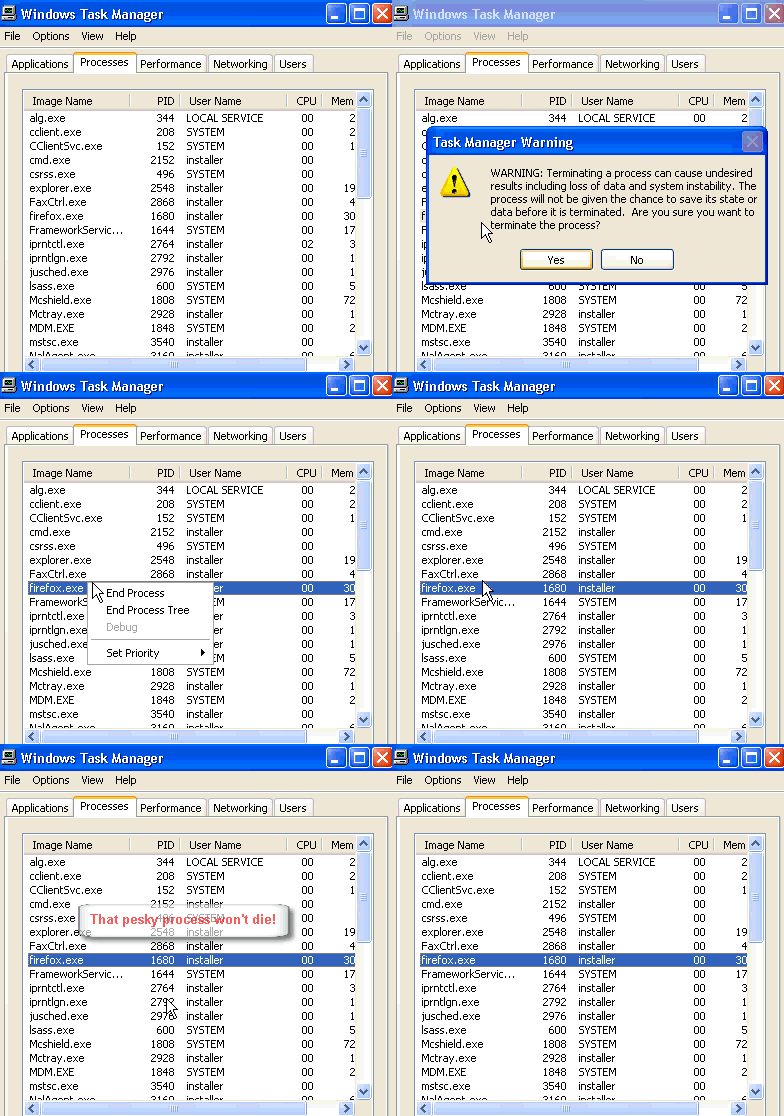
Now what?
Well, having pesky processes, that refuse to terminate and continues to hog CPU cycles, can be frustrating to the point where you just want to hit the power button and shut down. But that's too risky and more times than not will cause loss of data or system boot problems.
What you need is a utility that can kill and terminate stubborn processes, the first time, using PsKill from Microsoft Sysinternals.
PsKill requires no installation and is a stand alone executable that is run from the command line. It can kill process locally or remotely. PsKill is bundled with Sysinternals PsTools which is a collection of command line tools for Windows computers.
To use PsKill, you want to get things setup first:
- Download PsTools from Microsoft site, and unzip to your desktop.
- Open the PsTools folder and copy pskill.exe to your System32 folder. The reason for this is that pskill will be in your executable environment path so you can just type the command, with out specifying the full path to the folder and file location.
- Next open Task Manager (right click on the taskbar then select Task Manager ) and make sure the PID column is visible (may need to use horizontal scroll bar to scroll to the right to see PID column).
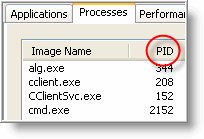
If it is not visible, click on View \ Select Columns… and make sure PID (Process Identifier) is checked and select OK.
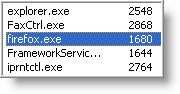
- Now the next time you have an application that is hanging, and it's process will not end from Task Manager, make note of the process PID number in Task Manager.
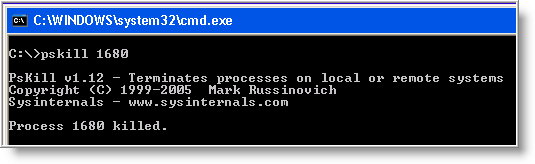
- Then open up a command prompt (click on Start \ Run and enter cmd in the run box) and type the following command:
pskill 1680
(just substitute 1680 with your PID number that you want terminated).
The process WILL terminate freeing your computer from application hell.
You should be able to re-open the application again. But be careful, killing processes this way may cause data loss with the application that was terminated (such as if you were using a text editor or Microsoft Word).
At least you won't have to reboot 😉

Comments on How To Kill Windows Processes That Won't Die
Unfortunately I have not had any luck with this..
FL Studio keeps crashing, (possibly something to do with that $2 midi dongle from ebay) and it just won't go away no matter what i try.
I've tried all these "process killers", and i'm still stuck with rebooting as my only solution to the problem.
I'm willing to try any ideas anyone might have.. I just want to get back to making music!
@Shane
You are better off fixing the problem with FL Studio so it doesn't crash anymore. Think about it….what's the point of finding a utility that will kill the process of an app that repeatedly crashes.
That's the only you are going to get back to making music.
I tried using pskill before finding this post. pskill says "process killed" but it's still running…
@kurt
Would it happen to be a process you are not familiar with such as spyware or a virus? They are famous for restarting themselves after being killed.
after using pskill still running
@gunasundari.t
I never had that happen. Are you having other issues with your PC?
I have the same problem. I have a win2008 terminal server (not citrix), where one of the users have a process that just hangs (cmd.exe). I won't be killed, and the user is unable to log off (He can disconnect, but he reconnects to the same session each time he logs in.) PSKILL says the process got killed, but it is still there with tha same PID as before.
Can someone help?
i am having this prob with nero. and i have had this prob with other programs also. i am tryin everything i can think of to solve this prob. can virus's - spyware cause other programs like nero to not be able to close out? i want to be clear about what is happening. i hit the X on the program…..then pull up task manager and the process of nero "or another program" is still there…..and this pskill this works for the programs that are not froze but not for the ones that have froze. i need help and i want to say thanks for any help back to me on this.
i have a 700g hard drive….and my virus scans take very long to scan…but i will be doin that after this comment…..
[email protected] i hope to hear from someone soon on this….thanks
Hello,
I have this problem to in windows XP, anyone have any solution ? It most be someway to kill process HARD in windows, like kill -9 in linux, pskill does not help.
I still can't kill that pesky CPU hogging JkDefragScreenSaver.exe process - Can't kill it with taskill cant kill it with pskill and can't kill it with task manager
Its working…
pskill kills application rather than taskkill windows command
cheers!!!!!!…….
Didn't work with me… Maxthon and Digsby hang and still need a reboot…
Ok people what is wrong here! The above article says to find the PID number in TASK MANAGER. My Win XP SP3 Task Manager does NOT have a PID column! So what the hell is going on? HOW OLD is this article. I wish people would date their submission on the net! It would save a lot of us a lot of wasted time! People wake up!!!
Ok fine! I had to dig around and found that I have to activate the PID column! AGAIN! You could have mentioned that! Don't assume we all have our PID columns activated! Gee!!!
Ok well that was USELESS. The process in question: nerovision was NOT KILLED by pskill! THANKS A WHOLE LOT! How about posting some info on what to do when PSKILL does NOT kill a process! Again! A lot of wasted time because people post partial info. USELESS use of your neurons!
@Robyn, I have a feeling your computer skills are no better than your people skills which is why no one really wants to help you. Sorry bud, time to move on and help real people….
I think with Vista, nothing will kill a process because of Microsoft's nanny-state mentality. If Microsofts oh-so-intelligent software doesn't think there is a problem, then there's no problem no matter how large the problem is in reality. So, if you need to kill firefox.exe because for some stupid reason it says it is still running after you terminated it, you may not kill it because Microsoft doesn't see a problem with the executable, therefore Microsoft won't allow you to kill it.
It seems almost similar to the Vista internet problems where your browser suddenly can't surf the web any more but Microsoft sees nothing wrong (because pings and tracerts still go through), therefore there can be nothing wrong.
Hi there, I found that there is 5 basic applications that may stop a process:
1. kill,
2. xkill,
3. taskkill,
4. process assassin,
5. pskill.
If someone would like to be guinea pig please fill free to try and tell if the rest of not mentioned above staff work properly. I already have tried task manager, taskkill, and pskill but that sh..t doesn't work. As it's mentioned they informed everything ok but opera was working till restarted the vista. Fortunately no problem with hiding working opera window but annoying. Next time I try Process Assassin but haven't any hope it will work but who knows.
Didn't work for the BatteryLife.exe utility which came with my ASUS G1S
First of all, not all processes can be killed in Windows, even if you have LOCAL SYSTEM account privileges (built-in local service account NT AUTHORITY\SYSTEM). One example is when a driver doesn't cancel an I/O request.
Having said that, you can run a command prompt at LOCAL SYSTEM account privileges by typing the following in a command prompt:
at HH:MM /interactive cmd
where HH:MM is at least one minute in the future from when you hit enter.
So, if it is currently 8:30 AM, type:
at 8:31 /interactive cmd
and at 8:31 a command prompt will be launched as "NT AUTHORITY\SYSTEM". You can check this by typing this at the prompt:
whoami
It should return SYSTEM. Programs launched from that new command prompt will also run as that user. For example, you can launch process explorer from the new command prompt and process explorer will be running with SYSTEM privileges (and will show that in it's windows title as [NT AUTHORITY\SYSTEM].
Now, from within process explorer, you should have access to kill more processes. Be careful, because Windows depends on multiple processes/services to run & you could really mess things up if you kill the wrong process/service.
But, as I mentioned at the beginning, there are some that just can't be killedâ„¢. In that case, a reboot is most likely the only resolution. If Windows is hanging at logoff/shutdown, you may have to force it to power off by holding your power button in for 5 seconds.
@AstroNerdBoy: That isn't true. You can kill processes in Vista if you have enough privileges to do so.
THIS PSKILL COMMAND DOES NOT WORK!!! MY CMD SCREEN KEEPS SAYING THAT THE COMMAND IS NOT RECOGNIZED!! GET WITH IT DUDE!!! NOT EVERYONE'S COMPUTER IS THE SAME!!! DON'T BE GETTING PEOPLE'S HOPES UP WITH COMMANDS THAT MAY WORK FOR YOU BUT NOT EVERYONE ELSES!!!!!!
@Robyn: You have to go into task manager/view/select columns then check the one for PID.
@Kevin
It does work. Did you download and unzip pskill to the System32 folder…or did you download it somewhere else….DUDE!!
I was having the same problem reported by a couple of commenters where pskill was not killing a normal, non-system process that was hung. Turned out that process had descended processes. Using "pskill -t pid" did the trick, killing the process and its descendants.
It works, i had two stubborn process and this did the trick. Just wanted everyone to know 🙂
this doesn't work at all, i put it in system 32 etc and tested it on my problem program VLC media player and it killed it, then i waited for it to hang like it does every day and tried to kill it with pskill, guess what, IT DOESN'T WORK! pskill claims that the process is killed but i'm still left with unresponsive vlc processes and having to reboot all the time like a twat, thanks for nothing man
@PepJ
"then i waited for it to hang like it does every day"
Of course it's not going to work. Did it ever occur to you that you should FIX the problem with VLC.
if i was able to fix VLC then i wouldn't need a program to kill hung processes would i?? this is my last resport. and you are blind, you have like 95% of the people telling you that this damn thing doesn't work and you just come up with a terrible cop-out excuse every time, you're in such denial it's pathetic
@Pep
So when your car has a flat tire, instead of fixing it, you blame the air pump for not working, because it won't pump up a tire with a hole in it.
You need to fix the problem with your computer that is causing VLC to hang. Stop blaming sites for giving you a utility that was not meant to fix application issues. Pskill only kills process, and as you stated, it did work - "i put it in system 32 etc and tested it on my problem program VLC media player and it killed it".
If you don't know how to fix your computer, take it to a repair shop.
This worked….thanks
Doesnt work with x64, says the program encountered an error and cannot continue.
Sorry, I have to join the crowd and say this doesn't work. Well, it DOES work to kill normal processes and maybe some special cases, but not mine. 🙁 It's a Server 2008 system (throwing that out there in case it's a common thread) and I've had some other strange glitches with programs freezing or failing to load (although I can kill them), so I'm starting to wonder about hardware failure.
Still it's a nice pack of tools that I hadn't heard of.
using the -t option was what it needed to work for me also.
/taskkill anyone?
I have a green medalion for "Antispyware Soft" in the lower right process bar. Is there any way I can kill it. It seems to be reporting that all processes I try to run are infected? Cannot get cmd windoe to display or task manager windoe to dasplay. I am dead in the water. HELP
No I can't afford it at this time. Just found it online.
What kind of moron would just put random programs in their Windows or Windows\System32 folder. Just when you thought people couldn't get any dumber with their computing habits, a whole flock of people reading an article prove me wrong.
So why don't you people just start installing firefox and everything else into the Windows folder? Then you can run those from a command line too! So stupid…
Put pstools anywhere but in your Windows folder. Then hit your windows logo (aka the start button) on your keyboard followed by the pause/break key. Go to advanced system settings, and under the advanced tab the last thing you'll see is an environment variables button. Click it.
Now go to path, click the edit button, insert a semi-colon followed by the path to the directory where you put pstools for example:
;C:\pstools
This is by far a much smarter practice than just dumping random garbage into your Windows folder. The only things that should be added to your Windows folder IS WHAT WINDOWS puts there.
Since when is doing that ever been a great idea, despite what some guy says in an article on the internet?
P.S. Thanks for the article. I am grateful for at least that much if it happens to work. I just don't think you should be telling people to do very stupid things.
Won't kill msnmsgr.exe. Tried it with -t switch. Crap app.
HI;
Thought I would try to help a bit, cut through some of the acrimony in this interesting thread.
First, it is not a good idea to put files into Windows system folders. Instead, group tools into other folders and add them to your path. That can be done via right-click on MyComputer via the GUI, but I prefer the command line:
c:\>path=%path%;c:\temp
c:\>path
PATH=C:\Program Files\Windows Resource Kits\Tools\;C:\WINDOWS\system32;C:\WINDOWS;C:\WINDOWS\System32\Wbem;C:\Program Files\Common Files\Roxio Shared\DLLShared\;C:\Program Files\Common Files\Roxio Shared\9.0\DLLShared\;C:\WINDOWS\system32\nls;C:\WINDOWS\system32\nls\ENGLISH;c:\apps\tools\unixtools\usr\local\wbin;c:\apps\tools\unixtools\usr\local\wbin\dig;C:\Program Files\Common Files\Adobe\AGL;c:\ProgramFiles\Wireshark;C:\ProgramFiles\QuickTime\QTSystem\;c:\apps\tools\sysinternals;C:\Program Files\MuseScore 0.9\bin;C:\Program Files\Nmap;c:\apps\tools\sysinternals;Z:.;Y:.;c:\temp
Mark Russinovich's Sysinternals Suite is an absolute must-have for all serious Windows users. Goto http://technet.microsoft.com/en-us/sysinternals and look for the link to the entire suite. Download it and unzip all the contents into a folder of your choice, then add that folder to your path.
One of the utilities is pslist, I like this better than Windows task manager for finding the PIDs and other info:
c:\>pslist | more
pslist v1.29 - Sysinternals PsList
Copyright (C) 2000-2009 Mark Russinovich
Sysinternals
Process information for DHG334J1:
Name Pid Pri Thd Hnd Priv CPU Time Elapsed Time
Idle 0 0 4 0 0 1205:10:06.953 0:00:00.000
System 4 8 103 346 0 5:30:28.140 0:00:00.000
smss 1520 11 3 19 180 0:00:00.031 312:25:02.759
csrss 1660 13 15 823 2680 3:04:42.765 312:25:00.009
winlogon 1684 13 20 613 8132 0:00:13.515 312:24:57.681
services 1728 9 16 461 3680 1:16:24.593 312:24:56.634
lsass 1740 9 20 393 4372 0:08:53.953 312:24:56.618
If you know the name of the process you can grep for it. You will need a native Win32 version of grep, I use a nice port of common UNIX tools called unxutils, get them from http://unxutils.sourceforge.net/ . You will need to put them in a folder and add them to your path.
c:\>pslist | grep "trayapp"
pslist v1.29 - Sysinternals PsList
Copyright (C) 2000-2009 Mark Russinovich
Sysinternals
trayapp 3264 8 9 207 2956 0:00:00.937 0:00:24.490
Now, trayapp is the system tray icon for an older, non-supported program from Novell called iFolder. Ifolder itself is very stable, but when random programs glitch Explorer, the icon sometimes dissapears, even though iFolder is running. I typically leave my computer on for weeks at a time, and I hate to reboot for one little thing. trayapp is one of those programs that is hard to kill, but I have found that if you issue the pskill with the -t and wait a couple of hours, it will die.
I'm still researching how to dig into the threads and sub-procs to actually, really kill a Windows process, analogous to the "terminate with extreme prejudice" of a kill -9. If I find anything, I will write back!
Steve
pskill didn't work for iexplore 8 updated, no virus except those made by microsoft, I was trying to use developer tools
windows 7, trying to close second life. normal and -t dont work.
Thanks for the pskil package - had forgotten about it.
On Windows 7 trying to kill Safari and also xpolorer it says it is killed but it is not, Tried with T switch - same thing. Expression Web 4 is also hung and that is the one I do not want to end - as I have 3 hours work not saved but it not responding while the other two are hung.
we tried anyway
Didn't work for me - Windows 7 Ultimate x64, new install, MediaMonkey hung again (still hanging)
Guys the only way is probably to get a 'Blue Screen Of Death' manually. This done as following…
1. Hold down the Windows Key and press R. Type REGEDIT.
2. Click the plus sign next to HKEY_LOCAL_MACHINE
then SYSTEM
then CurrentControlSet
then Services
then i8042prt
then click Parameters
3. Double-click on CrashOnCtrlScroll and set the value to 1 to enable this feature.
Restart the computer.
Now anytime when you hold down the CTRL key and press the SCROLL LOCK key two times, Windows Vista will automatically crash to a BSOD.
Cheers
source
http://msdn.microsoft.com/en-us/library/ff545499%28VS.85%29.aspx
Sorry some part is missing in the above comment… see the following…
Guys the only way is probably to get a 'Blue Screen Of Death' manually. This done as following…
1. Hold down the Windows Key and press R. Type REGEDIT and Enter.
2. Click the plus sign next to HKEY_LOCAL_MACHINE
then SYSTEM
then CurrentControlSet
then Services
then i8042prt
then click Parameters
3. Double-click on" CrashOnCtrlScroll" and set the value to 1 to enable this feature. (if it is not there create a new DWORD and set it to 1)
Restart the computer.
Now anytime when you hold down the CTRL key and press the SCROLL LOCK key two times, Windows Vista will automatically crash to a BSOD.
Cheers
source
http://msdn.microsoft.com/en-us/library/ff545499%28VS.85%29.aspx
Although the system reboots, it's better than having the computer infinitely hanged and having to use computer power button to shut it off, which is dangerous for the hard drive. (Since the computer will reboot automatically, be sure to save all your work first)
BOULSHITTT CMD says PROCESS KILLED but it didnt!!!
Another "it doesn't work" post here. Can't kill two renegade vlc processes. Tried -t and also tried using taskkill with the /F option. Nothing works. Window 7.
(Watch, Watching the Net will tell me to "solve the vlc problem" which is a lame answer. vlc isn't a system level process, it's just an app, so this is supposed to work.)
If something does not work you have no right to complain.
If you cannot treat people that are helping properly then get lost and fix your own problems. Me I appreciate others advice. I am a tech myself and have been doing this for over 20 years and still find plenty of help on the net.\
I hate then I see people complaining about free advice because it did not work in their situation. Imagine what kind of mess the computers are in if these people complain about free assistance. Likely the IT department wrecked their machine on purpose.
HAHAHAHA
@doug: get a life freak! stop tryin to be the very smartest, im not a moron who doesnt kno anything bout computers,
PEOPLE HELPING PROPERLY ? gotta ne kidding,, FEEDBACK CANNOT ALWAYS BE POSITIVE TRY TO ACCEPT THAT, truth gotta be told! so that the maker of the program maybe is able to fix or adjust the application,, INSTEAD OF COMPLAINING FOR GETTIN A NEGATIVE FEEDBACK ,,,yes mister u're the smartest and we're all stupid dfreaks, uhum,, get sum rest jerk!
@Kevin:
Type is all caps it really helps. besides your too stupid to follow instructions
@Watching The Net:
You are right to suggest fixing the root problem with the failing app. However, sometimes things still go wrong and apps get stuck. Microsoft is negligent in failing to provide a utility that can kill a bad process. The OS should always be in control, not the application. The OS should be able to stop any process at the request of the user. Applications should not be able to take control or refuse to exit. UNIX has been able to do this for 30 years with kill -9. Windows has never been able to do this dependably. And that is Microsoft's fault.
@Peto D
"FEEDBACK CANNOT ALWAYS BE POSITIVE TRY TO ACCEPT THAT, truth gotta be told! so that the maker of the program maybe is able to fix or adjust the application"
I guess you are not the smartest one then. This post is about a utility called pskill from the PSTools utilities. Watching The Net is NOT "the maker of the program". I appreciate his willingness to help people out because this utility (and the processes described) worked for him. I do not appreciate your stupidity though.
Thanks for this post. I'll try it out.
Just saying, from my understanding, "pskill.exe" won't and will never work at closing a process that has hung that won't already close from the "End Process" command in Task Manager. pskill.exe doesn't do anything more than the end process command in Task Manger does. If it's not working there, it's hung, and you have to restart your computer.
Also, to the dude up top saying that FL Studio was crashing, odds are it has something to do with your ASIO4ALL or other hardware settings. I know from personal experience that when Asio isn't set up PERFECTLY perfect it can make your computer wig out and do some weird things.
I find apt.exe advance process termination 4.0 (kernel crash generally works) it has 12 different ways to terminate a process.. one normally works.. havent a link but google it
@Watching The Net:
Wow, your dumb…
This doesn't work for most people it seems, includding me.
Now like PepJ said, it it's working why would you need this?
Really? Why in the hell would I download this and go through all the steps when it's working and shutting down normally.
Now I have a process that is running. It doesn't do it all the time, and I said "hey, taskmgr isn't working, so what else might do the trick. Like other's I'm looking for the equal to kill-9, but apparently windows can't be bothered to produce some tools to actually troubleshoot an issue.
This process is also being ran under my user, pskill says over and over it's killed the pid, but there the pid remains, doing whatever it's doing. So, pskill lies, sux, doesn't work, etc, etc.
@Kevin Joseph Remisoski:
Random??? I download this from microsoft.com and installed on my microsoft product.
Yup that's random all right…
@doug:
If something doesn't work I have all the right in the world to complain. It's still broken.
If it were fixed then I wouldn't complain.
If people give advise it should be good advise.
Hey, I advise you manualy edit all your system files and type the word fast in them.
It'll speed up your computer. Try it…
@Bill:
Finally you made a good post.
@Nutty:
Huh, opps I thought @Watching The Net:
made that post. Well good post bill and @Watching The Net:
still hasn't made a logical post.
Darn.
Don't bother responding to my posts with some remard to me, as I won't be back.
Now goign to go look into this apt.exe advance process termination 4.0
Have my doubt through.
Have a feeling that if it's hung it's hung, and if windows can't make windows give it up, then I doubt something else is going to be able to convince windows to give it up.
Thanks for taking the time to share the information. It has been a while since I used the PSTools utilities and I just re-downloaded them Microsoft in efforts to manage CCPXSCV.EXE which is hogging resources on an older XP Home Edition Machine. This file is part of Norton Internet Security. Maybe its to migrate to a more resource friendly Internet security application.
@Bill:
+1
hmm.. pskill -t doesn't works 4me. Instead of restart you can log out and login again. this works.
@david gunnells:
The 'at' command with /interactive doesn't appear to work on Windows 7:
Warning: Due to security enhancements, this task will run at the time expected but not interactively.
Use schtasks.exe utility if interactive task is required ('schtasks /?' for details).
The syntax for schtasks is godawful so I gave up.
if you guys using win7 you can use the taskschd.msc
with this it is possible to plan tasks with highest previleges, even the cmd.exe. just set option "run with highest privileges". the rights get passed on its child processes. so you get highest previleges on the task killers!
but i tried this with pskill and killtask etc and my mphc64.exe cannot be killed either! :-\\
i hate it to restart my windowns
doesnt work for me also
Thanks! It's an ancient tool that still works for me. Of course, fixing the source of the problem is the better option but in some cases (like mine) I'm stuck with beta software that just needs a kick now and then!
I am finding that Opera is hanging and then not shutting down. I had a few tabs up and was opening one with some vid clip on it when it froze. Now after restarting, if I click on Opera and try to open afresh rather than with the previous tabs, it still goes unresponsive with the timer up. I have uninstalled and re-installed it, have uninstalled and then re-installed a previous version in case it was an Opera 11.5 problem. I have used tsk manager which won't kill the process and used the above method and the '-t' method and still nothing. I have searched and found many people are having this issue with Opera but no one seems to know either how to fix it or kill it. When it was 'not responding' when opening with previous tabs, it made all other browsers non operable too. I would just use a different browser, however I have a lot of bookmarks on Opera that I don't want to lose. Anyone any idea how to solve this problem?
This is so stupid and these microsoft companies.
From theme doing threi things like to fix something nothing working at all.
They just make a damage for computer 🙁
I hate them.
And this is not working it's still running ha you'r kidding guys.
You will never fix anything from them what are suggesting you.
Just screw up yuor pc.
Do not believe just do it and you will that i'm right.
meh..
i'm sitting here on Win7 64bit. had a crashed/frozen game (GTA San Andreas) in the background eating up my CPU and RAM. couldn't be killed in taskmanager. nothing happened.
tried "pskill -t 3120" (GTA's PID)
this POS tells me it successfully killed the program.. but actually doesn't do shit. it's still there eating up my CPU and RAM.
also tried running cmd as admin to see if that changes anything with pskill. same result.. says it successfully killed the task, but actually doesn't do anything.
i then tried "pskill -t gta_sa.exe" ..REALLY BAD IDEA.. pskill then ate up all leftover CPU cycles (system slowed down to a crawl) and RAM usage of pskill climbed and climbed up to about 3 (!!!) fuckin gigabytes.. then my whole system just froze/locked up.
hard reset was the only way out.
well done MS.. really well done.. a OS that can't fuckin kill dead/locked up programs AT ALL unless you reboot. just plain retarded.
man.. i wish i could use more than 3.x GB RAM in Win XP. Vista and Win7 are totally fuckin useless eyecandy bullshit.
oh and yeah..
APT ("Advanced Process Termination 4.2" by DiamondCS) didn't work either.
ALL of the 16 process killing methods failed.
i tried that before pskill.
i'm so god damn fed up with this shit.. 🙁
I tried the pskill tool, very useful but doesnt work on one of my proccesses, 'WizardLauncher.exe'. This process is for the computer game Wizard101 and it was working for years. When I open the application it just says, this application is allready running. So find out about taskkill and do the following:
taskkill /PID 4800
the application in Task manager just blinks for a few ms. What else can i do; this is really fustrating.
I followed all of the steps but "hl2.exe" (Team Fortress 2) still won't close. If I reboot my computer, I can run it, but it just displays the steam pop-up saying "Preparing to launch Team Fortress 2." And then it doesn't. The pop-up goes away again and nothing happens. The process (hl2.exe) is open in the task manager. Now if I try to start Team Fortress 2, the steam pop-up comes up, and then a windoes pop-up comes along saying:
"Source - Warning
Only one instance of the game can be running at one time."
The same happens if I even try restarting Steam.
When I reboot my computer the whole thing starts over again. It displays the dark gray steam pop-up - "Preparing to launch Team Fortress 2" - and then nothing happens, and we're where we started.
It does the same thing that "Kill process" option in task manager. It fails to kill processes that task manager fails to kill. That means this app is useless (on XP Home).
Didn't work. Nice article though. Guess I'll need to reboot.
Well why the heck someone (with enough knowledge) doesn't create an app that can see drivers with queuing I/O request or requests and than the user can recognize(see the manufacturer of the driver and some useful user info) the driver that is faulty and stop it. If it is even possible cause it is obvious that every faild process termination is not just process itself related. Thank You all for understanding and no I do not have the knowledge to make it myself if it is even possible
Whoever invented this "PSKILL" ……….. you suck
Doesn't work.
I can confirm that this does NOT work on a Win7 64 bit machine. What a surprise.
This does not work. Like all the other comments say actually. What did the author of this program have in mind? The program doesn't even check if the process has been killed. It just assumes it has. At least he should put that in his/her updated version.
@Shane:
I have noticed that this happens when it occupies more than 1 GB of ram. When it gets to 1,001,332K of used ram it crashes like that. I have this project were i used just edirol, nexus, idj…nothing else, very known VST`s. i never had problems with them in the last year. Right now with this complex project this keeps happening. i can`t get to finish it! This pskill thing worked once. i reoppened fl studio, it crashed again and can`t pskill it anymore.
found any solutions?
SO it seems nobody was able to find a solution to this app hunging problem. pskill didn't work for me, neither did taskkill. Although, I guess I would be the first one to tell that I am having a hard time to terminate skype.exe process. Oh, and from what I noticed after having read all the comments from above, is that ppl get really frustrated while looking for the solution to solve this "process hunging" problem. And since apps like pskill turns out to be another failue, they get mad at the author for posting the possible solution that works for some and doesn't for others. WHY? This was just a suggestion, not a promise, wasn't it? so if it didn't work for you just leave it as is, and keep browsing for a solution that would work for you. This is at least how I feel about it.) pskill poster, gj! Keep up the work)
I cannot kill firefox.exe either. I have tried Windows task manager, Process Explorer (from Sysinternals), taskkill and pskill. A message appears as if they had succeeded but they didn't. And I am the administrator.
What else can I try?
Wow folks, this thread is like a snapshot of society. Way too many spoiled rotten whining bitches who think they are entitled to everything their hearts desire instantly. First of all, @watching the net did not create this app, Microsoft did, he merely posted how to use it. If it didn't work for you, grow a pair and move on. Second, he is not your GD free IT tech, you have no right to bitch and moan about anything, are you paying for his service? Now you losers go inflate your wife and go to sleep!!! Oh yeah, reboot your effing computer, then figure out the ROOT cause of your issue.
@Get a life:
Troll detected.
Microsoft really needs to come up with a proper task ender. I'm running two Server 2008 R2 servers as Terminal Servers in a multi user environment, and it is completely absurd that there are dead processes that not only cannot be ended, but will actually prevent the server from restarting properly. Obviously this is not the fault of the author of this column, but it is extremely frustrating because users can jam up the server to the point where it can't even be rebooted properly, applications like Word or Firefox will stop working, and the only recourse is literally to pull the plug on the machine (or use the power button). It sure seems like the more "secure" Microsoft products become, the less things actually work. You can see from the dates on this thread that this has been a problem for years, but still no solution. And people wonder why Microsoft is a company in decline…
This task management and killing by Microsoft is such a shit !
I have tried endlessly to find a tool or soemthing that works, but no success.
I cant believe that i have to reboot the server just for 1 f***ing application !!!!
use M$ Process Explorer
i tried to kill the process and it said killed process 2676 then it popped back with PID 960 i killed 960 it comes back as another number what do i do now?
@Get a life: Please take the advice of your alias in this thread and go troll elsewhere. Your post brought nothing to this thread.
I would like to add to this useful and informative post with the following:
There appears to be a lot of posts on the Spotify community forums about Spotify regularly getting into an unkillable state. I have also noticed that there is no input in the multiple Spotify community threads from Spotify developers on this problem.
I've used Windows 7 since the RC and this is the first time I've come across an unkillable process. In 20 years of using unix/linux variants, including Mac OS, I have never come across a situation where I have not been able to kill -9 aprocess.
Hi guys in desperation I got pskill in the hope that it would kill a really annoying antivirus program that remains in memory no matter what because it's pissed off at me for using a false cracked serial no. on it. It found out a few days ago an now screams at me when I try to use it's many functions saying 'You Sir a victim of software piracy as it's obvious you're using a bogus serial no'. So I close it down but it leaves 3 fragments of data in memory and won't die.
Im using Windows 8 Professional on a multiprocessor machine (4), intel core i5-3317U cpu @ 1.7 Ghz speed and 6Gb RAM. OK.
The poison pieces that won't leave are 1) Identity Protection Service Module
2) User Interface
3) Configuration Management Application
I got the Pskill utility and followed the instructions, dropped out of Win into DOS using CMD to put me at the prompt. Then I took note of the three PIDs, did the 'Pskill nnn', hit enter and in all three instances I got : Unable to Kill Process nnn:
Access is denied.
Then I tried with 'PsKill -t nnn ;got the same response. I used my Admin acct, same thing.
What I wasn't able to work out was how the code latched onto my memory and wouldn't die piecefully when I attempted to kill it. Only rebooting could I get them to go away. Now, I even reversed engineered the code to attempt figuring out what technique was used to entrap this thief/software pirate I've become but even the assembler I decompiled it into wouldn't give away it's modus operandi.
OK, so now I've got to get this off my chest, and I need to say that I mean absolutely no disrespect to anyone here or that I'm trying to be sarcky or poking fun at anyone for their views et al. I've been to MIcrosoft in Redmond WA, had lunch with Bill Gates and his charming wife Melinda, talked to him and his pals over Lattes and biscottis - But not once has anything as banal and pointless come up in conversations as this issue and gotten people so rabid over something so insignificant. Now I'm as guilty as anyone here and elsewhere of having the most hysteric of tantrums over a BSOD or a modem that just would not work &c. But I've been around puters when we used punch cards on old Univac machines. So lemme tell you, this shit might be a bitch but don't let it make us THE BITCH beyond compare when we ALL have far richer lives and are worth so much more than wasting it on this. OK. Now I'm gonna go away and do a great big Denial of Service attack on the perps behind my angst over the 3 fragments of code that just won't leave me alone. 🙂
Process terminators not mentioned here, which I've found effective for terminating stubborn processes, are:
Beyond Logic's Process.exe:
http://retired.beyondlogic.org/solutions/processutil/processutil.htm
Usage example:
Process.exe -k stubbornProcess.exe
nircmdc (command line version of nircmd) from nirsoft tools: http://www.nirsoft.net/utils/nircmd.html
Usage example:
nircmdc closeprocess stubbornProcess.exe
As for taskkill (built in to windows), a usage example is:
TASKKILL /IM stubbornProcess.exe /F
Sometimes stubborn processes cannot be terminated unless you run such commands from the Administrator command prompt; ex:
RUNAS /USER:Adminstrator C:\Windows\System32\cmd.exe
.
One could also write an Autohotkey script which accepts one paramater %1, which runs a command like this:
;Start autoHotkeyProcessKiller.ahk:
;====
Process, close, %1%
;End script
-and then invoke that script with:
autoHotkeyProcessKiller.ahk stubbornProcess.exe
(You could also compile that .ahk script to an executable and call the executable the same way.)
Lastly, you can also just unplug the computer, cold turkey 🙂
@Watching The Net: Hear, hear!
I tried it, but it still doesn't kill the process. I was going to play a LoL match, and then it just… stopped. I killed two of the three LoL processes: LoLClient.exe and LoLLauncher.exe, but i just couldn't kill League of Legend,exe (yes, the name has spaces). It happens a lot, actually, and i always reboot my system, so i was trying this new solution, would you please help me? i put the PID, but it still doesn't kill the process!
Thanks,
Clara
The best way for me… I have runned a Power-shell command and the sqlio.exe died.
The command is: stop-process -id .
That's all.
Regards,
XaviN
The best way for me… I have runned a Power-shell command and the sqlio.exe died.
The command is: stop-process -id PID Process.
That's all.
Regards,
XaviN
doesnt fuckking work.
It tells me "access denied"
Run CMD window in Administrator mode ! (Right Click Command Prompt and then 'run as administrator'
Not really sure how old this thread is but I see people killing a process using PID and it is still running. It is best to go from the command line and use taskkill /f /pid and the pid you are trying to kill. the /f will force the closure without it it may still run regardless of the kill attempt
I used Comodo Killswitch and it kills processes perfectly for me.
I used pskill to end a process called eafafn.exe but it just keeps restarting under a different PID. Is there a way to Permanently remove this process?
@Robyn:
he clearly says to click on VIEW and then click on SELECT COLUMNS and then select PID.
and that will show the column!
try reading with your eyes next time.
@dumbnuts:
I tried running cmd in both admin mode and normal mode (within the system32 folder) and BOTH TIMES it says the process is killed.
but actually it is not killed at all.
the method looked fancy and exciting. but actually it was no more useful than the regular Task monitor.
@Bill:
Bill.
just tried your alternative method, but its exactly the same.
I was trying to close CHROME (PID = 4868).
I opened CMD in administrator mode and typed:
taskkill /f /pid 4868
it said: "the process with PID has been terminated"
and then I go to check and its STILL OPEN! and I cant restart it or open it again.
@Mike:
Hi Mike.
I downloaded the Comodo KillSwitch.
I tried all three options: Killing, Killing Tree and FORCE TERMINATE.
NONE of them work!
I am trying to terminate Chrome Browser. - it just wont close. and its annoying to restart each time it hangs.
the KillSwitch 'looks the part', but unfortunately, it doesn't deliver.
>> I am trying to Force Close chrome browser which has crashed and hanging <taskkill /f /pid xxxx
(xxxx = the PID number)
, and again, this was a let down.
success message, but actually it did nothing.
I also tried "Mikes" suggestion of using Comodo KillSwitch Software.
which again, looks lovely, but couldn't close the hanging software!
is it really that hard to FORCE CLOSE a stubborn software ?
I am trying to close the Chrome Browser (which has crashed).
its not a virus.
just regular Chrome.
surely there is a better method than restarting the laptop every time.
>> My Chrome Browser is crashed and hanging I am trying to Force Close it <taskkill /f /pid xxxx
(xxxx = the PID number)
, and again, this was a let down.
success message, but actually it did nothing.
I also tried "Mikes" suggestion of using Comodo KillSwitch Software.
which again, looks lovely, but couldn't close the hanging software!
is it really that hard to FORCE CLOSE a stubborn software ?
I am trying to close the Chrome Browser (which has crashed).
its not a virus.
just regular Chrome.
surely there is a better method than restarting the laptop every time.
SORRY FOR THE ABOVE TWO COMMENTS, THEY ARE INCORRECT!!
THIS IS THE CORRECT POST 🙂
My Chrome Browser is crashed and hanging I am trying to Force Close it
NOTHING ON THIS WEB PAGE has worked !
I tried the CMD: pskill xxxx
and get a Success message, but actually it is still hanging and cant restart.
I tried "Bills" taskKill Method in CMD:
taskkill /f /pid xxxx
(xxxx = the PID number)
, and again, this was a let down.
success message, but actually it did nothing.
I also tried "Mikes" suggestion of using Comodo KillSwitch Software.
which again, looks lovely, but couldn't close the hanging software!
is it really that hard to FORCE CLOSE a stubborn software ?
I am trying to close the Chrome Browser (which has crashed).
its not a virus.
just regular Chrome.
surely there is a better method than restarting the laptop every time.
@Alex:
I tried your AutoKey Script,
but I have no idea how to INVOKE it.
I have the autokey file (as you suggested)
but how to use it ?