


 Recently my computer has started to give me problems with displaying incorrect battery usage on my computer. My computer is a year old (running Vista) and I have not made any changes except for the typical hotfixes and patches that are installed from Windows update (which I suspect caused the problem). I searched around the Internet and it sounds like I may need to update my BIOS.
How can I find the BIOS version in Windows without rebooting to check it?
There are many ways to check the BIOS version of your Computer in Windows, but the easiest way is to just use System Information which shows general information about your Computer and the Operating System.
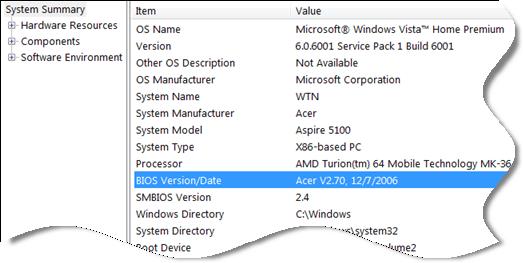
To view the System Information screen, click on Start \ Run… and in the run box type msinfo32 and press OK.
Once the System Information window opens, make sure System Summary is highlighted in the left navigation window, and look for BIOS Version/Date in the right summary window.
You can also check the BIOS version from the command prompt. Just click on Start \ Run… and in the run box type systeminfo and press OK.
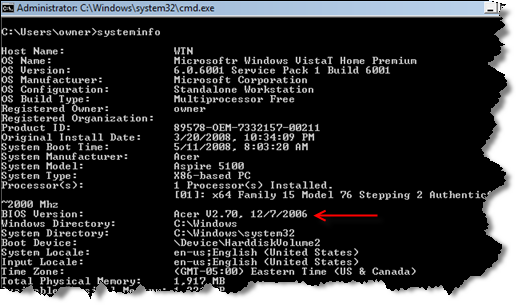
Or to just display the BIOS information only, enter the following command at the prompt:
systeminfo | find "BIOS Version:"
(Note: the | pipe symbol can be found using SHIFT+\ (just above the Enter key).
While you are at it, make sure you also install Vista SP1 since it does include a lot of fixes and improvements. Unless of course your problems started after SP1 was installed, then making sure your BIOS version is current will probably eliminate a lot of those little problems you are having.

Comments on How To Find Your Computer BIOS Version In Windows
MMG @ 12:02 am
Thanks a lot, very useful info, I needed it
God Bless you.
John @ 12:31 am
This method does not necessarily give the current BIOS version. I just verified that with a laptop that has an unknown setup password on the BIOS and a splash screen that conceals the POST information. The way to get the best BIOS info is to go to the registry (Start > Run > regedit) and look at HKEY_LOCAL_MACHINE\HARDWARE\DESCRIPTION\System. I had a bid discrepency between the two methods and the regedit method result is consistent with the mfr's BIOS offerings.
Ic@dallas @ 2:26 pm
Thanks a lot, This help me a lot.
Thank you for share = )
Steph @ 1:43 pm
Worked a treat for me on my Vista laptop. Thankyou very much for this! =)
Rohith @ 10:30 am
Thank you for the help
roy lansom @ 9:40 am
how do i get my hard drive 2 work got no how 2 BIOS 2 sort it
sander @ 10:20 am
thanks 😀
It looks like Systeminfo is only returning the first line in HKEY_LOCAL_MACHINE\HARDWARE\DESCRIPTION\System\SystemBiosVersion, which can be incomplete.
For example, on one of our Dell Optilex 745s, that registry value is:
"DELL - 15
Phoenix ROM BIOS PLUS Version 1.10 2.6.3
Phoenix ROM BIOS PLUS Version 1.10 2.6.3
Phoenix ROM BIOS PLUS Version 1.10 2.6.3"
Which is a multi-string value.
Systeminfo only shows "DELL - 15", which isn't very helpful.
A more complete query of BIOS information can be done via WMIC.
At the command prompt, type:
wmic bios get /format:value|find "SMBIOSBIOSVersion"
The pipe command (|, above the Enter key) redirects the output from the wmic bios get /format:value command to find, which then filters it and shows only the line(s) that match SMBIOSBIOSVersion (the find command is case aware, meaning the correct capitalization is necessary to return a match).
That last command returns the following on the Dell machine in the example above:
SMBIOSBIOSVersion=2.6.3
To see everything in the Win32_BIOS WMI class, just remove everything after value, such as:
wmic bios get /format:value
For more information, see http://msdn.microsoft.com/en-us/library/aa394077(VS.85).aspx and http://www.dmtf.org/standards/smbios/
Umesh Mourya @ 8:56 am
thank for information please add some new information
Umesh Mourya @ 8:56 am
thank for information please add some new information
Milan Pipersky @ 6:05 pm
Thanks … msinfo32.exe: exactly what I needed. Sharing is great: it helps everyone.
Kimberly @ 9:17 am
I appreciate you sharing the BIOS info - I needed the refresher 😉
drew @ 2:37 pm
hi! i'm using lg laptop rd410 and windows 7.. i have a big problem about my battery because i switched to win7.. and i read some forums and they said that it's because of the win7 and i need to update my bios.. help me pls… thanks! 🙂
Ravinder @ 12:59 am
Good
Pramod @ 5:00 am
hi thanks 4 giving info. and i need 1 more information that how we can identify the hardware serial no. in the system (in BIOS or in OS)
@Pramod:
You can type this at the command prompt:
wmic bios get /format:value|find "SerialNumber"
@david
Awesome tip!
Also, looks like you had a great time at the BCS game 😉
It was a great trip! 🙂
skhan @ 8:43 am
hi,
Can someone pls help me to find out about wireless drivers.
I am not able to connect through wireless since i reistall windows(vista) i think i am missing drivers.
acer aspire 5720
many thanks
Ningen @ 5:02 am
At startup my computer doesn't show the BIOS revision after my latest BIOS flash. You helped me out, thanks a lot! 😉
mönsch @ 10:10 am
This was perfect!
Short, sweet n' simple… keep up the great work!! 😀
Anton @ 7:42 am
Thanx brah…
dondondondon @ 12:48 am
thanks!!!!