


 How many times have you sent an email message only to realize you made a mistake…or cooled down after composing a message you had regret sending? With Microsoft Outlook 2007, you can delay the delivery of one message, before sending, by selecting the Options tab, and in the More Options group on the Ribbon, select Delay Delivery. In the Message Options window, check the Do not deliver before: box and select the date and time for delayed message delivery.
If you decide you do not want to send the message, or made a mistake, you can select it from the Outbox and edit or delete the message before the message is sent. This works great for one message, but a better method is to create a rule to delay sending all messages, with the capability to send any message immediately. Here's how…
1 - Open Outlook and from the menu, select Tools \ Rules and Alerts… then click New Rule…

2 - In step 1 of the rules wizard, under Start from a Blank Rule, click Check messages after sending, then click Next.
3 - For Select Conditions… section, click Next, then click OK to accept message that the rule will apply to every message.
4 - In Select Actions(s) window, check defer delivery by a number of minutes. Then in the bottom section click on the blue underlined words a number of
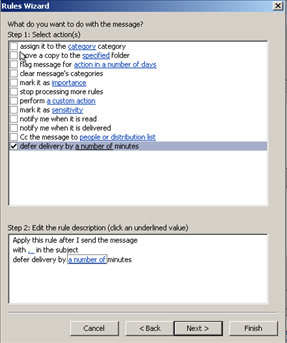
5 - In the Deferred Delivery window, select he number of minutes you want to delay message delivery and click OK.
6 - Click Next
7 - In the Select exception(s) (if necessary) window, check except if the subject contains specific words. Then in the bottom window click on the blue underlined words specify words.
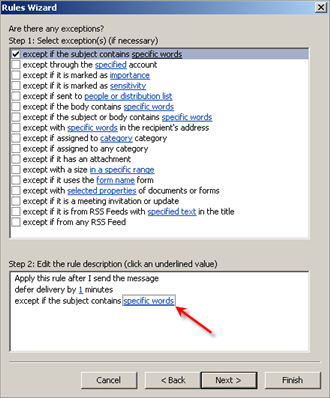
10 - In the Search Text enter a period followed by two spaces, ". " (with out quotes) and click Add, then OK.
11 - Click Next and specify a name for the rule such as Deliver Now. Click Finish then OK to close Rules and Alerts.
Test sending a message with and without ". " (with out quotes) to make sure the rule is working properly.
When using the message delay rule, if you need to edit the message with-in the time before delivery, go to the Outbox and make any changes neccassary (or delete the message). Any messages that have been edited, while in the Outbox will need to be sent manually since the rule will not process. For POP3, you need to be connected first, before the rule will process, otherwise it will sit in the Outbox until the connection is made. If you are connected to an Exchange server, the rule will process normally.

Comments on How To Delay Delivery Of All Messages With The Option To Send Messages Immediately In Microsoft Outlook 2007
Jo Manly @ 11:56 am
Can you automatically delay e-mails from earlier editions of Outlook?? For example, could you buy a plug-in that would do the job??
@Jo Manly
You can follow the same steps for Outlook 2003, but I am not sure about earlier versions than 2003. One way to find out, is follow the same steps in earlier versions and see if you can create the same rule!
Jay @ 2:15 pm
I did this years ago and it's been one of the best things I've ever done. Saved my butt more than once..
Brian @ 12:16 pm
I am most curious in using a time-deferred mail rule but with the exception of having sent later than the delay in the rule.
i.e I have deferred time delay of 8 minutes on all outgoing email but there are some emails I prefer don't get sent until 4 PM on a daily basis.
What would I need to do to accomplish this?
faa @ 8:58 pm
i am using exchange server. i have set the rule for delay delivery, but unfortunately i have close outlook before time email that email will be sending. however, that email is remaim in my outbox until i open the outlook in the nextday.
could you please tell me, is the outlook delay delivery can be apply to only outlook which is open and connected to server only that can be set the delay delivery rule? if not, could you advice, please.. many thanks
bgw @ 6:40 pm
Does anyone have an answer to this question - I used Microsoft Window 7 (Window 2007) outlook and I set some delayed emails going out on July 20, 8:00 am. For some reason, these email did not go out as planned. Someone told me I might had my computer turned off or outlook off. Is it true?
Thanks.
bgw