


 As a System Administrator or home user, connecting to Windows Computers from Ubuntu with just file sharing is all that may be needed. Other times, there is a need to remotely access Windows Computers to perform more complex tasks. With Windows, you can easily connect to another Windows Computer running Terminal Services with a Terminal Server client. On Ubuntu, you can also access any Windows Computer using tsclient.
tsclient is a GNOME program for remotely accessing Microsoft Windows NT/2000/2003 Terminal Services and XP Remote Desktop Sharing over RDP (Remote Desktop Protocol).
With Ubuntu, tsclient is installed by default. To verify it is installed simply enter the following command in a Terminal window:
dpkg -get-selections | grep tsclient
If tsclient is installed you should see the output of the command as:
tsclient            installed
If tsclient is not installed, you can install it by executing the following command from a Terminal window:
sudo apt-get install tsclient
Now that tsclient is installed, you can easily open tsclient by typing tsclient at the Terminal prompt (yes it looks exactly as the Terminal Server client on Windows!)
To quickly connect to a Windows Computer, just enter the hostname in the Computer field and click Connect at the bottom of tsclient.
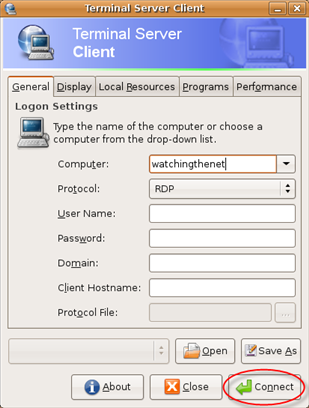
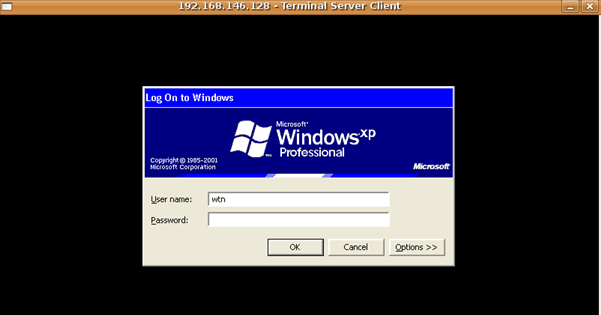
Once connected you can logon to the Windows Computer as normal:
Just as you can save configuration settings on a Windows Terminal Server Client, the same can done with tsclient by setting options in the Dislpay, Local Resources, Programs, or Performance tabs. Once the settings have been configured, you can save it as a file and open it when you need to connect to the server.
Once you have saved the settings to a file, you can quickly connect to a Windows Computer from a Terminal window instead of running tsclient from the GUI. To see the tsclient command prompt options, type:
tsclient -help
tsclient [OPTIONS]… [FILE]…
FILEÂ Â Â Â Â Â Â Â Â Â Â Â an rdp format file containing options
-h, -help      display this help and exit
-v, -version    output version information and exit
-x FILEÂ Â Â Â Â Â Â Â Â launch rdesktop with options specified in FILE

Comments on How To Connect To A Windows Terminal Server From Ubuntu
Buenas tardes,
Tengo un problema con el cliente terminal, la resolución de la pantalla al servidor donde ingreso es un poco deficiente, en comparación a cuando ingreso al mismo servidor desde un pc xp con Xmanager2, si alguien sabe como mejorar la resolución del cliente terminal de ubunto me seria de mucha ayuda.
Nota: ya modifique la resolución sobre el terminal client server y no funciona?.
hay otro terminal cliente para ubuntu que pueda utilizar?
gracias
Are you able to access a windows computer that is out side of your network with tsclient or does it have to be part of network?
Yes you can, just make sure that the certain ports are forwarded on the computer/server networks you are wanting to connect to.
okay, having some issues with TSC, it wont let you use the installed printer on the remote desktop… any help will be appreciated!
Works great, definitely slower than MSTSC (Remote Desktop Connection) through Windows. No doubt about it, much slower but still works. Haven´t tried printing but you also can´t easily switch back to Ubuntu without disconnecting from what I can see.
@mark: Really? I just reformatted my Windows XP 64-bit workstation to Hardy, and the first thing I noticed was connecting to our servers through tsclient was a huge improvement over Windows' Remote Desktop. I used to have slow startup/logout times, and when working through those connections there was about a .25-.5 second lag. Now it's as though I'm physically at those machines when I work with them. I think some out-of-date drivers may have been to blame when my workstation was a Windows machine, but I have no complaints now.
dear all,
i try to connect to windows server 2003, on it, i have made a new user called ubuntu. and i try to make connection via tsclient.
but on my ubuntu pc still cannot conncect to windows server. Any explanation?
thanks.
@izulthea
Try connecting to the Windows Server using it's IP Address. The problem may be that your Ubuntu machine cannot resolve the hostname of the Windows Server.
i am able to cnnect to to windows xp from my ubuntu pc but the problem is that i also want to share my disk on the remote computer while connected to it so i can copy files in it from the remote computer.
what should ido?
I'm using Hamachi and attempting to connect my Ubuntu to my XP machine.
I can browse windows shares with no issues
But when I try to RDP into my XP from Ubuntu using tsclient I get this message:
(tsclient:5962): GLib-GObject-WARNING **: /build/buildd/glib2.0-2.18.2/gobject/gsignal.c:2384: instance `0x86d51e0' has no handler with id `2199'
and I also see this message:
** (tsclient:5962): WARNING **:
X Error of failed request: BadAtom (invalid Atom parameter)
Major opcode of failed request: 23 (X_GetSelectionOwner)
Atom id in failed request: 0x0
Serial number of failed request: 55
Current serial number in output stream: 55
no idea whats going on
I see a screen for a split nanno second (looks like the RDP window, but it will close before I can blink)
Any help would be great 🙂
When i want to connect to a Windows 2003 Server or a Windows XP, i got the error:
ERROR: getaddrinfo: Name or service not known
If tried via DNS and IP-Address also. Ive tried with RDP and RDPv5.
If tried with or without keyboard settings.
Anyboy an Idea?
dear all,
why my ubuntu cannot mount permanently to windows server2003 (like mapping in windows). i`ve tried to make connection, but its lost when computer restart.
any Guru can help me? completly please.
I'm having the same problem. I'm dual booting with XP and Ubuntu. Terminal Server Client works fine (and faster than it does on Windows), but it doesn't recognize printers. If I switch over to the XP side, I can print with no problem.
I tried using tsclient but it's extremely slow compared to win->win remote desktop connection even though the computers sit in the same local area network. Any suggestion to improve the connection quality?
works definitely faster than win to win (jaunty to win2003)
😀
Mike: I posted on 4/10/09 with the same issue. (Terminal Server Client doesn't recognize printer). Did you ever find a solution? I hope so, and that you'll share it with me. Thanks.
John
John. You can use, from a terminal, rdesktop IP -r printer:name_of_the Printer. Then go to the printer in Windows that says something like name_of_printer from name_of_Ubuntu_computer in session x. Go to tab ports click on bidiretional printer and chose the windows port that you wanto to print. Ex. if you program use LPT1 to print then choose LPT1. Now you have two ports the local and the remote one. So by this way you can print in your local Ubuntu printer
I can access to win-sever2003 but Terminal server not printing default?!!!!!!
I have pc with ubunto and connecting with printer and server2003 with program great plains…then I accessed to server by terminal server but when I want to print from the great plains any report it does not capture my printer….why???????!!!!!
Hernan: Thanks for your reply. It was a bit technical for me to understand.
When you say enter from a terminal: rdesktop IP -r printer:[name_of_the_printer], do you mean the printer's name as it appears on the remote computer [HP LaserJet 4000 Series PCL6 (from BIGDADDY) in session 3] or its name as it appears in Ubuntu [usb://HP/LaserJet%204000%20Series]?
Where is the "Ports" tab you speak of?
Sorry to be asking, I'm a newbie.
I have pc with ubunto and connecting with printer and server2003 with program great plains…then I accessed to server by terminal server but when I want to print from the great plains any report it does not capture my printer….why???????!!!!
Please any help???
try clicking on the local resources tab on the start menu for tsc then click add local hard drive
@Tommy: I have this problem too! But I don't see a solution posted yet! Love to hear about it, as Googling for an answer hasn't lead to a solution yet. And I need to connect to my work (Windows) computer. When they reinstalled the system to a newer Windows, I got this error. Thanks in advance! Greets.
Hello, I have Terminal Server Client on Ubuntu 9.10 to get a XP desktop from my other PC. I use a launcher with this: rdesktop -r disk:"KINGSTON"="/media/KINGSTON" 192.168.1.2 to share my USB pendrive but I need to share that and other folders. If I make launchers for every folder or drive I want and I launch them I'm getting several conections to the same PC, and I dont want that. Anybody knows how to get that with just one launcher. I mean with one command ?? Thanks.
Gracias por tus comentarios. Es excelente y me ha sido de gran ayuda.
GRACIAS.
how can i connect my ubuntu to a server without open the webbrowser
and download something from the server.
if you can help me plz reply me!!
Hello,
I have this working but when I want to use an internet connection on the remote desktop (Win XP) I can not get a connection.
Any ideas?
Abuiskool
If you are physically in front of the XP computer and logged on (with out using remote desktop) are you able to browse out to the Internet?
@rzk
check local resources tab of terminal services client… there's an option there that says "add my local drive to the remote computer"…
I use 64 bit 10.04 to access XP. I find that following doing this I get issues with windows not showing properly on the local XP machine after a remote session where the taskbar programs will flash yellow and not display correctly, remaining hidden requiring minimisation and multiple clicks to re find these. A reboot of XP fixes this behaviour until I log in again with the Terminal Server Client application. Anyone else notice this?
Sorry I should have said I am using 32 bit XP.
@mark: I too was finding the tsclient to be slower than win-on-win for the same connection. A Youtube video hit I also found mentioned switching to RDPv5, which made all the difference. Unless you are connecting to something really old (like Windows 2000), you should prefer the RDPv5 protocol over RDP.
@Brian: Wow, i've been dealing with slow connections from Ubuntu Terminal Services Client to a Windows 7 box for a few months now. Changed from RDP to RDPv5 and that made all the difference! Thank you so much for posting this.
I've been successful at connecting to a Windows XP client with terminal server client under Ubuntu 10.04 but cant connect to Windows 7 64 bit. I get the error "Connection reset by peer". Any ideas on why?
Thanks
@George:
It the 'Remote' tab of 'System Properties' on Windows 7 machine - Select "Allow connections from computers running any version of Remote Desktop (less secure)".
@Grenage:
The computer I'm trying to connect too has network policy on it that won't let me change that setting. Its set to the secure setting.. oh well..
I have to agree with the posters about speed. tsclient is much, much faster than msrdp. I am a daily user of both and always prefer tsclient.
Hi all,
Is there a way to switch between full-screen and in-window mode while connected?
It seems that if you started a session in full-screen, there is no way to minimize the terminal client window unless you disconnect from the server…
I have been able to connect to the win 2003 r2 server from Ubuntu 11.04, but how can i ve the session in full screen mode?
Never allow a security update that say "authenticated user….". It's where windows works against you. I have so many problems connecting to my own network that I am looking into funding for a MAC network.
To paraphrase all the comments relating to printing from a Linux RDP session on a Windows machine try:
1) From a Linux command line terminal session and type:
lpq
2) Highlight and copy the preferred listed printer name from the output of lpq command.
3) Still using the terminal session type:
rdesktop IP -r printer:name_of_the_printer
'IP ' is the address of the target windows system.
Replace 'name_of_the_printer' with the copied printer name.
Works fine for me from Ubuntu and XP/2003/2007
Donty
Carrying on from the printing issue and questions about being readily able to change resolution etc, although you can't do that dynamically after the session is established there is a simple way of controlling it if you are using the default Ubuntu GUI frontend to rdesktop.
Using the Remote Desktop GUI, create a new connection to your desired Windows system complete with preferences on resolution, sound, drives, keyboards etc.
NB it saves the password in plain text if you enter it, use with caution!
Save the configuration as an RDP file eg: mywindowssystem.rdp
Edit the RDP file in Gedit or similar text editor and look for:
redirectprinters:i:0
and change it to
redirectprinters:i:1
Save it and then when you double click it you will connect and you should see your local Ubuntu printer on the windows rdp session.
Simplez -ish 😉
@Gianfranco
Final point about full screen issue. Try CTRL-ALT-ENTER in the full screen session and it will bring you back to the Ubuntu desktop underneath. CTRL-ALT-ENTER toggles between full screen and sort of full screen shifted 😉
@AUBR3Y
In the Remote desktop GUI you can select Full Screen in the Display tab. With rdesktop try:
rdesktop -f IP etc etc
AHHH! Great!! It works!!
Thank you very much, you solved my problems.
Many thanks again.
Gianfranco
OK, the redirectprinters:i:1 is not sufficient, must have hooked into a session already running last time.
Final solution for me was to grab a copy of Remmina which seems to be a better GUI RDP client for Ubuntu.
http://remmina.sourceforge.net/
Has a PPA on Ubuntu launchpad and allows things like resizing, local printers etc. as well as VNC, SSH and SFTP sessions.
Install with:
sudo add-apt-repository ppa:llyzs/ppa
sudo apt-get update
sudo apt-get install remmina
Appears in the Internet section of the menu in Ubuntu. Worked very smoothly!
There is also a new rdesktop fork getting some new polish and shine:
http://www.freerdp.com/
Not tried that yet!
@Gianfranco:
Glad I could help. Worth doing these things once and getting them right. Suggest you also have a look at Remmina, has good quality dynamic scaling as well as printing etc.
Donty
Everyone who gets the ***bad atom error***:
To me the situation got fixed and i was able to connect when I added hostname (or some random text) to Client Hostname field of Terminal Server Client.
I want to RDP into windows 2003 current session using TSClient(ubuntu 11.04) so that I can use open programs on win 2k3 machine
Thanks !
Really Good one. Thank You….!
There is no one like Hoblink JWT. Ultra fast. It is like Windows RPD. But is a paid software.
Hi, we have ubuntu on our pc's at the office, but have a terminal server for the Pastel software that requires Windows. At present when I need to do my back ups for Pastel, I have to physically insert the USB into the server in our data centre which is not ideal for our work environment. My question - how do I backup from my own pc on remote desktop? Thanks
Hi,
I use terminal server client to access win7-64,but my screen was delayed seriously! It looks like non VGA driver installed,but It is installed indeed (it is a VM out of ESX server, VGA adapters — VMware SVGA 3D). how can I do next to fix this problem?
My work station is ThinkPad T60 (ubuntu 11.04).
Who can help me?? thanks very very much!!!
adding name to host worked for me re:bad atom thanks @Erkki Saaremets