


 Typically, when printing in Firefox, selecting the default print setup is sufficient for most cases. But if you need to change or customize printing, Firefox gives you the ability to customize the headers and footers of your print job in several ways. Information can be placed in the upper left corner, center, and upper right corner of the header and footer of the page.
Firefox printing, allows you to have a choice of options to customize printing using the following items, via drop-down menu, that can be placed in any or all of the six locations in the header or footer.
-blank-: If selected, nothing will be shown.
Title: The title of the web page will be shown.
URL: The entire URL of the web page will be shown.
Date/Time: The current date and time will be shown.
Page #: The page number (i.e., 3) of the current print job will be shown.
Page # of #: Similar to Page #, this will not only display the number of the current page but also the total number of pages in the current print job (i.e., 1 of 2).
Custom: Type your own text. You can include any of the following codes to print specific information:
&PT: Page Number with Total (Example: "3 of 5")
&P: Page Number
&D: Date
&U: URL
&T: Page Title
To view and change print options, from the menu, select File \ Page Setup… then click on the Margins & Header/Footer tab.
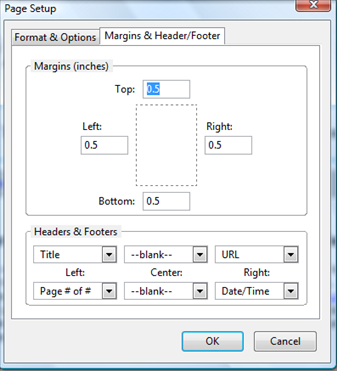
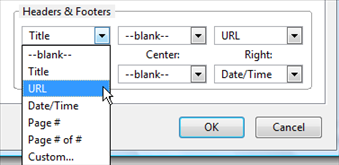
At the bottom, in the Headers & Footer section, selecting any of the six options (3 for Header and 3 for Footer), you can modify how you want information displayed when printing. For example, selecting the Header Left drop down, you can change the display from Title to URL and select OK.
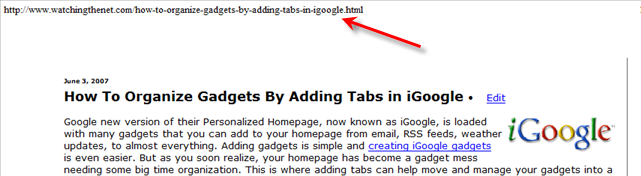
Which will now display the URL of the Web Site page instead of the title in the upper left hand corner of the Header:
Just as you can make changes to the Header, the same type of changes can be made to the footer using any of the options listed above, or you can customize with any text.
Say you wanted to add custom text to the to the center of the Header. Just click on the Center drop down box, select Custom, and enter text in the Custom box and click OK.
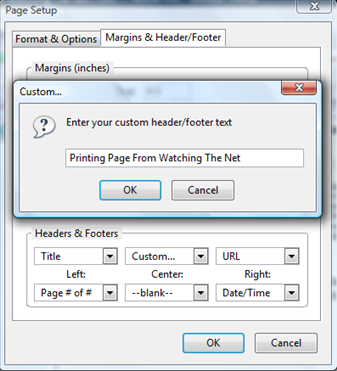
The custom text will now appear as shown in the below screen shot:

With adding Custom text, you can also combine any of the above listed codes to print specific information. For example, combining &D &T will print the date and time together:

TIP: If you want to experiment with changes and view them before printing, select File \ Print Preview from the menu, and select the Page Setup button.

After you make your changes and select OK, Print Preview will immediately update the changes, allowing you see exactly how the page will be displayed before printing.

Comments on How To Change Or Customize Firefox Printing Defaults
Great. But after I've done all that customization for the single document that I wanted to print in a different way, how can I restore the default settings? (I can't even remember what all of them are.)
It is odd that Firefox does not include a method to restore the default settings, but in any case, here are the defaults:
Header:
Title, -blank-, URL
Footer:
Page # of #, -blank-, Date/Time
Watching the Net:
Neither does Internet Explorer 6. I wanted to remove the default headers in a program I was using - on the Print Setup page I wiped out headers and footers. Then the next time I tried to print something from Internet Explorer, they were also gone in there! It seems the program where I deleted them was using IE to print its reports, but it had changed the look enough that I didn't notice!
I googled "standard IE headers" and found a site that showed them, and the code used to configure them.
In Firefox: Not sure what the default was, but I use the following and it is helpful:
Top Left: Title……….TopCenter: Blank………….TopRight: Date/Time
Bottom LeftURL…….Center LeftBlank………..BottomRight: Page # of #
Here are the Internet Explorer defaults, at least for IE6:
Default header code: &w&bPage &p of &P
Default footer code: &u&b&d
IE6 Header & footer Command codes: You may also want to manipulate your header & footer, which you may do by referring to this table.
Header & Footer Command Codes As displayed after clicking on "?" then in Header/Footer box in Page Setup window.
Code Function:
&w Window title
&u Page URL address
&d Date in short format (as specified in Regional Settings in Control Panel)
&D Date in long format (as specified in Regional Settings in Control Panel)
&t Time in format specified in Regional Settings in Control Panel
&T Time in 24-hour format
&p Current page number
&P Total number of pages
&& Prints "&"
&b Center text immediately following code
&b&b Right justify text after second &b. (Center text between &b's.)
-J-Mac
J-Mac
Great info, this will come in handy when I'm using IE. I also believe (but could be wrong) that the Header & Footer command codes also work in IE 7.
I don't have IE7, but I thought I saw a post somewhere that they are changed. That may mean the settings location, though.
Great tips.
One thing I'd like to know is: once I've got the setup how I like it, can the print button be configured to just print? I mean without bringing up a dialog box that I have to click OK in.
@Arnie To do this you will need to make a change to Firefox config:
1 - Type about:config in the address bar
2 - Right-click anywhere in the white space, click on "New -> Boolean" and type
print.always_print_silent
and set the value to True.
This will force Firefox to print with out any prompts. The drawback with using this is that you will not be able to make any changes to your print options (make sure everything is set first). To disable or remove the entry, right click and set it to false or reset and restart Firefox.
Thanks! That worked great.
Glad to help out Arnie!
Useful information and comments - thanks everyone. I had not found the drop down lists in Firefox "Margins and Headers and Footers" menu.
But unfortunately it doesn't solve my problem. Can anyone tell me how to prevent the headers and footers from being printed right at the edges of the paper please? I can't get my printer to adjust these settings. Suggestions would be very much appreciated.
Well information is quite good. But i am facing a strange problem. I can see Print preview but its printing blank pages, only header and footer is printed. This is happening on 2 computers only. working with mozilla firefox 2.0.0.12
I see the header/footer section of the page setup in Firefox (2.0.0.9 on Debian 4.0r1 linux). My H/F settings are still the default, so I should be getting title, URL, page and date/time. In print preview, I do indeed see these. However, when I actually print, there are no H/F printed…
I have 2 errors. Firefox print preview is blank and printed pages are black. This happened after i installed adobe pro8. How can i fix this. IE7 prints fine?
Jumans
@jumans
Try uninstalling adobe pro8 and see if printing returns back to normal. If it does, you should contact Abode for support.
I have the problem of being able to use Firefox Page Setup to adjust margins but not Headers & Footers. No matter in what order I place the elements they do not print.
Any suggestions to overcome this problem?
Yeah, but how do you reset the default printing values?
@Gene
It needs to be reset manually. Here are the defaults:
Header:
Title, –blank–, URL
Footer:
Page # of #, –blank–, Date/Time
i succesfully solved this problem for myself.
i have printer named 3120.
go about:config
enter keyword "edge"
then i change this values so :
print.printer_CUPS/3120.print_edge_bottom=60
print.printer_CUPS/3120.print_edge_left=40
print.printer_CUPS/3120.print_edge_right=40
print.printer_CUPS/3120.print_edge_top=40
by the way sucha variables as
print.print_edge_bottom
print.print_edge_left
print.print_edge_right
print.print_edge_top
DOES NOTHING.
then i go to file-page options-margins & header/footer-
i setup margins :
top=0.8 inch
bottom=0.8 inch
left=0.5 inch
right=0.5 inch
and my paper size is set as "letter (8,5×11 inch)", though i print on A4. but unfortunately firefox do not print properly on paper A4 when it is on A4. that is paradox for me.
that is all. 🙂
and i don not understand. why so long ( now we have firefox 2.0.0.13) firefox have such basic stupid mistake.
by the way if firefox have
top=0.9 or top=0.7 then it printed page only about 25% of its content.
and that is not all.
if top position of page intersect position of header, then top part of page destroy header. and in this case header did not print.
There are a lot of pages that simply do not print well from almost ANY browser. The biggest offender IMO, sadly, is Firefox. "Sadly" because Firefox is my main browser! Yet many times I get web pages that should be maybe eight or 10 page long printouts yet Firefox's Print Preview shows one page - the others are either not shown (and therefore not printed) or print blank pages.
IE has the age-old problem of cutting the right side off of pages. Grrrr. How many times have I printed off some pages I really needed when I was in a rush and then, later when I try to read or otherwise use them I see that the last two, three, or even more words are cut off the right side. Frustrating!
Believe it or not my solution to ALL web page printing is….. download Opera and keep the latest version on your computer. Opera is actually pretty cool, though it is missing a few features that keep me from switching to it full-time. It browses pages a LOT faster than either Firefox or IE - any version. And it even loads uop faster than other browsers.
But the great thing it does is its amazing ability to reduce any web page to fit perfectly in the monitor display. And print them perfectly!!! Anytime I am using Firefox - which is most of the time - and I have a printing problem in it, I use the "Opera View" toolbar button - installed via an extension aptly named "Opera View" - and Opera instantly opens to that very web page. I click the Print button and whatever printing problem I was having is solved instantly! Then, of course, I close Opera and switch right back to Firefox and continue browsing.
Opera has solved just about all my web page printing problems.
J-Mac
I want to Firefox Print Preview for my web application reporting. I can put there header and footer for my reporting not with Firefox page setup Header or footer, I user HTML tag , and now I need to put the page number inside of my content/page.
Is there any way that Firefox can display print preview page number inside of my content/page not to Firefox header or footer?
I just want on a footer the date but whenever i use any of the coding &d or &D it still gives me the time on there aswell.
Is there anyway to stop the time showing?
So, supposing I want to permanently customize my print header settings? How can I do that?
— Mario
Hello Sir,
I am using fire fox. I am facing printing problems
Hi,
Is there a way to SAVE the print settings (custom header, footer, etc.) in Firefox?
E.g. I would like to have 2 or 3 different sets of configurations and change easily between them .
Can this be done:
- via FF configurations?
- via an add-on? (which?)
- through the page (e.g. using javascript or sth)?
Btw: great post with much useful info! 🙂
Thanks in advance,
Aristotelis.
Using Firefox 3.5.5, File, Page Setup, Margins & Header/Footer it says you can use Custom in Headers & Footers and we wanted to know if instead of Date/Time could we make it print just Date. In Help it says use Custom, &D and set Windows, Control Panel, Regional Options, Short date to just a date format, but it still prints date/time when we tried this Custom, &D. In Internet Explorer &d prints short date, but in Firefox 3.5.5 &d doesn’t work.
Do you have other custom code for Firefox 3.5?
I need to print &PT for non-English language, so I need to change the "of" word.
Any idea?
I have no idea what language Firefox is printing in. Why can't it just print the page the way it's shown? I have to save it to a word document or something to get it to print some things correctly. What is the problem? Craig's list items all have to be saved first, then printed. And just now I printed out an e-mail attachment which also printed in some foreign language or something. It sure can't read English and print in English. Never seen anything like it before.
after some firefox uogrades there have been problems with printing page. It appears almost in code although if the text is known it can be decyphered
It would appear Mary, above has the same problem as I. If i use google chrome to access internet and emails there is no such printing problem. looks like firefox is the problem and becoming unusable. for emails and netbank
not changer
HELP! Just installed Firefox 4 recently and went to print off an item today — no print command/icon anymore! What do I do - firefox help left me totally confused and muddled. Can anyone give me simple instructions to be able to access my printer again?
I screwed up page setup in firefox so bad that it removed the margins & header/footer settings - the page is blank - so I can't even manually reconfigure. Anyone ever do this? All I wanted to was to see if I could span the scope of printing out a goggle map and I change the margins to 2.5 and the headers and footers I made blank. I guess that was my lame-brained mistake.
I reinstalled Firefox, I rebooted, restarted my printer and nothing helped.
I wonder how many people need to report printing problems before something actually does happen.
Have been searching for a couple of hours now, and have found no solution to why the "print background colors" and "print background images" options do absolutely nothing. As I've also noticed, for some people any changes to the printing setup become default while for others, me included, there is no way to actually make them default. Also, the printing setup window is missing some options that appear only when I press Ctrl+p. What would really help is some pre-print page modification crossbrowser add-on.
There are many complains on the official Mozilla site and I'm sure the same goes for both IE etc. My limited knowledge of computers prevents me from doing anything about it (complaining doesn't help I know - I am trying). As someone on one of those forums explained, the problem is crossplatform and crossbrowser, and anything to trully change a company, like HP, would need to release some crossplatform, crossbrowser generic drivers. What are the chances of that when their insentive for doing anything is money?
From the look of the comment section on this page it'll take a much larger effort to actually solve the various problems. Efforts greately appreciated.
Found PrintEdit add:on for pre-print editing.
@Aristotelis:
Hello,
It's an old post… but did you find answer to your question : Is there a way to SAVE the print settings (custom header, footer, etc.) in Firefox?
I also look after a such plugin.
Thanks,
Gilles (France)
In firefox is there a way to only print the date NOT including the time in the footer?
WTF? The messages don't print the date the email was sent / received? This isn't a "feature" issue - it's a bug issue.
I'm trying to print (must print for court) the date that messages were sent. I go the outbox, select the message, double-click and print. It prints To: From: Subject: and then the message, but doesn't include the freakin' date the message was sent?!? WTF?
Pardon my venting, but is there any way to fix this? A judge isn't going to want to see hand-written dates proving when an email was sent!!!!!!!!!!
Thanks.
@J-Mac:
The code for total number of pages is &L (for _L_ast page)
&p does not exist and # of # is &PT
@Xan-Kun:
My comment that you quoted is from August 2007 - almost nine years ago. I would guess that Firefox's printing codes might have changed since then.
Thank you for the update.
@thepadi:
You can use &P and &L where &P is the current page, and &L is the last page.
Currently running Firefox under Centos 7. In the version I have the Page Setup menu item is non-existent. To set this up requires going to about:config and searching for the necessary print items there.
I am not sure if this is a Linux only phenomenon or if Firefox has the same structure under Windows.
is there any way we can programmatically position them?