


 Firefox does a great job of of saving your user names and passwords so you don't need to remember them next time you visit a Web site. While this feature is great, Firefox does not include a good backup method to save passwords and accounts in the event you need to restore or copy to a safe location.
You can backup your entire Firefox profile directory, but if you just want to keep a backup copy, or have a need to sync them with another Computer, the Firefox extension Password Exporter is all you need.
Password Exporter allows you to export and import your saved user names and passwords between Computers or keep as a backup copy. Your passwords will be exported to an XML or CSV file and can be encrypted.
To install Password Exporter, click on Install Now follow the instructions, and restart Firefox after the installation has completed. When Firefox has restarted, you can access Password Exporter from Tools \ Options and select the Security Tab.
Look for the Import/Export Passwords button in the Passwords section:
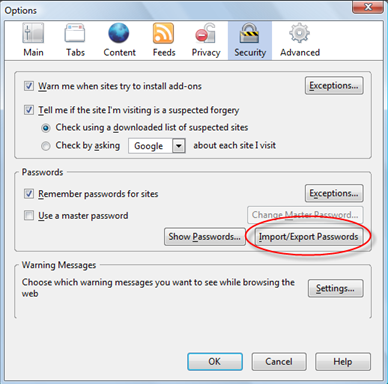
To export, click on Import/Export Passwords button. In the Import/Export Passwords window, select Encrypt Usernames/Passwords check box (recommended as a safe guard) then click on Export Passwords.
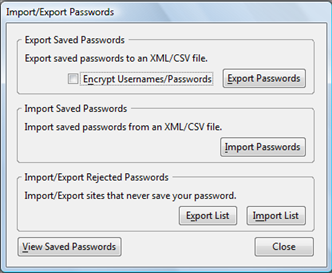
To save the file, give it a name and select to either save it as a CSV or XML file.

Once saved, you can back it up or import it to another Computer running Firefox with Password Exporter installed.
NOTE: The "encryption" feature is mainly to prevent casual users from stumbling upon your passwords. It will not stop someone who actually wants to see them, as they could just import your file anyway. Use good judgment when exporting your passwords.

Comments on How To Backup Your Saved Passwords In Firefox
Thank you for this, exactly what I needed!
nice. it worked
Thanks a lot man 🙂 Really helpful site. Now I can save my passwords :D:D
Very nice, but is there a way to do this manually? I don't run any software unless it is necessary, and I only need to export some passwords. I am going to manually key them back in and use this job as a chance to clear out the websites I don't use any more.
When i go to tools, internet options it does not give me the passward options etc only gives me custom level and default settings, where am I going wrong
Thanx alot , very useful addone 🙂
As some have already said: great, just the tool I need!
But wait. Is it open source? Has the public had a chance to scrutinize the code? How do I know that it's not quietly uploading my whole password list to some website while doing the export?
Just wondering…
Barius Drubeck
There only one way to find out. Use a sniffer tool such as Wireshark when using Password Exporter.
Let us know what you find.
hopefully Mozilla wouldn't allow an add on linked directly to there website that would steal our passwords though. But this is exactly what I've needed.
Thx man. It would be nice if I could import that csv or xml file into IE… But still a great backdoor 😀 What I don't understand is the encription - what does really do, because I only see other passwords than I had but I wonder where is the encription key in there?
@Barius Drubeck
The *.xpi file is just a *.zip file and all of the source is there from what I can tell.
Thanks a lot .Really helpful site. Now I can save my passwords
thanks alot men! I really need this.
i don't have this button import/export passports… i have button saved passwords! Shit
but in my web browser i cant see import my password button so in which version this can be available.
Yap ! it worked
THANKS MAN U ROCK I HAD TO INSTALL A NEW WINDOWS THIS ROCKS MAN
FF v3.6.3 Tools>Options doesn't have "Import/Export Passwords" any more.
The XMarks addon doesn't seem to have any FF import function.
The other Addons don't claim to import passwords.
So you cannot restore your bookmarks or passwords automatically!
H-E-L-P-!!!!
@anon:
Seriously? You don't run software? Then why do you have a computer? If you are that paranoid about using software then you should be even more paranoid about running searches on the internet.
The manual way of doing what this software does is to view the passwords on one computer and then enter them into another one. You already know that. When you are trying to back up content from one computer to another before a restore or reformat and have hundreds of logins to transfer, the manual way isn't practical. Software is the only way around it. Until someone perfects hardware telepathy which doesn't require software to run, you are going to have to deal with it.
i can't see this option in Mozila Firefox 3.6.6. Please help me I am using the FireFox 3.6.6 and whenver i download a file and try to open it directly my firefox show Not responding on the Title bar. Even though i reinstalled it twice and had to load all my passwords again. can you tell me why my firefox is not responding and also how to save all the passwords in 3.6.6 . Thanks in Advance…… 🙁
@duh: I heart duh.
dude you rocks I am an seo and have lot of usernames and passwords on various sites, I was going reinstall my operating system and worried about stored passwords.
Can' I have access to these passwords with javascript?
My friend you justa saved me a ton of time.
I took 10 seconds to install the plugin and export the passwords. Wonderful.
Cheers
Thank you, My problem was solved.
@duh: What’s your problem? I’m sure they meant that they only run software that is necessary. They run an operating system, because that is necessary. They don’t run a random add-on, because it’s not. That’s just good practice.
Why not just copy the two files from the Firefox profile that contain the password information? I saw this and some other useful information on the Mozilla site.
Thanks. thats wat i was looking for.
For security reasons it is good that firfox didn't give the option to do this.
Exactly what I was looking for. Great job and thanks!
Great! Thanks for pointing me to the right direction. This is fast and easy way to export all passes, especially if the are about 1k= 😀
There is no need for this addon; and you can do all this by just copying three files to your new profile directory in firefox:
key3.db
signons.sqllite
signons3.txt
Enjoy and no need to get paranoid!
Viper - you just made my day. I was about to give up my search for this solution, and at the bottom of this lonely page was your gem of a contribution. I manage about 20 account executives computers whose computers need reinstalled every 1-2 years, usually after one gets a virus. For image deployment issues I don't want the entire profile restored, just passwords. The thought of having to sniff this thing out with wireshark is a major PITA. I mean what if it reports passwords every back to IRC 10,000,000 every seconds? Am I going to watch the trace for the next 3 months? Where is the power supply for my hub anyway?
Am I being tin hat paranoid? Maybe, but its a very small chance of a HUGE disaster.
What I just got working for me was to open FireFox
Help -> Troubleshooting Information, click "Open Containing Folder"
copy:
key3.db
signons.sqllite
signons3.txt
On to a USB key and reinstall the computer. Load up FireFox on the fresh install
Help -> Troubleshooting Information, click "Open Containing Folder"
paste:
key3.db
signons.sqllite
signons3.txt
Works like a charm. Thanks again Viper!!
"I mean what if it reports passwords every back to IRC 10,000,000 every seconds?"
*back to IRC every 10,000,000 seconds
@Viper & McJibbers
Yes, as Viper described, saving the three files is another great way of saving and backing up your Firefox.
Using Password Exporter allows you to export passwords to a csv file (and encrypt) which basically guarantees if the Mozilla developers ever decides to change how they store passwords, more than likely you will still be able to import the pwds from the csv file.
When it comes to supporting users, especially executives in a Corporate environment, saving just passwords is never enough, because they always want "everything" back. I take the easy way out and just zip up their entire Mozilla folder located in their user profile directory
Does this addon also import setting and other customized firefox value from the default? I currently need a tool to import all of my setting, username, password, etc from my previous laptop to the new one…
BTW thank you for this article. You just help me to save my times 😉
Hi all can you tell me how to export saved password using cmd
@Ahmed Imran
See Viper and McJibbers comments above.
@Mike Boyds: thanks, for this further info.
Mozilla Firefox stores all your personal settings, such as bookmarks, passwords and extensions, in a profile folder on your computer, in a location separate from the Firefox program. This article explains how to back up your profile, restore it, or move your profile to a new location or computer.
http://support.mozilla.com/en-US/kb/Backing%20up%20your%20information
be wary of any 'foreign' software - especially when it comes to passwords.
the best thing to do (imho) is to either make a text file and save usernames/passwords in that. or, if you're too lazy to do that - make a screenshot of the security section in firefox after clicking "show passwords".
it's not brain-surgery people, and it's not worth the risk no matter how 'good' someone says any software is.
don't take chances - it's that simple…
Storm, what is foreign?? If you are Canadian then every other country in the world including America is, by definition, foreign. It is pointlessly xenophobic to use words like "foreign" on this sort of board. Committing passwords to any sort of software carries risk, regardless of where it originates from.
It's really great. Very helpful to me even if it's risky. Thanks for sharing. Password Exporter - Add on is working out. I just tested on my own risk 😀
@McJibbers:
Thank you for the info. I was looking for the file locations for these because I've done it before but forgot where they are. I'd rather not trust my passwords to a third party either.
Something you might like to know about: I use a program called sandboxie that you should google. It helps with browser security and is easy to use. Also, on a clean install on your browser it will keep it running as lean and fast as first day install. That is why I'm backing up, so I can fresh install.
Cheers and thanks for the time saver!
Wow !!! - Simply fantastic, exactly what I needed!
absolutely cool.. it's works.. thanks dude.. 😀
Martin,
Storm is most likely referring to software that is developed by another company other that the original company. i.e. Firefox did not develop this software so it is foreign to this product and could be collecting data without the user being aware.
foreign is perfectly clear and correct on a board that talks about software. Maybe you should look up the multiple meanings of a word instead of trying to use words that do not belong in a post or attacking someone when storms meaning was perfectly clear.
@Martin:
This is such bullshit, this program has to retrieve the info from some file in firefox. Why not just make a copy of the file that stores the passwords and move that file to the other computer and/or save it as a backup? Problem solved no extra software to install. All we need to know is which specific file or files?
thanks u sir …….for it i want this type of thing to do my work easily ……..
First of all I wonder why someone wants to use a third [arty fotware/script/addon ?
Use firefox SYNC (a tool inside firefox - easy and 100% secure)
Regards
Linux MINT - 17 new release!
Very nice information that you shared in this article.