


 For reasons beyond common sense, Microsoft decided to turn Vista disk defragmenter utility into a faceless tool that no longer displays the graphical overview when running analysis or defragmentation on a disk Volume. While the GUI interface does nothing to report information or status information, a better way to generate detailed reports and perform other advanced tasks is to run disk defragmenter tool from the command line.
Unlike Windows XP disk defragmenter tool, Vista interface only allows you to modify the schedule and start the defrag:

The GUI also does not allow you to defrag individual Volumes, perform an analysis, or provide any useful reporting. Ironically no defrag information can be found in Vista event logs or Performance and Reliability tool.
Fortunately, running disk defragmenter from the command prompt (you will need Admin rights), gives you greater control of which volume or volumes to defrag, allows you to run analysis and view detailed reports. To view disk defragmenter available command line options, open a command prompt and enter the following command:
defrag.exe /?
which displays the following output:
Description:Â Locates and consolidates fragmented files on local volumes to improve system performance.
Syntax:Â defrag.exe <volume> -a [-v]
defrag.exe <volume> [{-r | -w}] [-f] [-v]
defrag.exe      -c [{-r | -w}] [-f] [-v]
Parameters:
Value              Description
<volume>           Specifies the drive letter or mount point path of the volume to be defragmented or analyzed.
-c                    De fragments all volumes on this computer.
-a                    Performs fragmentation analysis only.
-r                    Performs partial defragmentation (default). Attempts to consolidate only fragments smaller than 64MB.
-w                    Performs full defragmentation. Attempts to consolidate all file fragments, regardless of their size.
-f                    Forces defragmentation of the volume when free space is low.
-v                    Specifies verbose mode. The defragmentation and analysis output is more detailed.
-?                   Displays this help information.
Below are defrag.exe examples:
defrag.exe d: (defrag the D: drive)
defrag.exe d:\vol\mountpoint -w -f (defrag the mountpoint while consolidation all file fragments regardless of size and if volume space is low, forces it to defrag)
defrag.exe d: -a -v (run analysis on the D: drive and set verbose mode for detailed output)
defrag.exe -c -v (defrag all volumes on your Computer and set verbose mode for detailed output)
An example output, shown below, runs analysis on the C: drive with verbose mode:
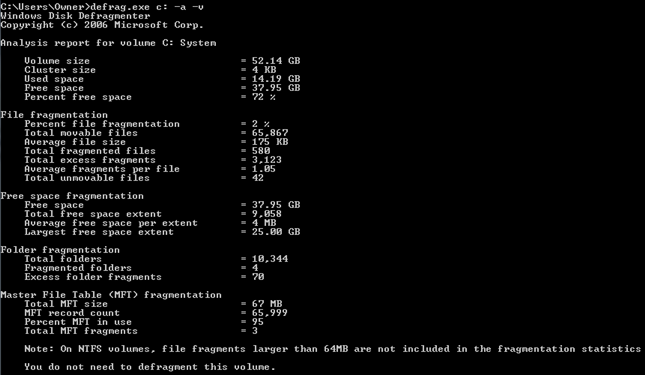
As you can see, a more detailed analysis is shown with information at the bottom indicating that the volume is not fragmented. A similar report will be displayed after fragmenting a volume.
While Vista graphical defrag utility does a nice job of making sure your disk drives are free from fragmentation, using the combination of defrag.exe from the command line for analysis will finally give you a better picture of your disk volumes that is lacking with Vista.

Comments on Get Detailed Statistics By Running Windows Vista Disk Defragmenter From The Command Prompt
Command line defrag requires Admin permissions. You don't mention this at all!
Thanks Herb for catching that!!
How come it says I need administrative permissions even though I'm using an administrator user. I need help. Thanks.
Oh never mind, I got it already. Sorry I wasn't paying attention to what I was doing.
excellent! thanks!
As you might expect, the scheduled task just runs this command line tool (which you can see by looking in Scheduled Tasks). Interestingly, it uses an undocumented switch of -i.
I can't find any info on this - does anyone know what this switch does? Are there any other undocumented controls for this program?
@Fred Tovey
-i is used to pause the defrag when the computer is NOT in an idle state (in use). I believe this is a new switch with Vista.
Right click the "Command Prompt" button and select "Run as administrator". A command prompt window will appear. Everything you run in this Window will be run with administrator rights. This is when asked for admin.
hi there i am trying to defrag my dads computer and i can it says i need to be a administrator and i dont know how to do it tell me
@sara
If you want to use the command prompt defrag, right click the cmd executable (type cmd into the search box in your start menu) and click Run As Administrator. You will need to enter an admin password. Then when you run defrag you will have admin privs
the windows vista dfragmentor always says the next scheduled run is "never". when i schedule a time and then close the screen and go back into it will say "never" again. how can i keep a scheduled dfrag time in vista?
like @russ mentioned, i tried but it says needs admministrative permission even though i'm the only user in this computer?
i used the command>
defrag.exe c: -a
but it says>
This program needs to run with administrative permission. Use an administrator command prompt then run the program again.
sorry. i know now. u can remove my comments
I have the same issue with Vista. I cannot schedule disk fragmentation because it keeps resetting the Modify Schedule to Never. I have been unable to find any comments on this subject. I have to put a note on my calendar to remember to defrag every few months or so. If you find out anymore information on this subject would you please let me know?
Thanks,
Sally
@Herb Tarlek: OOOOHHHH Boy -We Got Us A NEWBIE! Read, young child, read. Right at the very beginning it states: "(You will need Admin rights)". As my kids would say "DUH!"
For the un-schooled: Right Click the Command prompt icon and Left Click (once) the "Run As Administrator" text (Click "Continue" if you have UAC (User Account Control) enabled). You will then be running the defrag routine as the Administrator login.
Does anyone know how to disable all drives other than "C" drive in disk defrag in Vista? I have three hard drives with a partition in one of them. I get tired of disk defrag analizing all 4 disks every time (before and after) I try to defrag my C drive only. Any help would be very much appreciated.
Hi ! can i have the solution to reset admin password in vista basic ? pls show in detailed if u have ? THANKs .
@pang
See - reset windows password when you have forgotten it.
Still missing something and same thing even on 7. The most useful information isn't given even when using command-prompt. That is, "most fragmented files!", where is it? I want to know most fragmented files per file like on XP, possible?