


 After reading the article on Forcing IE To Save Passwords For Web Sites After Answering No, many readers have emailed me saying they now realize, Internet Explorer no longer prompts them to save passwords anymore and how can they enable this feature.

This is a good question, since they want to enable password prompting, but have no idea how it became disabled (let alone how to enable).
While Firefox password management can be found in one location, Internet Explorer is a little more obscure and is actually part of the AutoComplete feature.
First let's solve the mystery of how IE asking to save passwords become disabled.
The most likely cause is checking the box "Don't offer to remember any more passwords". Once checked, even if you answered Yes or No, IE will no longer prompt you to save passwords.

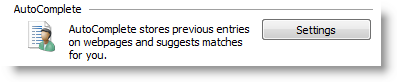
The other method (of disabling), is actually where we'll enable password prompting, by clicking on Tools \ Internet Options and select the Content tab. Then click on the Settings button next to AutoComplete in IE 7…
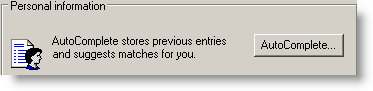
…or click on AutoComplete button in IE6.
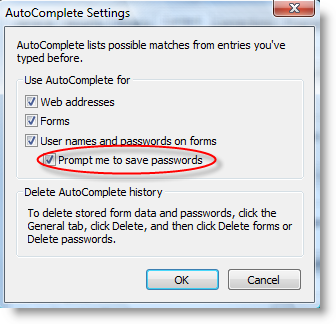
Now you just need to click on "Prompt me to save passwords" and click OK.
Next time you visit a web site that you need to logon, you should see the prompt to save passwords.

Comments on Make Internet Explorer Prompt You To Save Passwords After Being Disabled
leny @ 2:22 am
tq… its simple and work!
Sunit @ 5:23 pm
Does not work in IE7
@Sunit
Sure does…and tested with IE7
Mean Christine @ 2:49 pm
boxes for both User Names & Passwords On Forms and Promt Me To Save Passwords are grayed out. In Regedit, I don't have a Storage2, only a Storage1. Now what?
sundar @ 7:03 am
Hi ,
I am still not getting the save password option i tried in internet explore 7 , and tried various option for getting the save password option it didnt work .
Then i upgraded to internet explore 8 even after that i am not getting the save password option ,
kinldly help me some one
Malvin M. Gaa @ 7:55 am
I have the same problem … I tried following your instructions in these link
>>>http://www.watchingthenet.com/how-to-force-internet-explorer-7-to-save-web-site-password-after-answering-no.html <<<
but I cant find storage 2 or storage 1 at regedit. Maybe because I clear and deleted browsing history and all that! I also tried resetting my IE7 at internet options advance tab but still nothing happens.
Pls. Help!
Malvin
Tamir @ 10:19 pm
worked. nice…
Wendy @ 5:55 pm
I have IE8 and I follow all the step mention above, and I still have the same problem on not been able to get the question on save password option. Can you please help me on how to fix this problem? I tryed the autocoplete, and still don't work
Cherry @ 3:10 pm
this is not working for me. i hate IE8 and as far as i can tell i cant even get rid of IE8 or i would. i didnt have this problem with IE7 and i had the box checked to delete history and still i had no such problems with passwords as with IE8 !!
Cherry @ 3:11 pm
i hate IE8 … this is not working. i never had such troubles with IE7 and i even had it checked to delete history!! i cant even tell there is a way to go back to IE7 and i have tried!!
Cherry @ 3:13 pm
delete or ignore one of these cuz it didnt seem to show up so i did it again.
Vicky Mishra @ 12:19 pm
Thanks for soulution…………..
T. Emerson Coleman @ 2:40 pm
IE will not prompt you to save your password on some secure sites, i.e., those beginning with 'https:'.
Carlos Jimenez @ 12:17 pm
Great I saved the password, and since I use my computer to access the information I'm fine…Now I decided to use another computer and I don't remember the password, and can not change it on the website unless I have the old password.
Where do I find the password I originally set in the website?
Firefox has the capabilitiy to see the password introduced to every website, does IE 8 does too? I can not find where the login and password is saved and I could see them, please advice.
Best regards, Carlos J.
The Rev @ 10:01 pm
I am using I.E. 8 on Vista. I made the mistake of telling a new website to not save the password (because I wasn't sure of the password). The next time I tried to log in, it did not offer to save the password - even though I did not tell it to never ask again for that website. I have tried the solution of going to Tools>Internet Options>Content>Auto Complete>Settings and checking the box, "Ask Me Before Saving Passwords." But it was already checked! NOW WHAT???
Norm @ 7:07 am
how do i get autocomplete to save passwords without being prompted everytime?
Paul Gesh @ 8:55 pm
Great tutorial! Thank you.
Mustafa Ahmed @ 12:24 pm
Nice Tutorial Thank u
-
i am 11
gary @ 7:55 pm
I too would like to know how to fix IE8 to save or hold usernames as passwords as IE7 does. I took 8 off and put 7 back on using defaults and didn't have to change a setting. All I did is check the "yes" box when asked and next time to that site they both were saved fine. I know curiosity got the cat but I want it to get me too!!!!
Iain @ 7:26 am
This is really simple if using IE8. Follow these instructions….
On the internet explorer tool bar click…TOOLS
Scroll to the bottom and select 'INTERNET OPTIONS'
Select the CONTENT tab (4th one)
Select the AutoComplete SETTINGS tab
Ensure the 'ask me before saving password' checkbox is ticked, click OK and close.
Done !!
snt @ 4:07 pm
@Iain:
It is not that simple and it doesn't work. So many people have this problem. Also, once you have selected 'No' to the question offering to save password, there is no simple way by which you can reverse it.
Vijeet @ 2:40 pm
I dont know it worked for other or not but it worked for me
idaho @ 3:03 pm
Thank you for advice.
Posty @ 1:56 pm
Try Clearing the History in that same box that you select "ask me before" there is a button to clear the history, once you click on it you can select to delete any saved password. once i did that, the popup came back for me.
Good work…… 🙂
jim @ 11:18 pm
I'm using IE8 and deleted history and cookies also all are clicked on autocomplete then clicked display mixed content and restart the computer. Same thing IE don't ask me to save password.
Pls help.
Cristin @ 6:38 pm
@T. Emerson Coleman: This is my issue - it's a secure site, but have been able to save my password using this site on another pc (which may have been running an earlier version of ie, not sure). Can I get it to save pw for secure sites on ie 6 or higher?
lisander @ 12:10 am
I am very sorry saying that, but it doesn't work
those 2 ticks are way known, yet not enough
MrComputerGeek @ 8:09 am
Please don't let Internet Explorer remember any of your passwords. It's convenient and all, but if you get Spyware/Malware that remember password feature will get exploited to no end. Please, do not have it save passwords, it's just a huge exploit waiting to happen.
Jaime I. Ade @ 2:24 am
As I watch, A lot of people doesn't like to save passwords but also a lot want to do so for comfort on the net.
Just let them enable or disable the facility of saving as they wish without restrictions. Be democratic minded. If not, remove the options; rather than make a fool to many on options that doesnt work. Thanks.
NICK @ 1:34 pm
okay that didn't work now what!
Fitto @ 8:09 am
It's raining atm and Thanks a bunch it worked like magic. Although magic is forbidden because it's evil but this was cool! Now we can sign in with just a press of a button here and a click there, life is easier, and the risk of finger joint injury is reduced. But sorry because i lied, it's not raining, bye now.
Rua Grip @ 5:51 am
Hello
I'm using IE8, deleted passwords (in deleted options) and have autocomplete on.
It worked fine.
The problem: I just erased all the paswords to solve one passwords remeber. Not nice!
Password Boy @ 2:10 pm
The steps posted above does not work. Does anyone have the solution to this on how IE 7 can offer to remember password in a secure URL?
ofir @ 4:29 am
thanks!
IE9 Windows 7 Home Version. I accidently clicked NO now I cannot get on my Yahoo page. Wanted to try the method first mentioned but I do not have a storage 2. What do I do? and how can I fix this? Help Please..
I don't get a user name at all I have to type it in each time. It is only the yahoo page. I acceidently clicked no on save password. It asks if I want to save password but won't let me. Soon as I close explorer and reopen I have to sign in agian. When I sign in it does not take me to my custom home page. But I can sign in. Does not recall the password or my personal yahoo. Also I can go on another computer and log right into the account. No problem. I tried another yahoo account to see if it would save but it would not save that one either. All other pages no problem.
HELP!!!!Please Chris
June @ 5:31 pm
@Vijeet:
does not work for me either.
seo @ 1:02 pm
Simply want to say your article is as astounding. The clarity in your post is just great and i can assume you are an expert on this subject. Well with your permission allow me to grab your feed to keep up to date with forthcoming post. Thanks a million and please carry on the gratifying work.
Friendly Neigbor @ 3:25 pm
@Malvin M. Gaa</a
lower down the security level so it will accept cookies
Friendly Neigbor @ 3:27 pm
@chris:
lower down the Privacy lever,set it to accept cookies
milhan @ 11:54 am
I am running internet explorer 8 on windows xp. I read the tutotial and tried it out. Everything works fine except one website. That is, I can't get the IE prompt for that specific website. Other browsers such as google chrome, firefox will prompt and save the password for the website I am talking about, but IE won't do it. How can I get the IE8 to prompt and save the password for that website too? Note that it is an https connection to the website.
James @ 11:30 pm
Ace!!!! thank you.
Jeff @ 4:27 pm
To get IE to promt again after you said NO -
Left click on user ID field, delete the memorized user ID from the list that pops up, then type in the user ID and password and it will promt again.
tra03 @ 7:21 am
@Posty:
Thanks Posty. Your comment helped me. I cleared my Internet browsing history and then cleared the Auto Complete history on the Content - Auto Complete settings box.
Don George @ 11:48 am
It would certainly be helpful if I didn't have to key my entire comment in all over again if I had forgotten to key in one of the required fields above. This is my third attempt.
the question is: How do I get IE to ask me if I want it to remember my password if I have already said no to that question? I had already turned on the autosave password function but since it was the first time I had visited a particular site I said "no" to the save password question. Now I find that I go to that site frequently and it would be helpful for IE to remember the password for that site. Turning the autosave function off and then turning it back on does not fix this issue as suggested by some who have not read the question correctly. Also is there a way to make IE remember the signon ID as well or is it just the password that it will remember?
Rahul Tiwary @ 11:57 am
Hello Dear I have Some Problem passwod not save in Internet Explorer But Firefox working properly
@leny:
HamsterO @ 6:53 pm
Internet explorer 8 does not prompt to save ID and password in Craigslist login so I'm forced to type it in each time. What's the solution? I tried all above and still not working but the old mis-spelled logins pop up!
Brian @ 6:32 am
WTF? What about explorer 9 & 10?
Popps5246 @ 12:27 pm
Unable to make it work in IE10, either.
jim jones @ 8:57 am
@leny: I do all you say but it still doesn't work…I have to type bot email and passwords each time
Marco @ 7:11 am
@Don George:
Had the same problem and this what worked for me on IE11:
* Go to Internet Options and under Content click on AutoComplete Settings;
* Untick Forms and User names and passwords in forms and click OK and Apply;
* Restart IE i.e. close and open again;
* Go to Internet Options and click on Delete Browsing history;
* On next pop up untick Preserve Fav website data and tick the rest - press Delete;
* Restart IE i.e. close and open again;
* Go to Internet Options and under Content click on AutoComplete Settings;
* Tick Forms and User names and passwords in forms and click OK and Apply;
* Restart IE i.e. close and open again;
* Go to the website you want IE to remember the password and log in - it should ask if you want to remember the password.
Hope this helps!
Satyajeet @ 10:54 pm
What about for those website which don't offer to save password like paypal?
Can we change that?
Rick @ 6:20 pm
@Marco: Much easier method for newer I.E.'s. Tools>Internet Options>Content>Auto Complete/settings>Delete Auto Complete History>click ok and restart.
Amy @ 1:27 pm
This worked!!!! thank you!
Amy @ 1:52 pm
This worked - thank you so much!!!
David @ 10:38 am
What a data of un-ambiguity and preserveness of precious knowledge concerning unpredicted emotions.|
Muhammad Waseem @ 4:57 am
I want my Internet Explorer to remember my user password. but in explorer Option "User names and passwords on form" is deactivated and I can not select any option from there. please do the needful