


 A few ways exist to restart, shutdown, or log off your Windows XP and Vista computer. The most popular methods used are the Start Menu or the famous Ctrl-Alt-Del.
Sometimes you may want to quickly click on a shortcut or create a keyboard shortcut that will accomplish the task. If so, here's a quick way to create those shortcuts to execute either restart, shutdown or hibernate.
Windows XP and Vista, include the built-in command shutdown.exe that will restart, shutdown and log off (Vista shutdown command includes the option to hibernate) your Computer. The shutdown command is also available for Windows 2000 and 2003 servers.
The basic options for shutdown.exe for both XP and Vista are:
- -l Log off
- -s Shutdown the computer
- -r Shutdown and restart the computer
- -t xx Set timeout for shutdown to xx seconds
On Vista (only) the hibernate option is
- -h Hibernate the local computer.
To create a shortcut to shutdown your Computer, right click on the Desktop (or where you want to create a shortcut), and select New \ Shortcut. In the Type the location of the item text field enter:
%SystemRoot%\System32\shutdown.exe -s
NOTE: following screen shots are from Vista. Windows XP Create Shortcuts wizard will look a little different but the steps are the same. The %SystemRoot% is a System variable for C:\Windows folder.
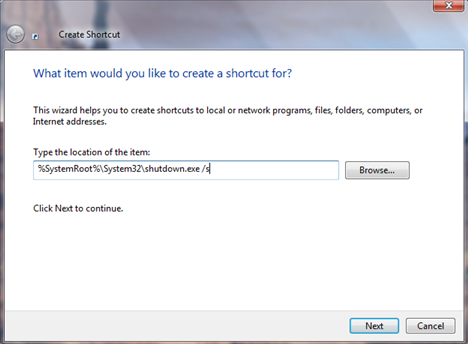
Then click next to continue and give the shortcut a name and click Finish.
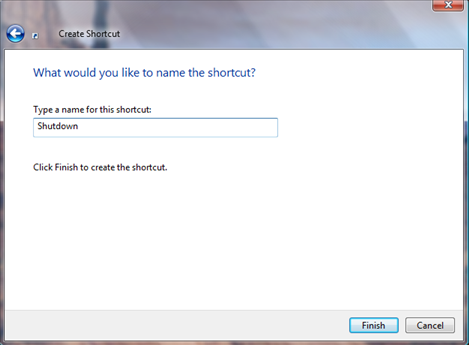
If you want to delay the time for restart, shutdown, log off, or hibernate (Vista only), you can use the -t switch to set a timeout delay for the command to execute. In the example above, adding timeout to the command for 10 seconds would look like this:
%SystemRoot%\System32\shutdown.exe -t 10 /s
If you prefer to use the the keyboard, you can easily add a keyboard shortcut to the new shortcut by following the steps outlined in the article Create Keyboard Shortcuts on Windows.

Comments on Create Shortcuts For Restart Shut Down Or Logoff On Windows XP and Vista
sabarigiri @ 3:42 am
dear team,
if possible plz send me how to create shortcut in windows 2000
send it to my mail
chris @ 1:32 am
unfortunately, shutdown.exe does not work properly if you specify the options with a dash (-) as described in this article. you'll have to use the slash (/)
@chris thanks for catching that mistake. I have updated the article with the correct syntax.
racybhavik @ 10:07 am
Can there be something that can ask the user to cancel shutdown till the timeout period expires?
Thanks in advance:)
@racybhavik
I don't know of anything that can prompt the user to cancel (other than writing code), but what you can do is open up a command prompt and type
shutdown /a
to abort shutdown. Or create a second shortcut using the above command. This way you can quickly click it instead of opening a command prompt.
eoin @ 6:25 am
This doesn't work unless you are logged in as an admin. Any workaround for this problem?
@eoin
What Windows Operating System are you running?
eoin @ 11:02 pm
xp
@eoin
For what ever reason, you user account does not have the right to shutdown the system when executing the shutdown command (which is interesting since you can probably shut down from the Start menu).
Your best work around is to set run the shortcut with alternate credentials (admin account)when it is launched. To do this:
- right click on the shortcut (you created to shutdown, restart, etc)
- make sure the shortcut tab is selected and click on the Advanced button at the bottom
- check the box next to Run with different credentials and click OK back to the desktop.
After clicking on the shortcut, you will be able to select an account with admin rights and need to enter the password.
eoin @ 12:31 am
Ya I tried that, selecting an admin account, but it still does not shut down when clicking the shortcut icon (nothing happens, no message appears).
kayedanda @ 2:41 am
what about a shortcut for the standby mode? can anyone teach me how to do that? thanks!
anon @ 1:08 am
if you're using XP, restart the pc in safe mode. The administrator should appear in the welcome menu, and usually they're not password protected. Get in and change your account to an admin account. If you're using Vista, go to the root folder (usually C:\) windows\system32 and run cmd as administrator. Type in
net user administrator /active:yes
this will make the administrator appear in the welcome screen.
In vista it is possible to run the shortcut as administrator by right clicking the shortcut and choosing run as administrator.
Both the above will work only if the administrator account doesnt have password protection.
eoin @ 1:23 am
But I don't want to change my account to admin!
anon @ 7:01 am
😀 … no idea how to do it then… you'll have to ask a geekier person… ;P
JLJacobs @ 11:53 pm
Microsoft has a hotfix for this but it only will work on SP1. Most have already updated to SP3 so when you try to load the hotfiz you get an error msg that tell you it will not load because the update is older than the hotfix. So much for M$
— Jonn
That Person @ 4:56 pm
Is it possible to enter a code that will keep it from logging off?
This Person @ 6:45 am
http://www.addictivetips.com/windows-tips/prevent-log-off-and-shutdown-of-a-windows-xp-computer/
That link will help you. It says its for XP, but will work for vista as well
Eli Be @ 10:17 am
Shutdown code:
C:\Windows\System32\shutdown.exe -s -t 00 -f
Restart/Reboot code:
C:\Windows\System32\shutdown.exe -r -t 00 -f
Log off code:
C:\Windows\System32\shutdown.exe -l -t 00 -f
u can change the 00 to a number of seconds you want for timeout, just in case u want to storp the opperation (wm_ …)
lol @ 7:44 am
@eoin: the same problem for me.
lol @ 7:47 am
@anon: the administrator is protected with password � isn't there any other possibility for the shortcuts? because I'm just at one PC admin at our school but, I'm not network administrator so I can't change it at other PC's � maybe you know any other possibility to be admin at all other PC's?