


 While Vista added many new features to it's interface, it also included many new features to Windows Explorer interface as well. With the introduction of breadcrumb trails as the default view in the address bar:

Vista also lets you change the view to XP's path style:

This feature is handy if you have the need to copy the path of folders as text. But how about copying the path to files including the file name? Vista has that covered with a hidden shortcut to easily copy file paths using the keyboard.
In XP you would first need to copy the path of the folder, paste it somewhere, then right click the file and select properties of a file to copy the file name (way to many steps).
To easily copy the full path to a file, including it's file name in Vista, locate the file using Windows Explorer or Search for the file, then hold the Shift key and Right click on the file name.
In the Right click context menu select Copy as Path.
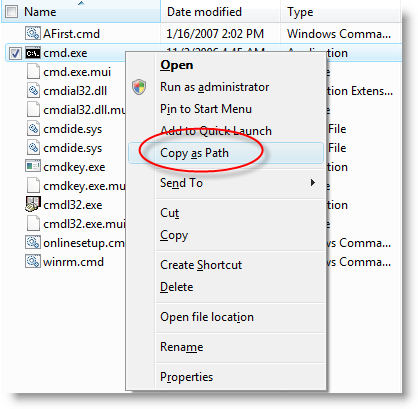
Now when you paste…
"C:\Windows\System32\cmd.exe"
…the path to the file will also include the file name with quotes. Sweet!

Comments on Copy File Name And Path as Text In Vista With Keyboard Shortcut
arlanda @ 11:46 am
To clarify the above:
1) if you right-click on a file in the RIGHT window pane, you'll see the option "Copy Filename" (Note: no need to hold down the SHIFT key)
2) if you right-click on a folder in the RIGHT window pane, you need to hold down the SHIFT key to see the option "Copy as Path"
3) no such option available if you right-click or SHIFT+right-click on a folder in the LEFT window pane
Tested on a Vista SP1 machine.
Or if you prefer, install the freeware app called "Copy Path to Clipboard" to make this option available to both left and right pane.
Jesper @ 3:09 am
And in XP you cando it by dragging the file to the Run "box" in the lower left corner. And then copying the text from there. A little akward but it works everytime. 🙂 Nice that Vista and Windows 7 has a more obvious way.
Max @ 12:15 pm
It is not a keyboard shortcut. It is keyboard plus mouse. I am looking for pure keyboard shortcut, like Ctrl+D or something of sorts.
SOB @ 6:55 am
Hi Max,
This works for me very well, though there might be other ones. Shift+F4, Ctrl+A, Ctrl+C, then paste wherever with Ctrl+V, without touching the mouse.
SOB @ 7:13 am
And if u want it hyperlinked before pasting it Ctrl+K, Ctrl V and 'enter' key
Rajesh @ 11:49 pm
What is the keyboard shortcut to "copy as path " ?
SOB @ 1:09 pm
The keyboard shortcut to "copy as path" is Shift+F4, Ctrl+A, Ctrl+C
Heather @ 1:33 pm
This is certainly the fourth blog post, of your site I
went through. But yet I love this one, “Watching The Net» Copy File Name And Path as Text In
Vista With Keyboard Shortcut†the most.
Regards -Philomena
Senthil @ 12:47 am
Hi Friends,
You above mentioned Hot Key to copy as path is Copy only the file location. But what me and others or expecting Copy as Path including the Name of file. (ie. Like c:\window\hello.doc)
Windows live is considered hotmail. I have email addresses at both domains and when you open them on the PC they both say hotmail in the header. Go with whichever you prefer @live or @hotmail.