


 One great feature that Windows users have long enjoyed is being able to open a command prompt window to the current folder from the right click context menu when using Windows Explorer. For anyone who is playing around or made the switch to Ubuntu, will find this feature is missing when using Nautilus file manager.
It's not because this functionality does not exist, it's just not enabled by default. Of course, since Ubuntu is Linux based, the equivalent of a command prompt in Windows is a Terminal Window (which means 'Open in Terminal ').
Here's two methods you can use to install Open in Terminal to the right click context menu in Nautilus.
The easiest method is to install from a terminal window.
Just click on Applications \ Accessories \ Terminal .
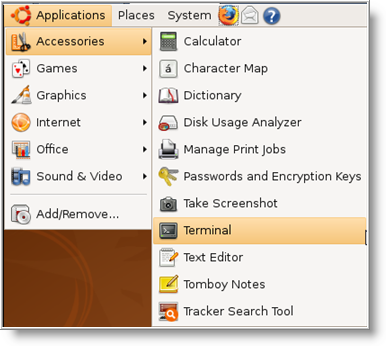
Once the window opens, copy the following command to the prompt and press Enter (you will be asked to enter your password when prompted):
sudo apt-get install nautilus-open-terminal
Once the installation has completed, enter the following command at the prompt to restart Nautilus process:
killall nautilus
After running the above command, Nautilus will open automatically. Just right click on any directory and you should now see Open in Terminal .
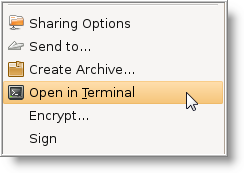
Clicking on it will open the current directory in a terminal window.
Note: If Open in Terminal does not appear in Nautilus, close any open programs, or applications and restart GNOME by pressing CTRL+ALT+BACKSPACE on the keyboard.
Install Using Synaptic Package Manager
An alternative for installing nautilus-open-terminal is to use Synaptic package Manager.
- Click on System \ Administration \ Synaptic Package Manager from the top panel menu (when prompted, enter your password and click OK ).
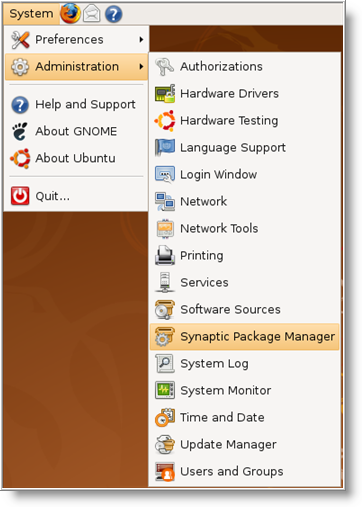
- Now click on the Search icon on the toolbar and in the Search field enter nautilus-open-terminal and click on the Search button.
- When the package has been found, click on the check box and select Mark for installation .

- Then click on Apply (green check icon) on the toolbar, and in the pop up window click the Apply button to confirm the changes.
- When the installation has completed, close Synaptic Package Manager, log off then back on.
After logging back on, open up Nautilus (just click on Places \ Home Folder from the top panel menu) and you should now see Open in Terminal when right clicking on a directory (folder).

Comments on Add Open Command Prompt Here Functionality To Nautilus In Ubuntu
Exactly what I was looking for 🙂
Install Using Synaptic Package Manager:
After the installation via synaptics there's no need to log off and back in!
Just proceed like this:
- install via synaptics the package - nautilus-open-terminal;
- run this command on the terminal - killall nautilus;
- invoke the program launcher by pressing (ALT)+(F2) and type nautilus.
- done!
by BRGZZ
Thanks Mike! Worked like a charm!
Man! That`s amazing. Great shot! I`m installing it on my ubuntu.
You can also define a keyboard shortcut to open a terminal in the current folder in Nautilus using extensions API as described here: http://zverovich.net/2011/02/user-defined-keyboard-shortcuts-in-nautilus/
>> "One great feature that Windows users have long enjoyed is being able to open a command prompt window to the current folder from the right click context menu when using Windows Explorer."
I beg to differ. I'm into my second hour of searching about this on WinXP, and so far there's been just one tool that appears to do what I want. Still searching, however, because want to do it with registry editing.
It seems there's a difference of opinions concerning which folder is the "current" one. I sincerely believe that, while in "/home/user/test", my current folder is exactly "/home/user/test", and I want my newly opened terminal to point there. However, nearly all solutions target folders *inside* "/home/user/test".
I want to be able to right-click inside the current folder (that is, in the empty space around the icons in the folder that I'm browsing) and have a "Command prompt"/"Terminal". (I personally want it only on Windows - on Linux I work in the terminal and browse on demand (`nautilus .`)).
Use cases I've had with file managers and terminals:
Windows: Did an SVN checkout and browsing the code using GUI editors. Now I want to fire a terminal and `grep -r` (gnuwin) for a string. No subfolders here to click on. Going to parent folder so I have something to click on is not an option.
Linux: I'm browsing a recent photo dump using Nautilus previews. Next thing, I want to archive some images based on a filename regex match. Again, no subfolders to click.
But, either nearly no one has had my problem, or I can't find the right search terms.
Cheers,
Lyubo
I totally agree with Lyubomir. I have been frustrated with this too.
This little tip helps a lot! Imagine we have to type in one command line to run the program for a specific data file in each folder.
@BobD: I see, so Shift+Right click on the empty area of Windows Explorer.