


 For Window users switching to Linux or Ubuntu, performing simple tasks can be a challenge. One simple task such as checking free and used hard drive disk space on Ubuntu, is easy using the graphical utility Disk Usage Analyzer or from a Terminal window using the command.
Checking Disk Space From Gnome and Kubuntu
Disk Usage Analyzer is a graphical menu driven application that reports disk usage in Gnome and Kubuntu environments. DUA (Disk Usage Analyzer) can scan the entire file system tree or individual directories, either local or remote. DUA is also dynamic, in that it will report in real time any devices that are mounted and unmounted.
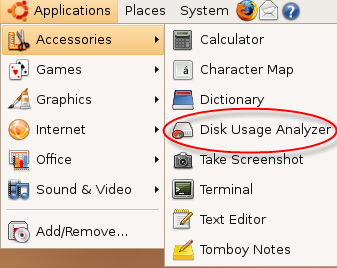
To access Disk Usage Analyzer in Gnome, click on: Applications \ Accessories \ Disk Usage Analyzer
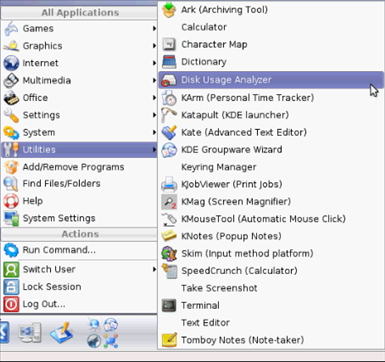
To access Disk Usage Analyzer in Kubuntu, click on K Menu \ Utilities \ Disk Usage Analyzer
When launched, DUA will start up in a stand by state, showing you total system capacity, used and available disk space.
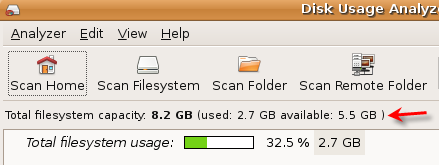
To view the entire file system including usage by individual directories, click the Scan Filesystem icon on the toolbar. When the scan is completed, the full tree of your file system will be displayed.
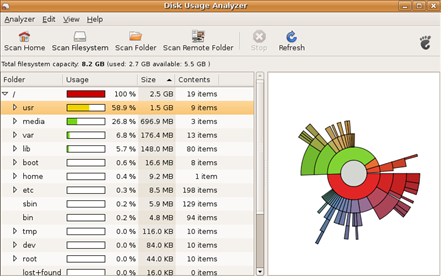
From this display, you get a nice picture of the disk usage on the entire file system. You can also expand the top level directories and drill down to see sub-directories and their disk usage, and sort each column to view each directory usage, size and contents. In the right window pane, a graphical layout is displayed. Moving your mouse over a block will display the directory and size.
Selecting Edit \ Preferences from the menu, allows selection of any additional devices connected to your Computer that can be enabled or disabled from being monitored.
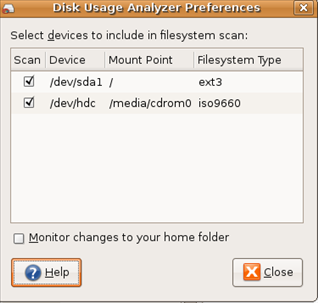
A feature that I like to use with Disk Usage Analyzer, is the ability to right click and open the directory by launching Nautilus File Browser.
Checking Disk Space From The Command Line
Another way to view disk usage in Ubuntu is from the Terminal window by clicking on:
Application \ Accessories \ Terminal from the panel in Gnome
K Menu \ Utilities \ Terminal Window from the panel in Kubuntu
Unlike Windows, finding available disk space from the command prompt is much easier in Ubuntu using the df command when connected locally or remote via an SSH session.
DF command reports how much free disk space is available for each mount you have. When executing DF, I like to use the -h option, which returns the output in a more readable format:
wtn@wtn2:~$ df -h
Filesystem Size Used Avail Use% Mounted on
/dev/sda1 7.5G 2.1G 5.1G 30% /
varrun 252M 108K 252M 1% /var/run
varlock 252M 0 252M 0% /var/lock
udev 252M 68K 252M 1% /dev
devshm 252M 0 252M 0% /dev/shm
lrm 252M 33M 219M 14% /lib/modules/2.6.20-15-generic/volat
DF can also report free disk space for individual directories by entering the following command at the prompt:
df -h /nameofdirectory
Using DF at the command prompt is most useful when checking disk space on remote computers.
To view more available options with df, enter df -help at the command prompt.

Comments on Ubuntu Guide For Windows Users: How To Check Hard Drive Disk Space
snotbutter @ 4:56 pm
i added you howto to fsdaily.com.
is like digg but for only free software. you should add to you bookmark this page links.
thanks
Luke @ 10:30 pm
Thanks, this was exactly what I was looking for, and very helpful as a recently switched Windows user.
Gertjan @ 11:34 am
Might be nice to mention this is actually the baobab program and can be started as such from the command line.
Cheers
Gertjan
tieuvinhlong @ 3:37 am
Error command in your post
df -h /nameofdirectory
[not is] ds -h /nameofdirectory
@tieuvinhlong
Thanks for catching that error. I have corrected the command in the post.
It's not very useful, the DUA scanning process is really slow.
The file navigator should show all units free space directly, like in Windows.
Using the command line is not usable for most users and using other apps isn't the solution.
You can look for the properties of each unit individually, but for example there is no easy way to see at a glance in which unit can I save a big file, but using GParted or others.
Ubuntu still has some things to improve to be comparable in usability.